Security Onion Log Integrations
Ingesting OPNsense and NetFlow logs for Security Onion
Out of the box, Security Onion has solid monitoring capabilities, however we can take advantage of its integrations (specifcally, the pfSense/OPNsense and NetFlow integrations) for better network visiblity. Keep in my mind that in my setup, Wazuh is used to collect endpoint-based telemetry. We will not use Security Onion’s Elastic Agents.
By the end of this exercise, we will have:
- OPNsense log ingestion (traffic traversing the internal network)
- NetFlow log ingestion (IP packet metadata)
OPNsense Log Ingestion
Head to the Security Onion web interface and click Elastic Fleet from the lefthand menu
Click the Agent policies tab
Click so-grid-nodes_general
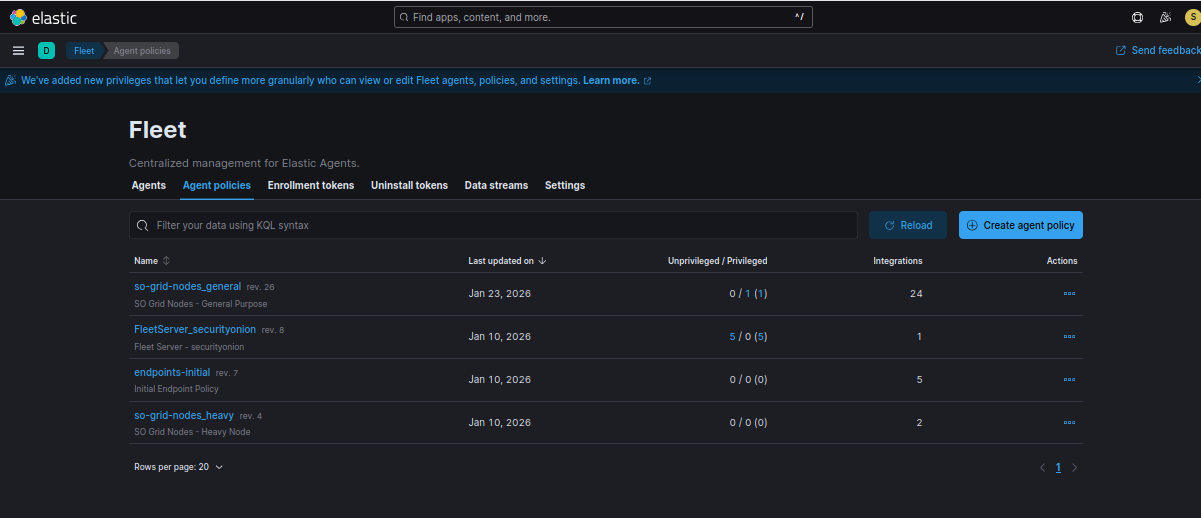
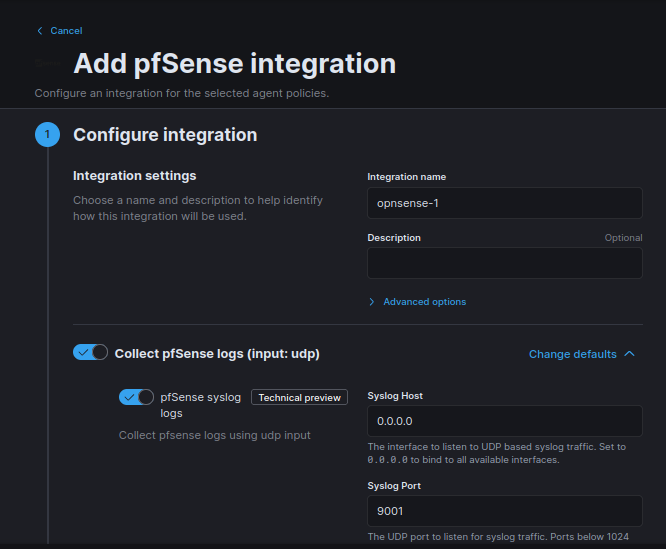
Click add integration
Look for pfSense (the name says pfSense, but this works with OPNsense as well)
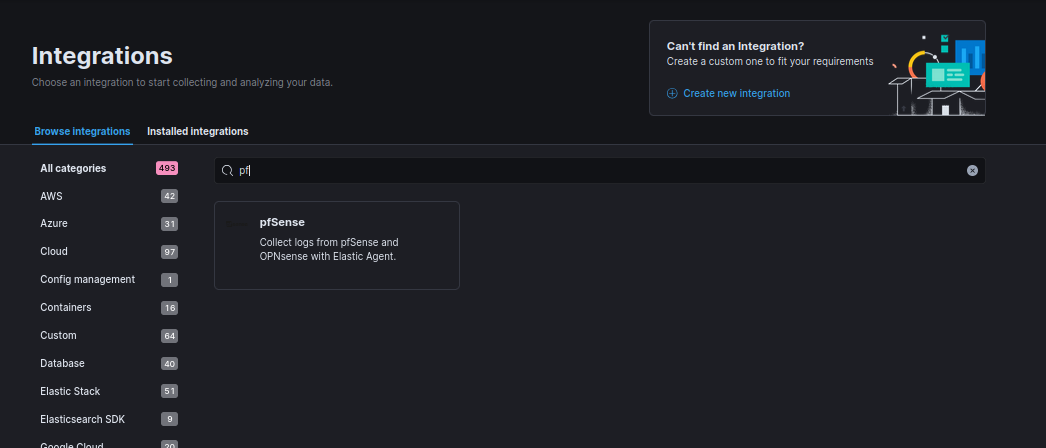
Click Add pfSense
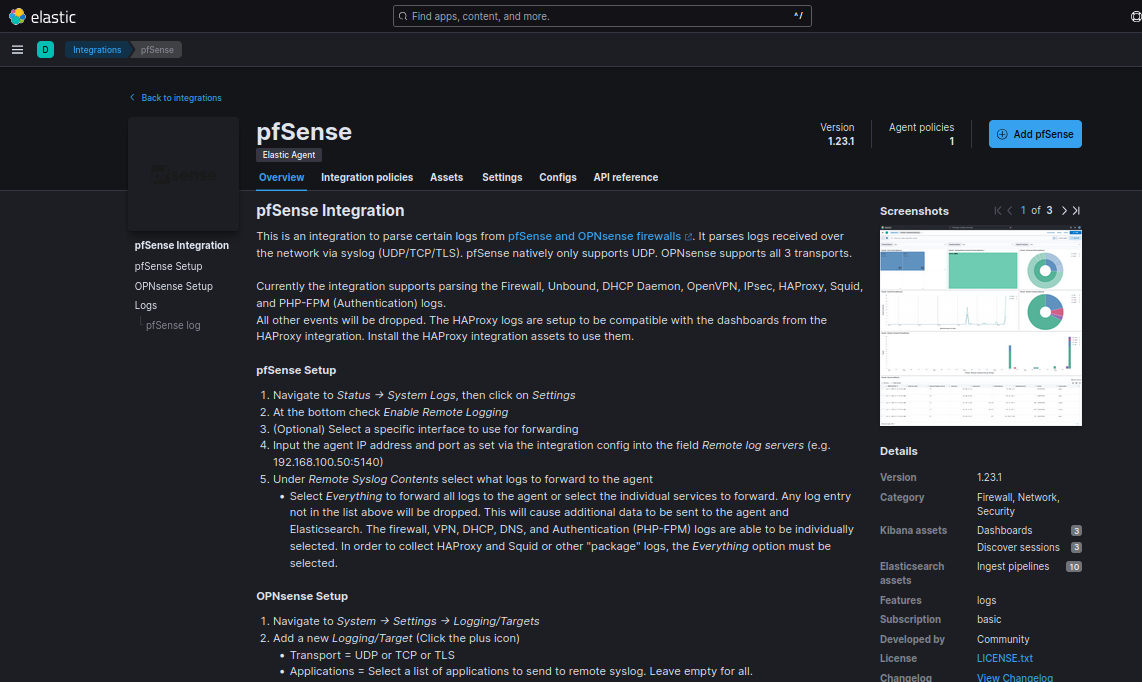
Change sysloghost to 0.0.0.0 so we can listen on all interfaces, leave everything else at default.
Save and continue
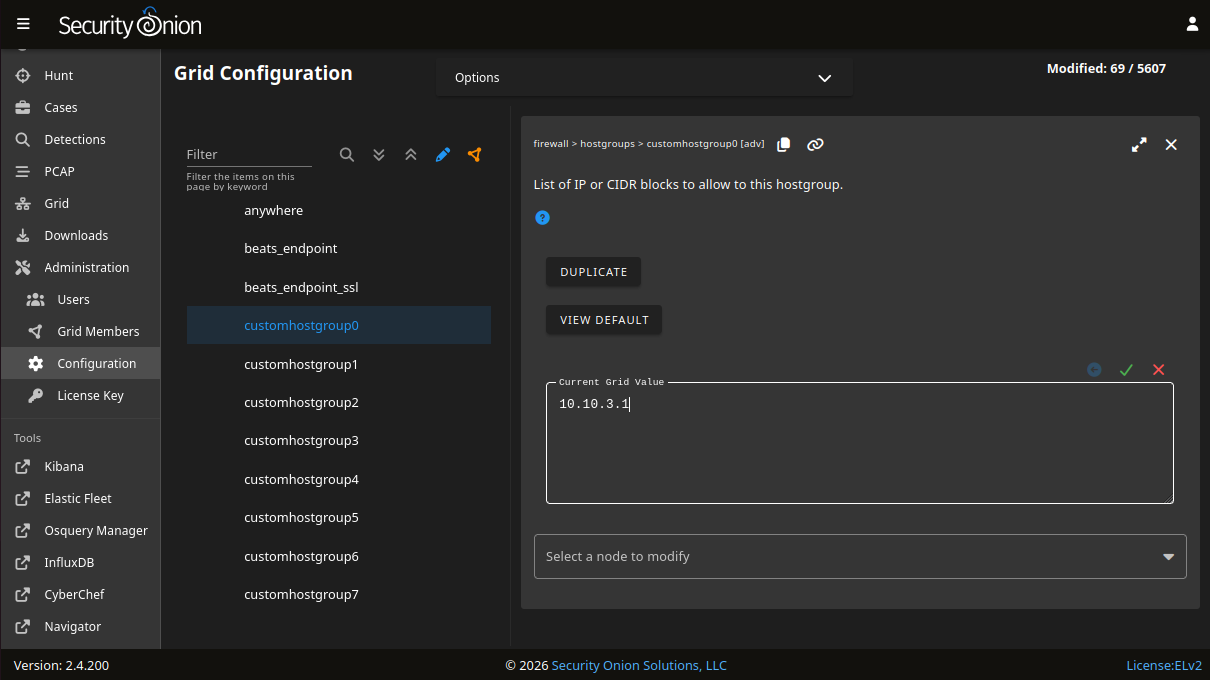
On the Security Onion web interface, head to Administration > Configuration
Head to Firewall > hostgroups > customhostgroup0
Under current grid value, enter the IP of OPNsense (10.10.3.1)
Click the green checkmark
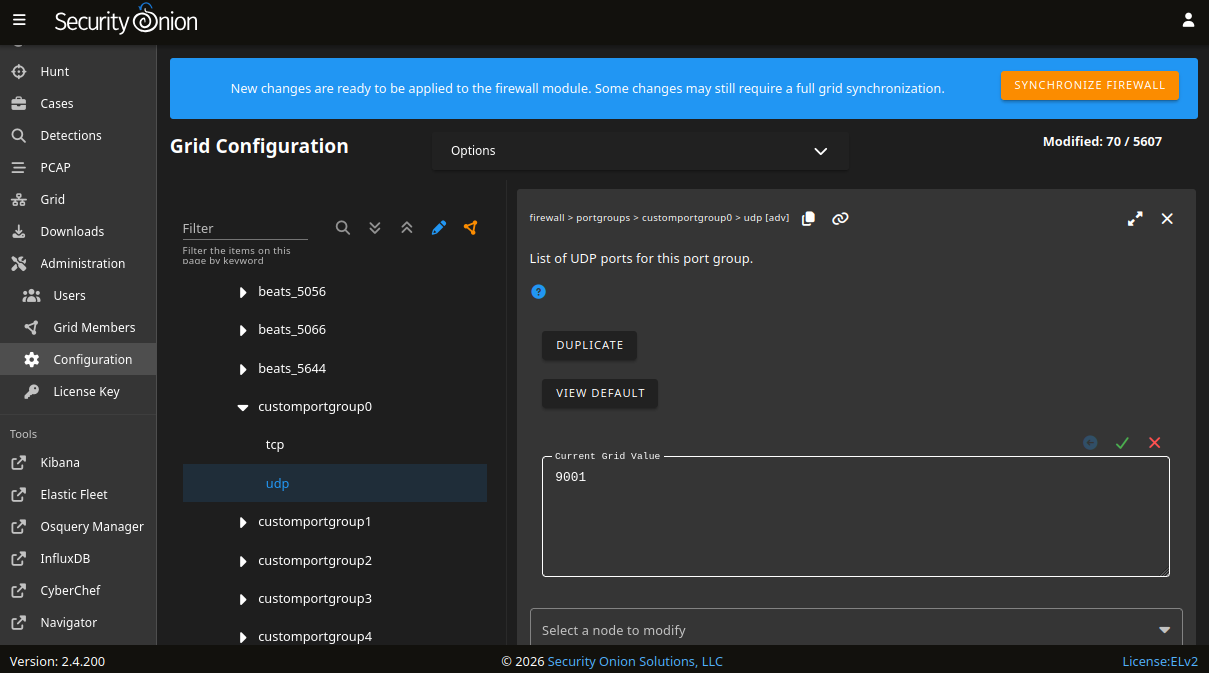
Next, head to Firewall > portgroups > customportgroup0 > udp
Set the grid value to 9001
Click the green checkmark
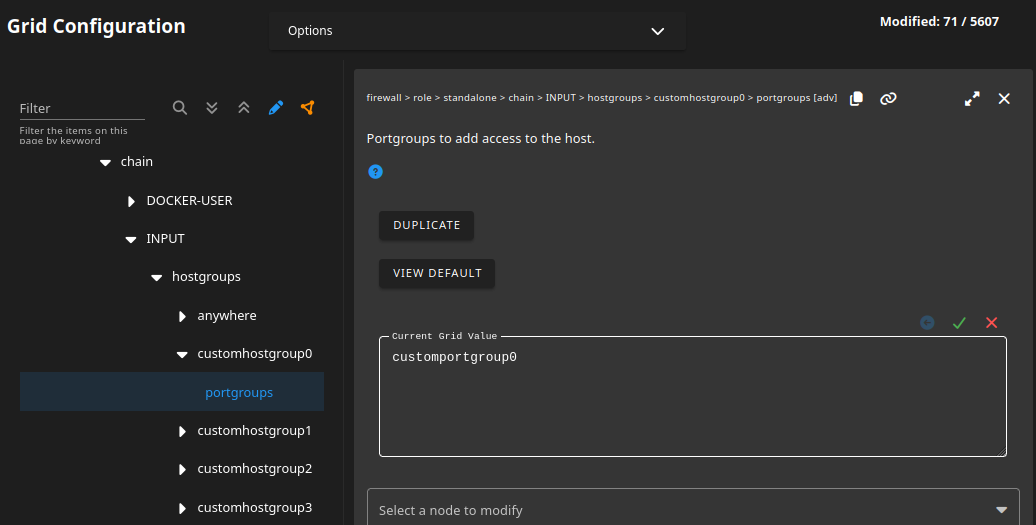
Next, head to firewall > role > standalone > chain > INPUT > hostgroups > customhostgroup0 > portgroups
Under grid value, enter customportgroup0
Click the green checkmark
Click synchronize firewall then synchronize grid

Next, head to the OPNsense web interface.
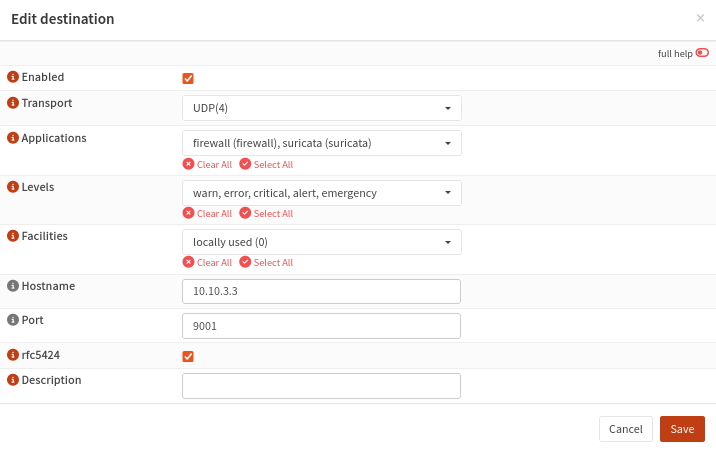
Head to System > Settings > Logging. Click on the Remote tab. Click Add
Transport: UDP(4)
Applications: select all for sake of testing
Levels: select all for sake of testing
Facilities: locally used (0)
Hostname: 10.10.3.3
Port: 9001
rfc5424: Checked
Save
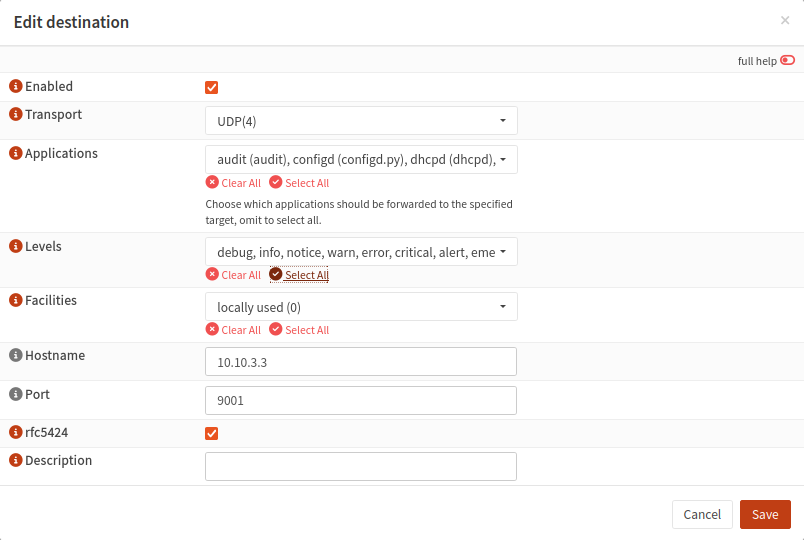
After a few minutes, head back to the Security Onion web interface and head to Hunt
We should see a pfSense dataset
Left click > Include to see all pfsense logs
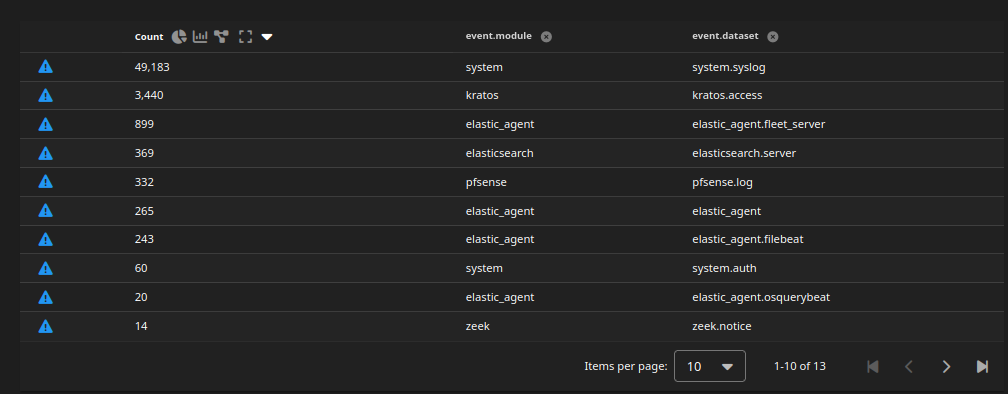
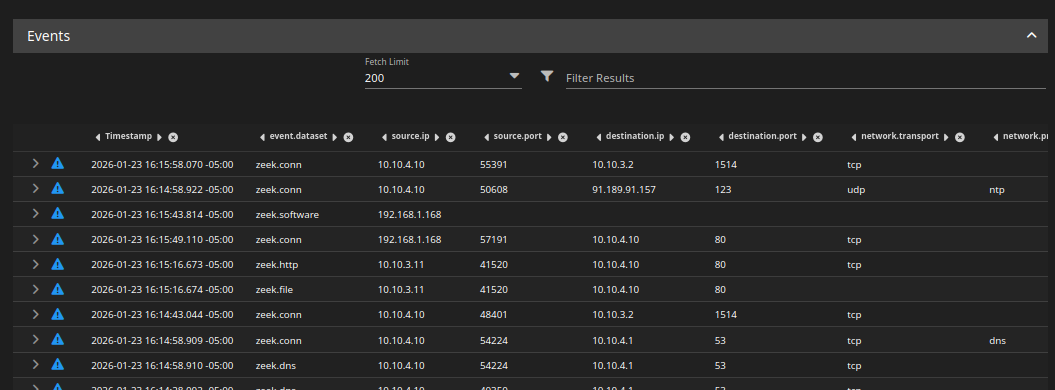
We should now see firewall traffic. Here, it looks like our VMs are reaching the Wazuh VM (presumably the agent connection)
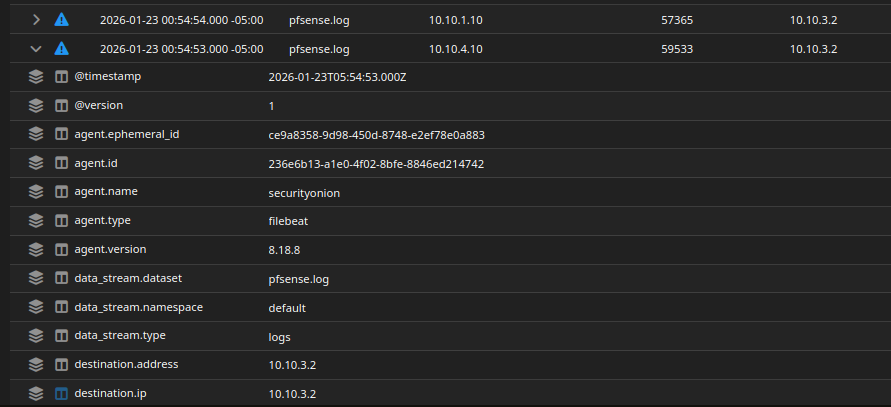
More logs
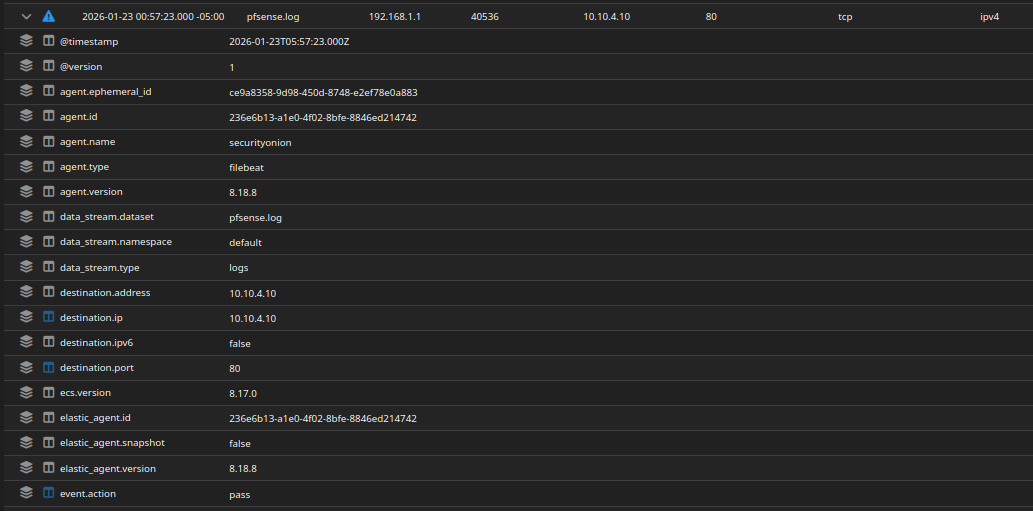
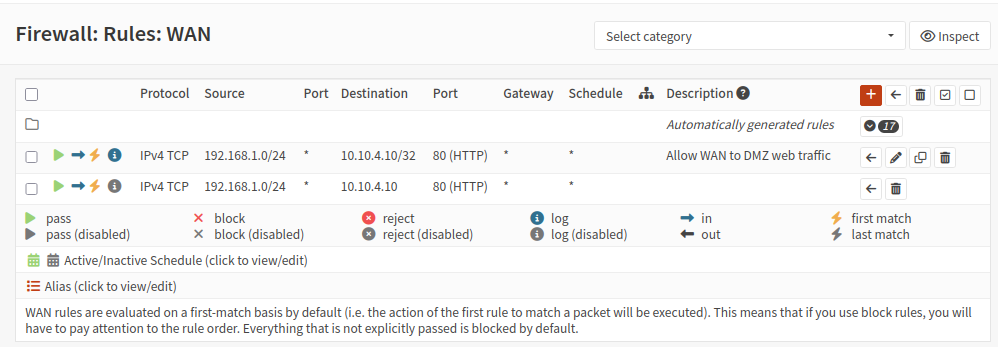
I adjusted the logging rule so we do not get too much data
I also enabled logging for the port forwarding rule (notice the blue i icon)
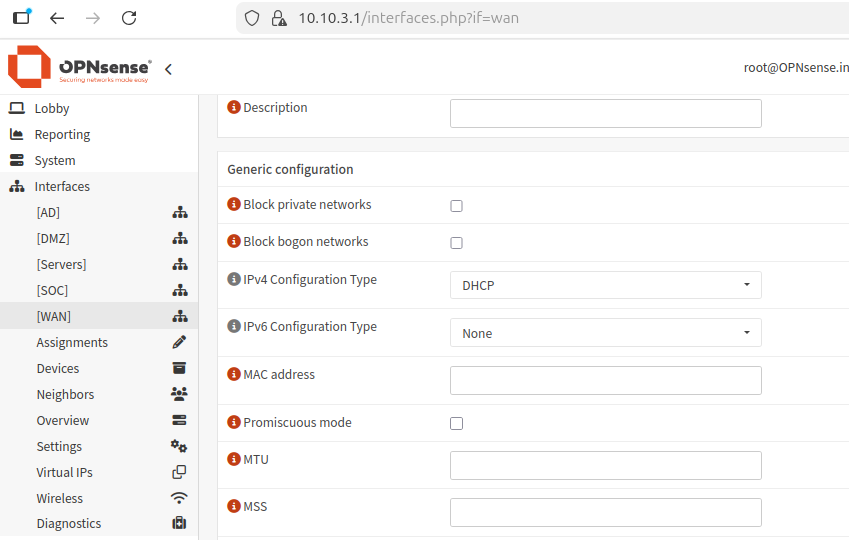
I disabled IPv6 on all interfaces so we don’t get IPv6 traffic or logs.
NetFlow Log Ingestion
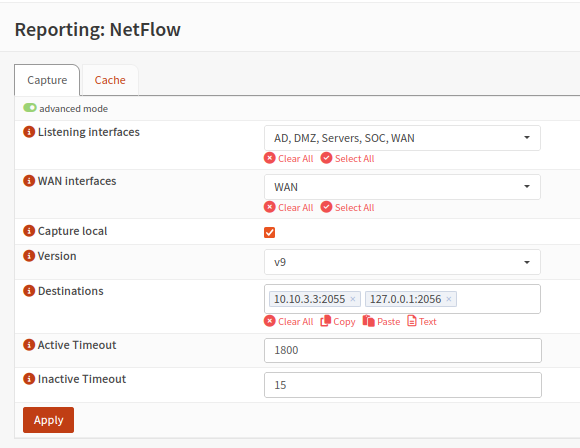
On OPNsense, head to Reporting > NetFlow
This is my configuration. It is basically listening on all interfaces and reporting to the Security Onion VM at port 2055. However, we still need to configure Security Onion’s side to receive the data.
This process is very similar to the OPNsense integration.
Click Elastic Fleet
Click the Agent policies tab
click so-grid-nodes_general
Click add integration
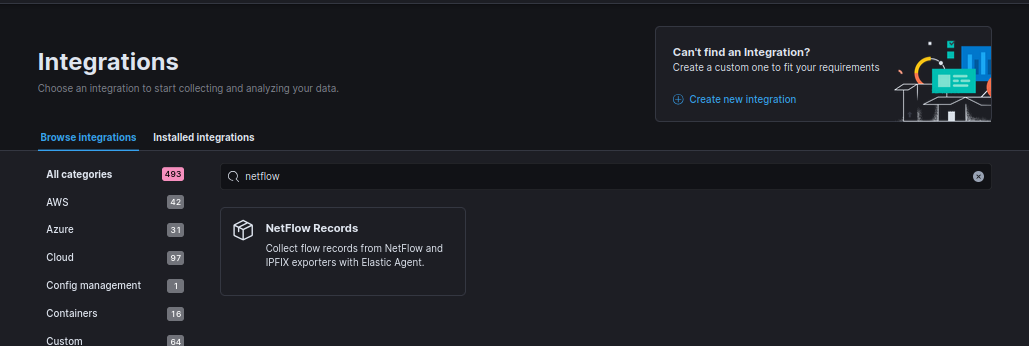
Look for NetFlow Records
Listen on all interfaces (0.0.0.0)
Make sure the UDP port is 2055
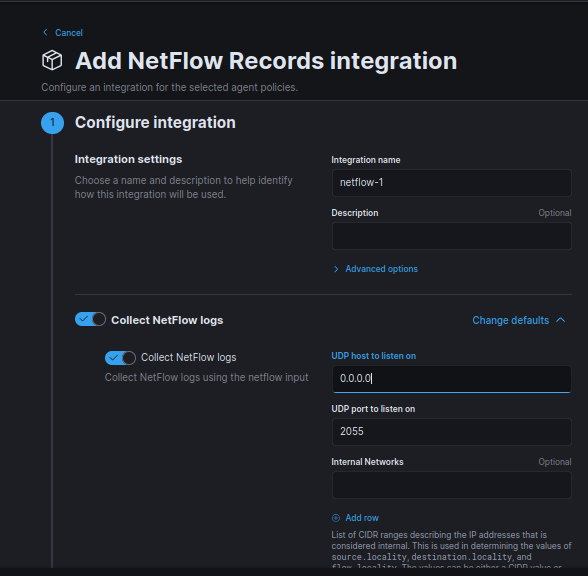
Leave at default
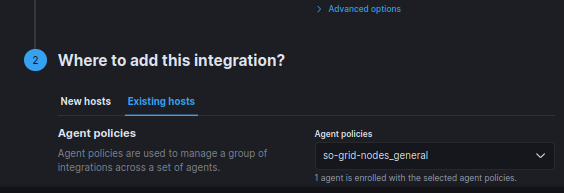
Make sure show advanced options checked
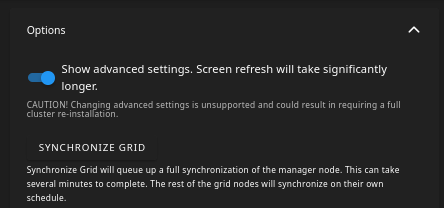
On the Security Onion web interface, head to Administration > Configuration
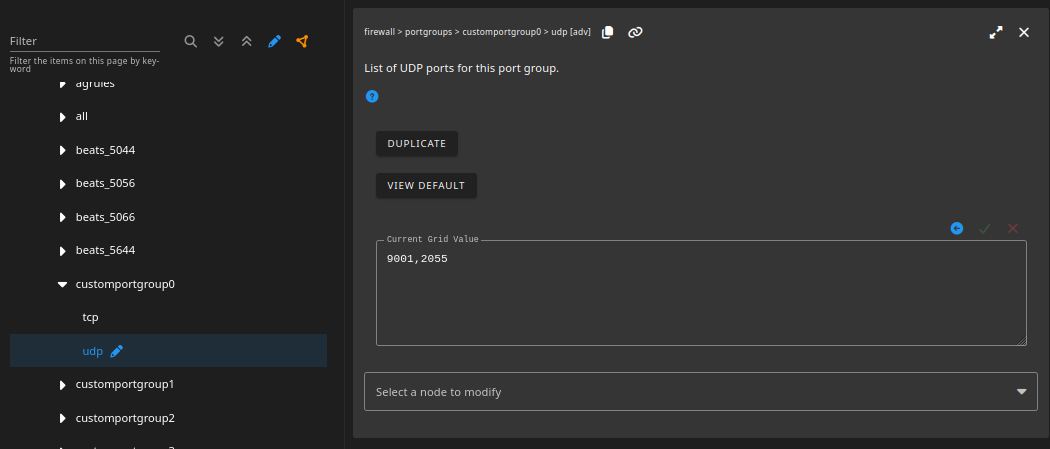
Head to Firewall > portgroups> customhostgroup0 > udp
Under current grid value, add 2055. Since we have multiple ports, separate them by comma (no spaces)
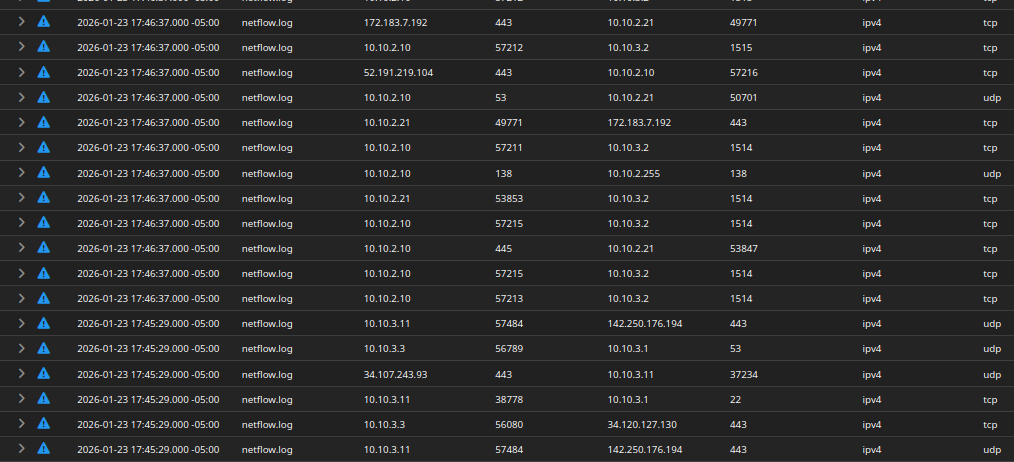
Head to Hunt, and filter for the netflow dataset. We should see lots of logs.
Monitoring Interface Verification (Zeek)
If for some reason you did not set up a monitor interface on Security Onion, follow these steps:
- Shut down the Security Onion VM and attach a new network adapter for the network to be monitored. In this case, I attached it to DMZ network. Reboot the VM.
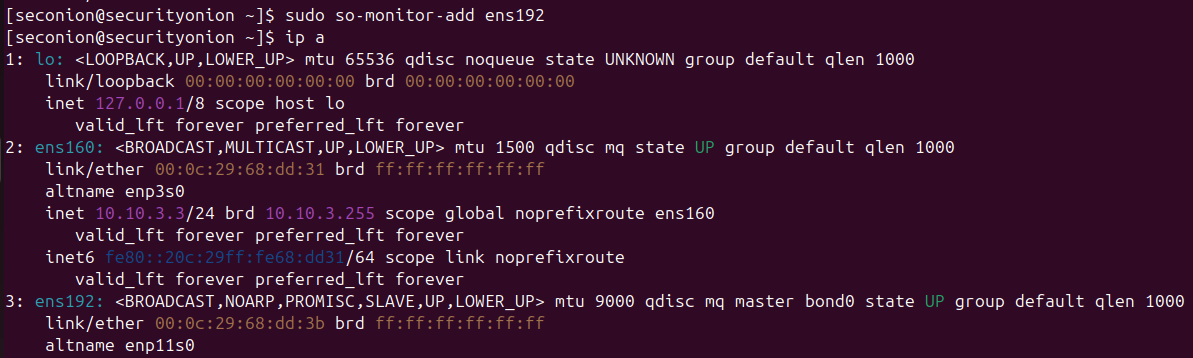
- Run
ip a. The DMZ adapter is namedens192. - Run
sudo so-monitor-add ens192to assign this interface as the monitoring interface. Notice that the adapter is set to promiscuous mode by default. This adapter should NOT have an IP address.
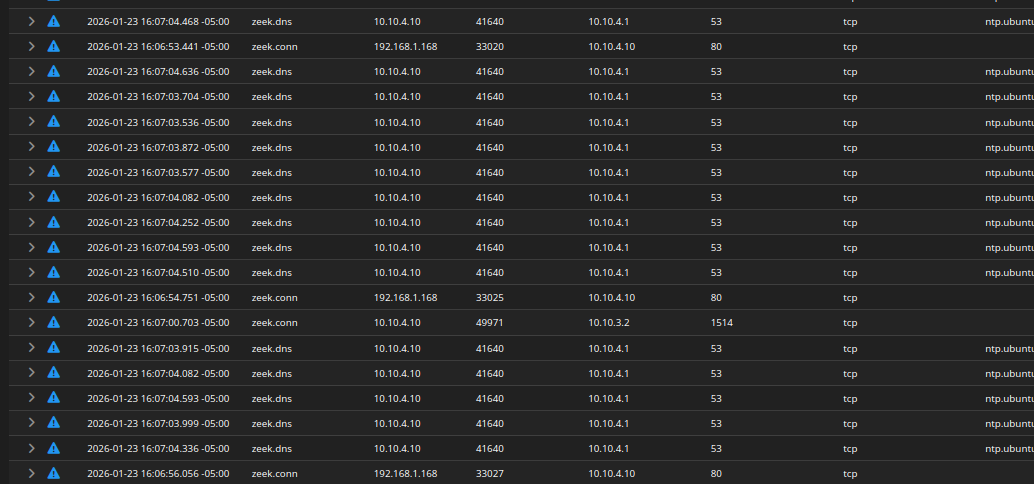
Generate some traffic on the web server VM, then head to Hunt on Security Onion and filter for the zeek dataset.
We should see some logs.
Fixing Unbound DNS
In my setup, there was tens of thousands of zeek.dns logs, pointing to ntp.ubuntu.com
Explanation
- WebServer (10.10.4.10) is trying to sync time
- Ubuntu resolves
ntp.ubuntu.com - OPNsense (10.10.4.1) is acting as DNS forwarder
- DNS replies are failing (
SERVFAIL) - Zeek logs every attempt
Sample log
1
2
3
4
5
orig_h:10.10.4.10   (WebServer)
resp_h:10.10.4.1    (OPNsense)
query: ntp.ubuntu.com
rcode: SERVFAIL
rejected:true
This is unnecessary noise that’s happening because:
- No upstream DNS properly configured
- No NTP server reachable
- VMs retry aggressively
- Zeek logs everything by design
To fix this, open the OPNsense web interface and head to Services > Unbound DNS > Query Forwarding and click Add
This is my configuration. Click save
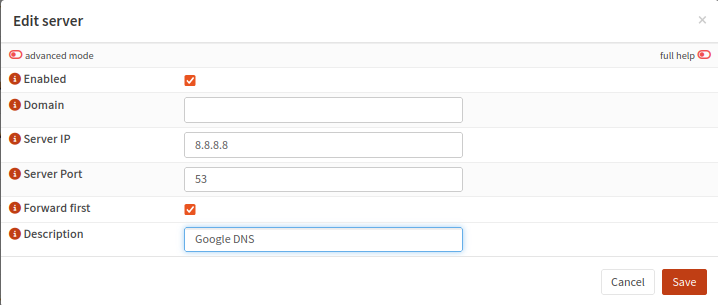
Now, we should see a lot less ntp.ubuntu.com logs.