Scheduled Task Detection
Creating and tuning a detection for suspicious task creation (Windows)
This rule will detect whenever a scheduled task is created, giving responders the potential to identify a malicious task before it executes.
Enable Logging for Scheduled Tasks
Windows does not log scheduled tasks by default.
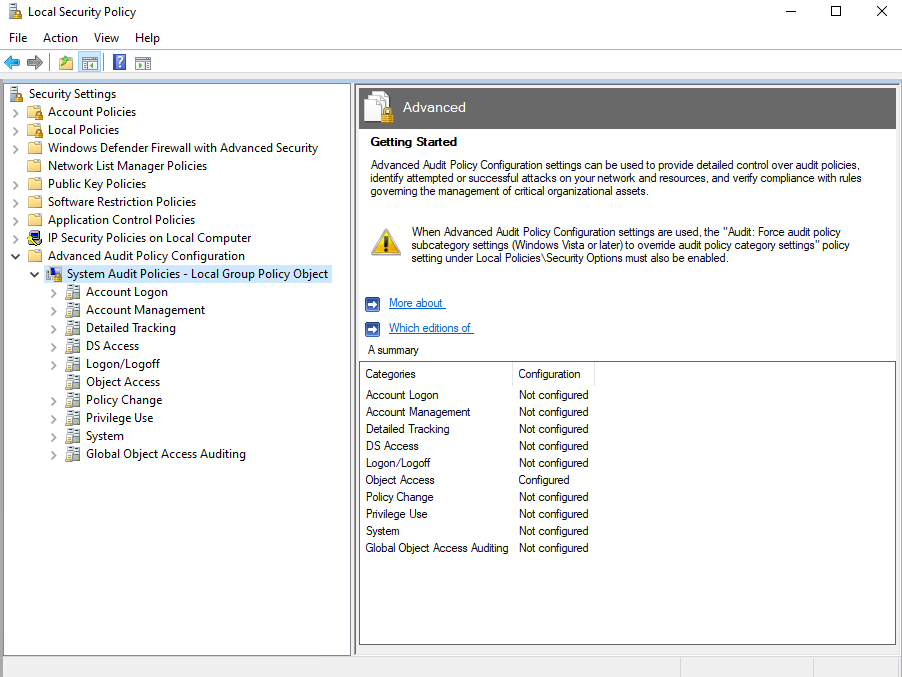
Head to Local Security Policy > Advanced Audit Policy Configuration > click on System Audit Policies - Local Group Policy Object
Click on Object Access
Yours will most likely show Not configured, but I configured this prior to taking the screenshots
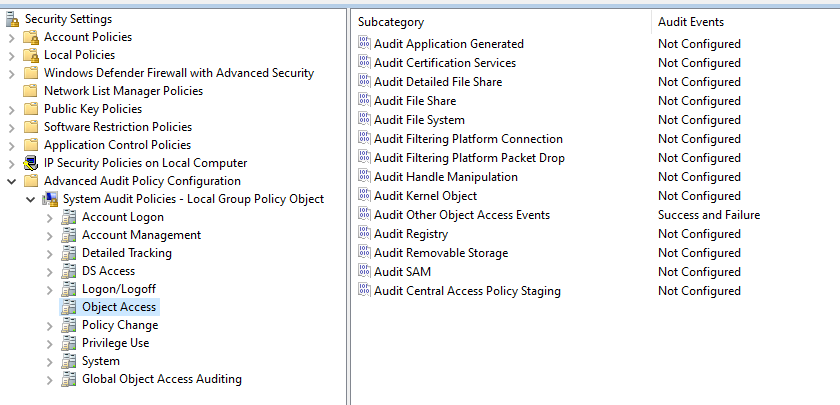
After clicking on Object Access, on the right hand side, click Audit Other Object Access Events
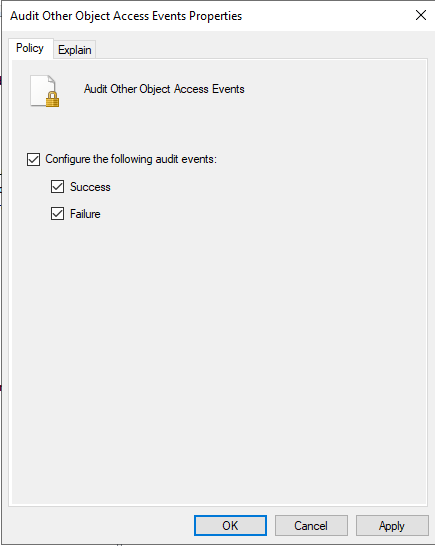
Check both success and failure, then click apply
Scheduled Task Logging Test
Head to Task Scheduler
On the right hand side, click Actions > Create Task
Name the task anything you would like, leave everything else at default
Head to the Triggers tab
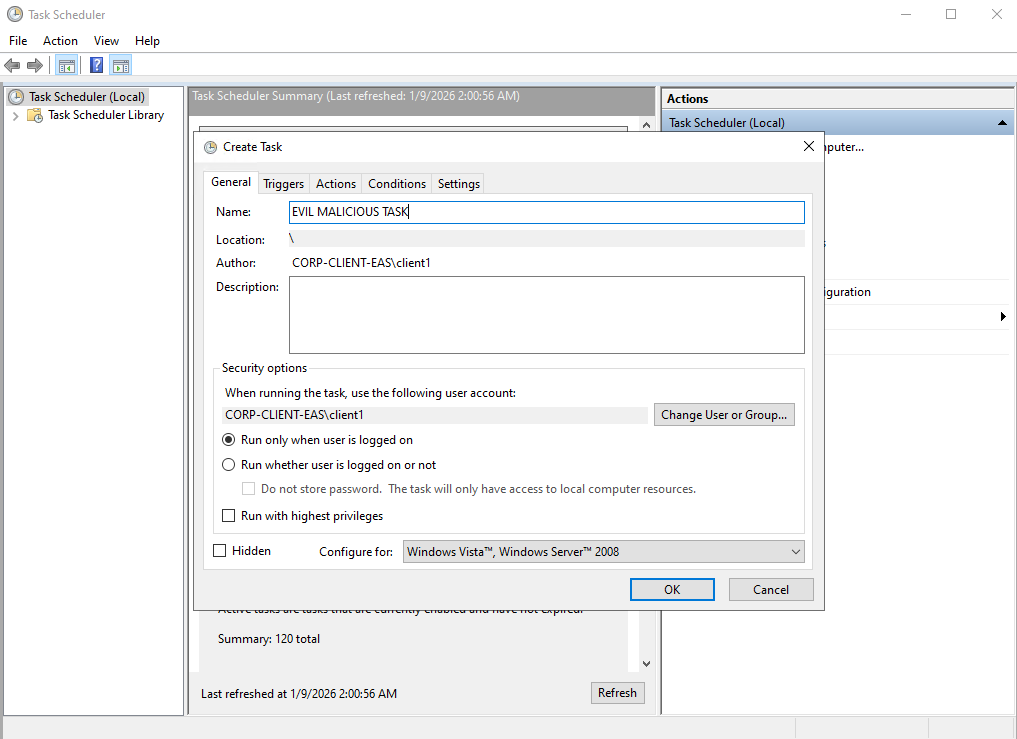
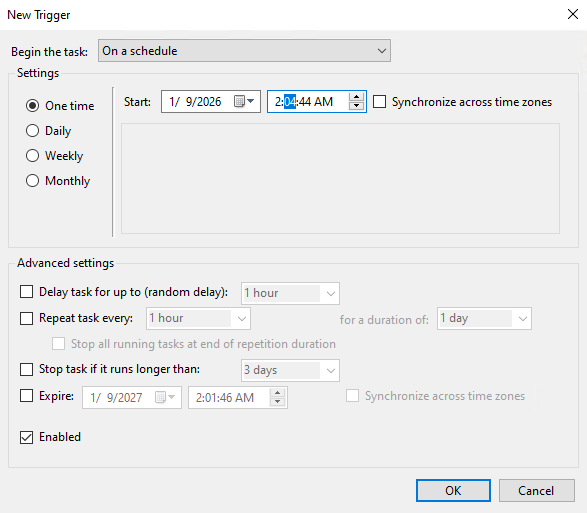
Click Trigger > New
I set this task to begin 3 minutes in advance
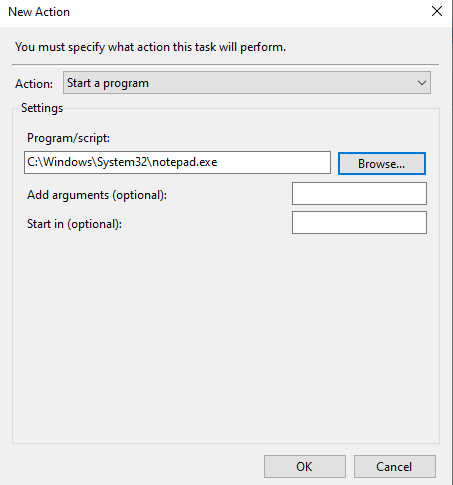
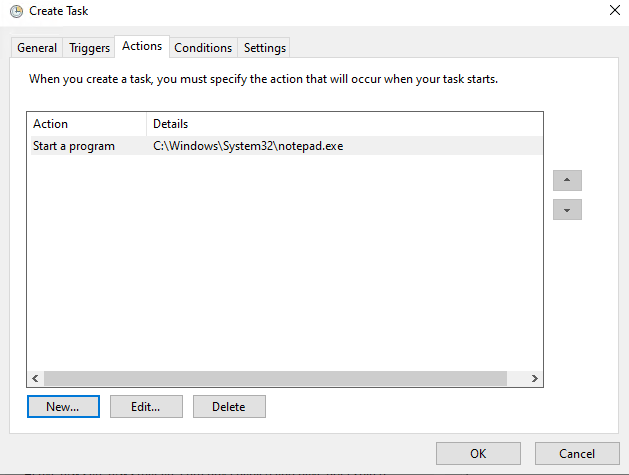
Head to Actions > New Action
This task will just open notepad
Apply the changes
After a few minutes, notepad should open on its own
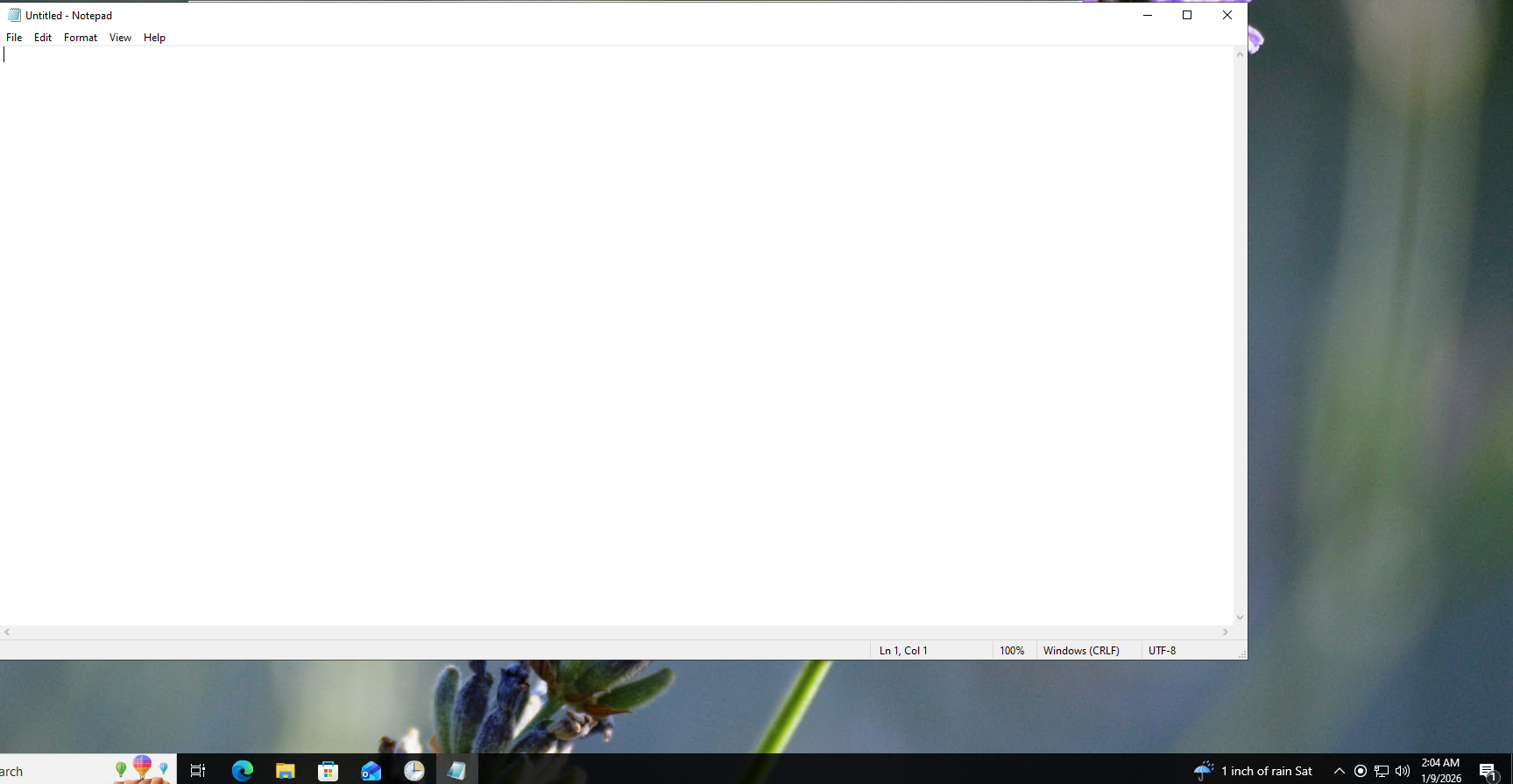
Head to Event Viewer to look at the log
Windows Logs > Security > Look for Event ID 4698: (A scheduled task was created)
Notice our scheduled task appears on the log
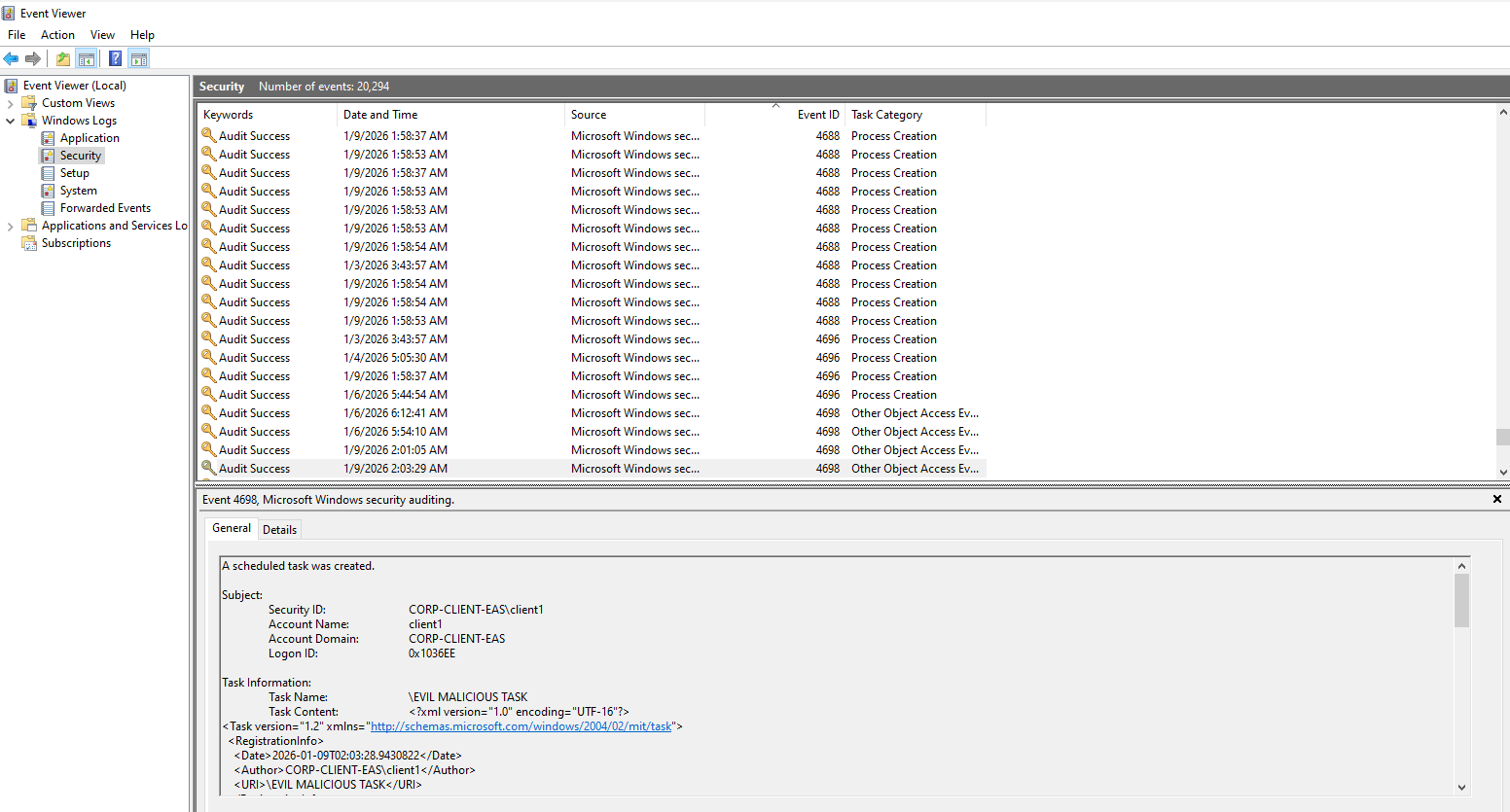
Take note of the full log structure. We will extract some of the data from this log for our KQL query.
1
2
3
4
5
6
7
8
9
10
11
12
13
14
15
16
17
18
19
20
21
22
23
24
25
26
27
28
29
30
31
32
33
34
35
36
37
38
39
40
41
42
43
44
<Task version="1.2" xmlns="http://schemas.microsoft.com/windows/2004/02/mit/task">
  <RegistrationInfo>
    <Date>2026-01-09T02:03:28.9430822</Date>
    <Author>CORP-CLIENT-EAS\client1</Author>
    <URI>\EVIL MALICIOUS TASK</URI>
  </RegistrationInfo>
  <Triggers>
    <TimeTrigger>
      <StartBoundary>2026-01-09T02:04:44</StartBoundary>
      <Enabled>true</Enabled>
    </TimeTrigger>
  </Triggers>
  <Principals>
    <Principal id="Author">
      <RunLevel>LeastPrivilege</RunLevel>
      <UserId>CORP-CLIENT-EAS\client1</UserId>
      <LogonType>InteractiveToken</LogonType>
    </Principal>
  </Principals>
  <Settings>
    <MultipleInstancesPolicy>IgnoreNew</MultipleInstancesPolicy>
    <DisallowStartIfOnBatteries>true</DisallowStartIfOnBatteries>
    <StopIfGoingOnBatteries>true</StopIfGoingOnBatteries>
    <AllowHardTerminate>true</AllowHardTerminate>
    <StartWhenAvailable>false</StartWhenAvailable>
    <RunOnlyIfNetworkAvailable>false</RunOnlyIfNetworkAvailable>
    <IdleSettings>
      <StopOnIdleEnd>true</StopOnIdleEnd>
      <RestartOnIdle>false</RestartOnIdle>
    </IdleSettings>
    <AllowStartOnDemand>true</AllowStartOnDemand>
    <Enabled>true</Enabled>
    <Hidden>false</Hidden>
    <RunOnlyIfIdle>false</RunOnlyIfIdle>
    <WakeToRun>false</WakeToRun>
    <ExecutionTimeLimit>P3D</ExecutionTimeLimit>
    <Priority>7</Priority>
  </Settings>
  <Actions Context="Author">
    <Exec>
      <Command>C:\Windows\System32\notepad.exe</Command>
    </Exec>
  </Actions>
</Task>
KQL Query
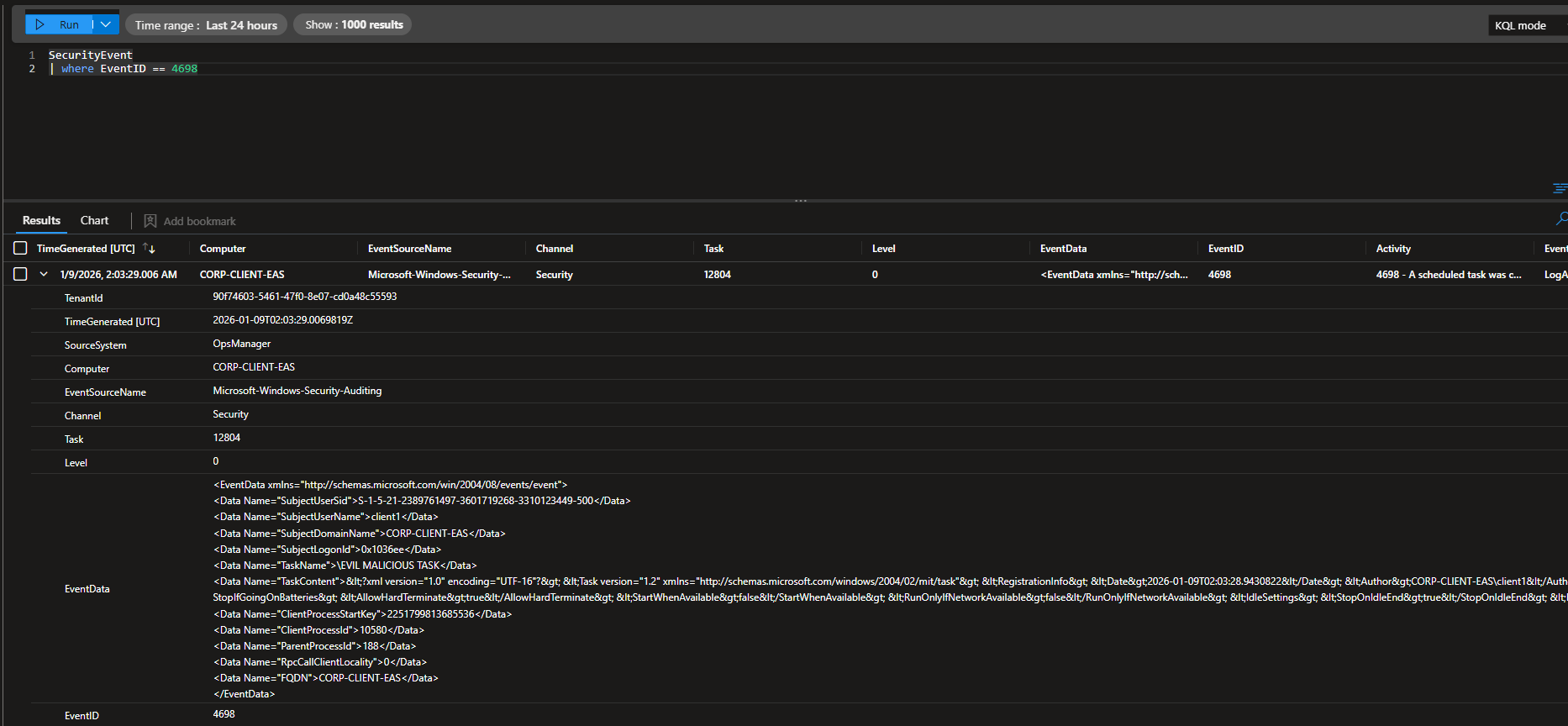
Now head to Sentinel. Look for logs with EventID 4698.
The log may take a few minutes to show up on Sentinel.
There is a lot of unstructured data, so we will have to refine the query. We need key info to determine whether the scheduled task is malicious or not (task name, command, arguments, etc.).
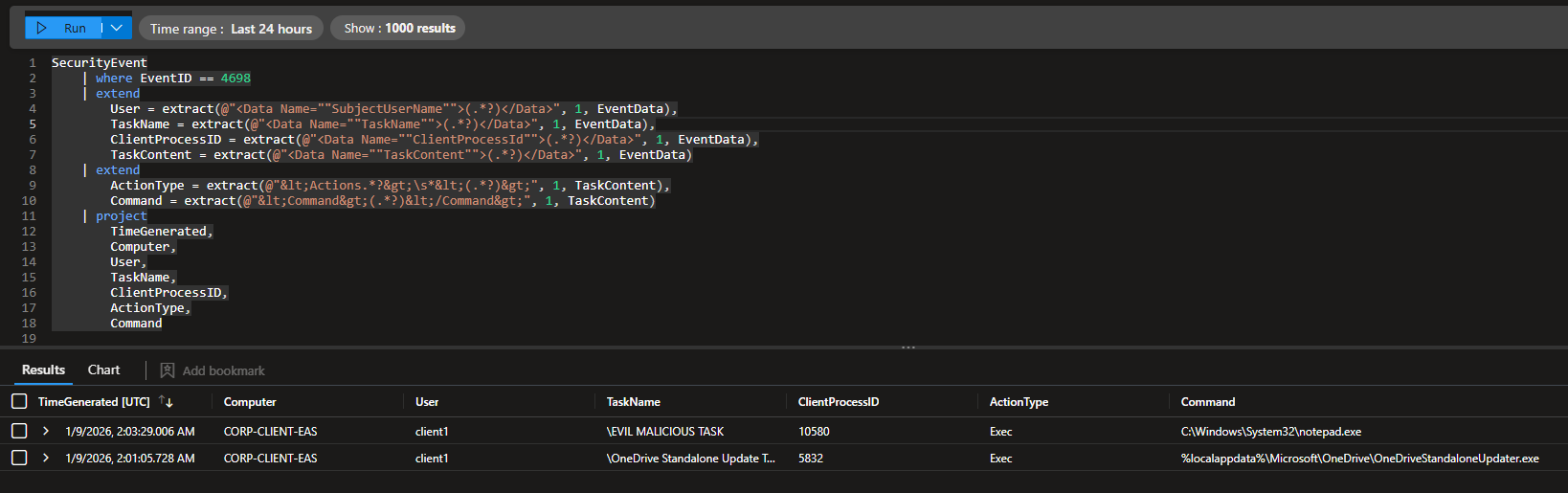
Scheduled Task Detection Query
The query filters for scheduled task creation events (Event ID 4698), parses the XML-encoded fields from the event data to extract the user who created it, the task name, client process ID, and task configuration. It then uses project to return a clean table showing key data.
1
2
3
4
5
6
7
8
9
10
11
12
13
14
15
16
17
18
19
SecurityEvent
| where EventID == 4698
| extend
User = extract(@"<Data Name=""SubjectUserName"">(.*?)</Data>", 1, EventData),
TaskName = extract(@"<Data Name=""TaskName"">(.*?)</Data>", 1, EventData),
ClientProcessID = extract(@"<Data Name=""ClientProcessId"">(.*?)</Data>", 1, EventData),
TaskContent = extract(@"<Data Name=""TaskContent"">(.*?)</Data>", 1, EventData)
| extend
ActionType = extract(@"<Actions.*?>\s*<(.*?)>", 1, TaskContent),
Command = extract(@"<Command>(.*?)</Command>", 1, TaskContent)
| project
TimeGenerated,
Computer,
User,
TaskName,
ClientProcessID,
ActionType,
Command
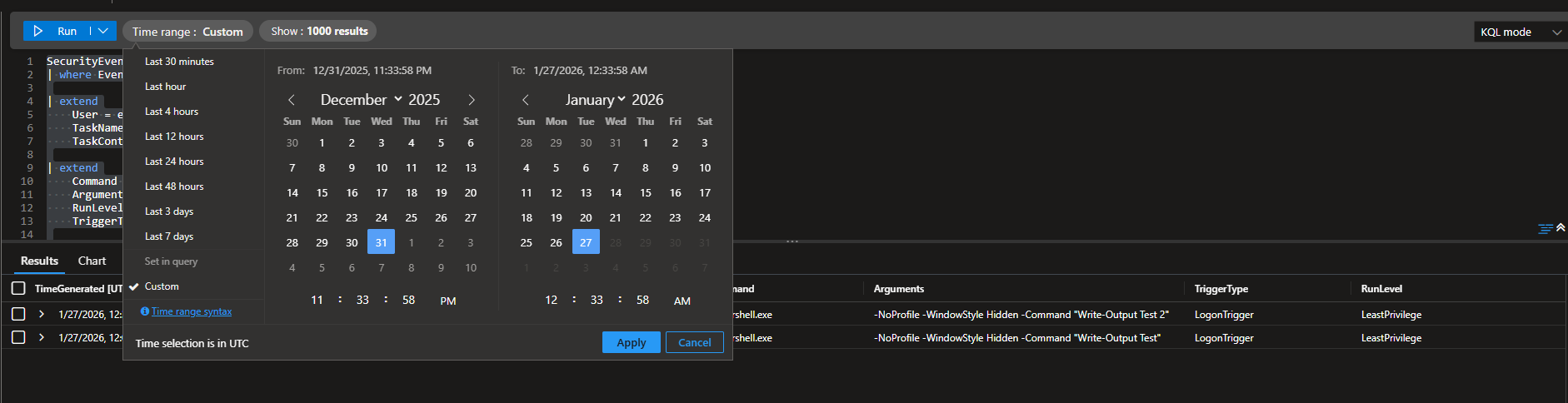
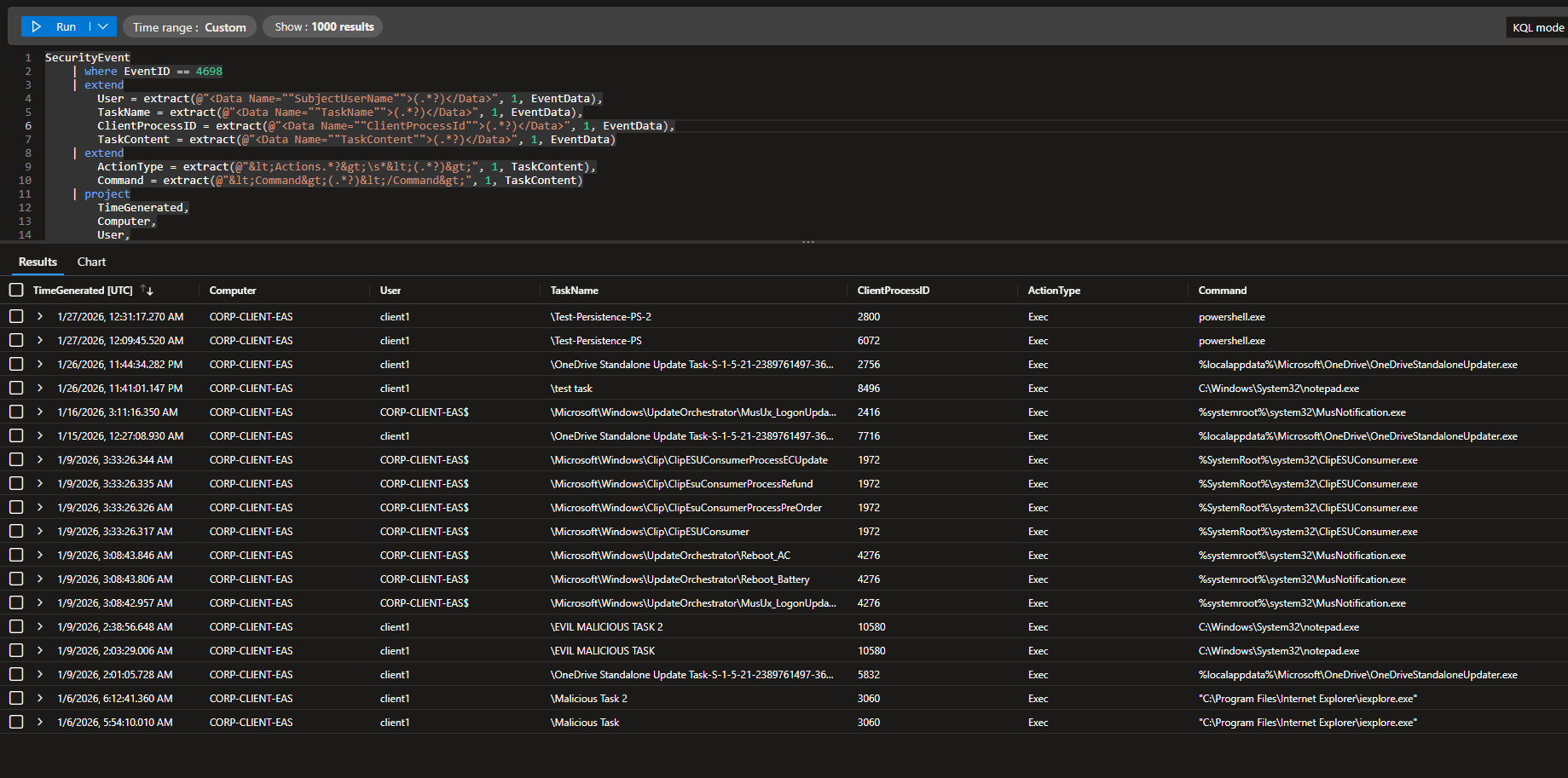
The output of the query is a lot better, showing the task name, action type, and command.
Detection Rule
Head to Sentinel > Configuration > Analytics
Click Create > Scheduled Query Rule
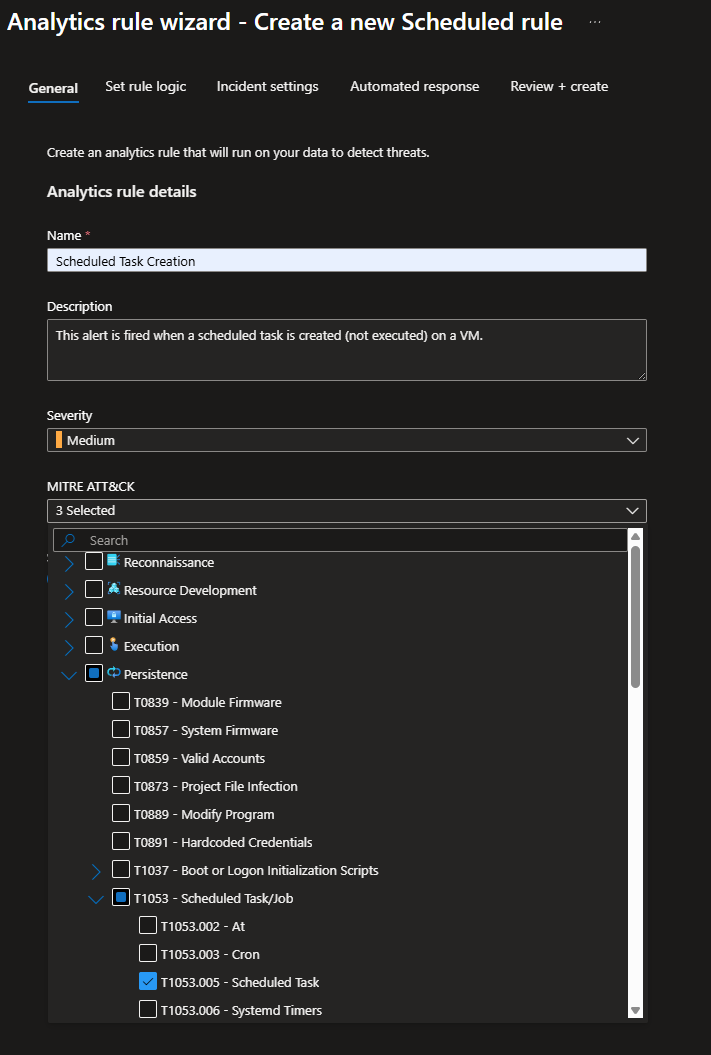
Give it a name and description
For MITRE, this alert pretty much captures scheduled tasks so I mapped it to T1053.005
Leave severity at medium
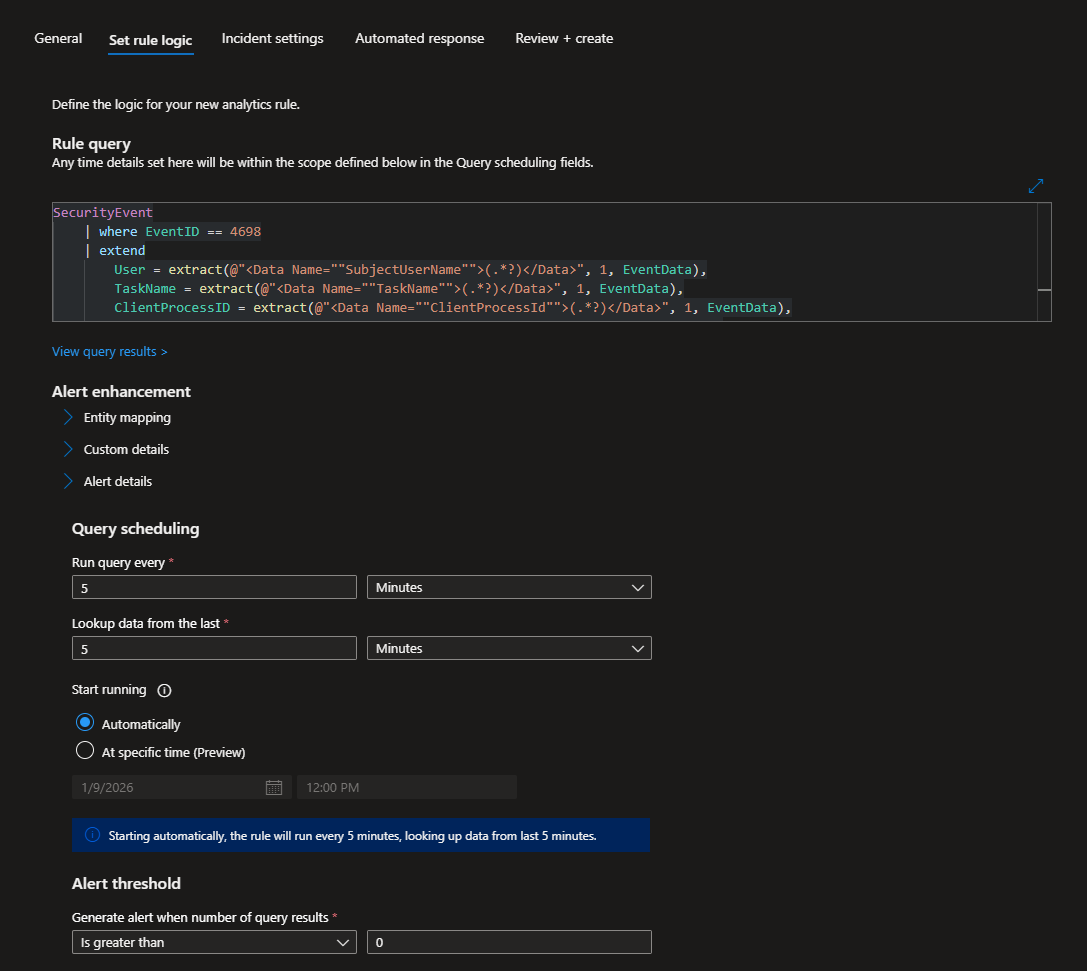
Set rule logic
Paste the KQL query into Rule query field
Run the query every 5 minutes, this is the lowest it can go
Look up data from last 5 minutes
Start running automatically
Leave alert threshold at 0 - this basically means that if the event happens at least once, an alert is generated
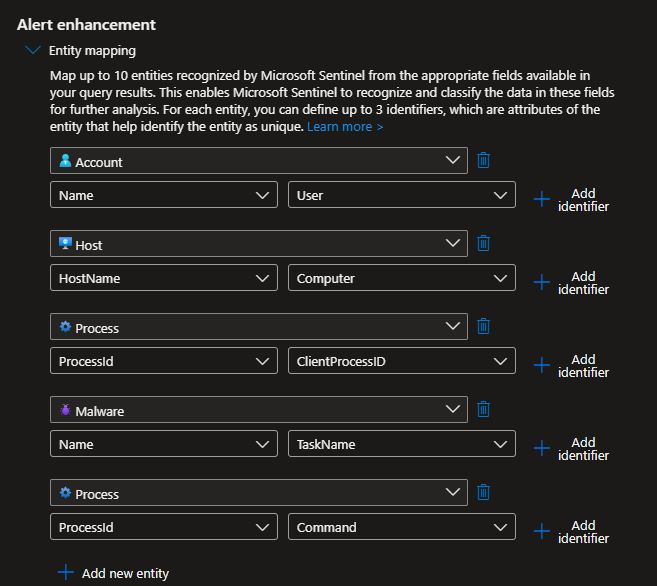
Under Alert enhancement, expand the Entity mapping tab
I mapped the following entities:
- Account: Name → User
- Host: HostName → Computer
- Process: ProcessId → ClientProcessID
- Malware: Name → TaskName
- Process: ProcessId → Command
This basically takes data from the KQL query and adds context to the incident so its easier for the analysts.
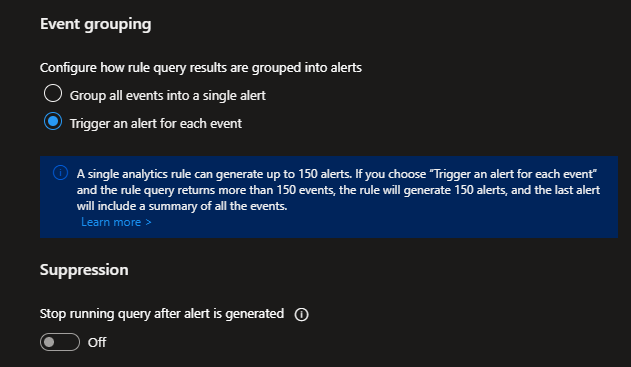
Under Event grouping, select Trigger an alert for each event and leave Suppression off
Finally, click Review + create

Create a scheduled task like earlier to generate an incident.
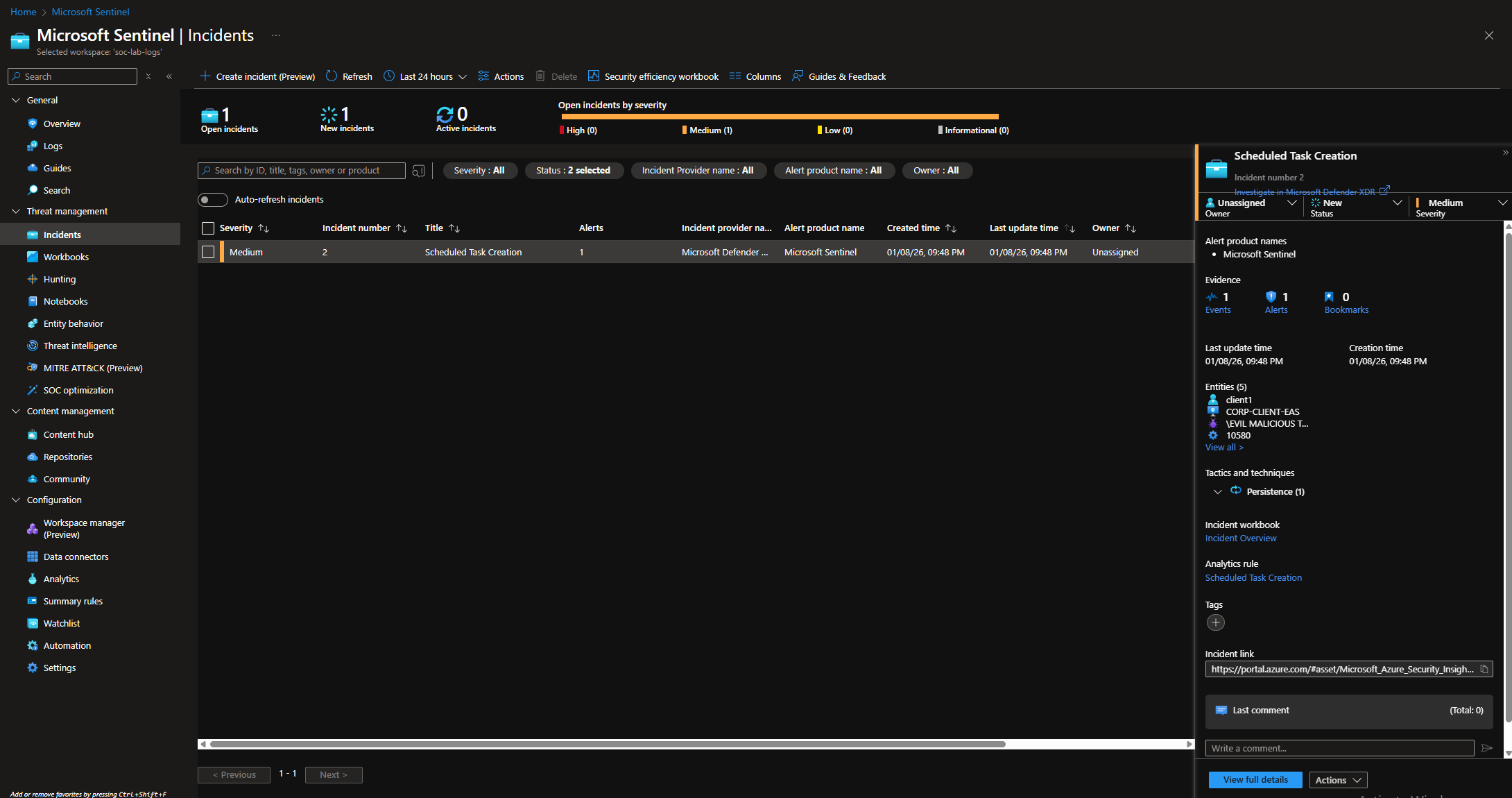
Wait 5 minutes and head to the incidents tab (Threat management > Incidents)
We should have an incident generated.
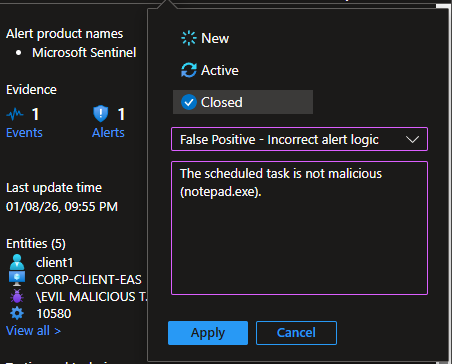
Closing the incident
Tuning the Detection Rule
When leaving my VM running for the RDP Blocking Automation tests, the scheduled task detection got fired multiple times and a few incidents were generated.

Upon further investigation, this looks like expected system behavior and the incidents are just unnecessary noise. Moreover, alerts containing different tasks are grouped into the same incident.
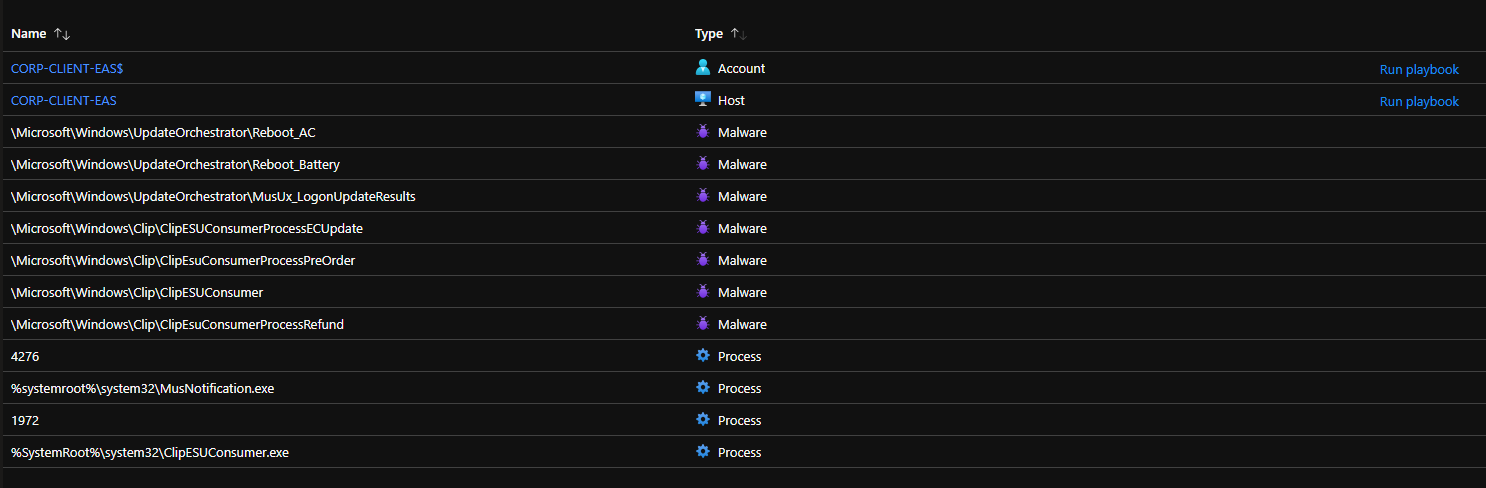
We want a query that detects actual suspicious scheduled task creation.
What constitutes as a suspicious task? this could be tasks that:
- run interpreters like PowerShell, CMD, or WScript
- run with elevated privileges
- has paths commonly used to hide malware (e.g. Temp, AppData)
First, let’s generate a log that captures PowerShell execution.
Open PowerShell as Admin, and execute the following script:
1
2
3
4
5
6
7
8
9
10
11
12
13
14
$action = New-ScheduledTaskAction `
  -Execute "powershell.exe" `
  -Argument "-NoProfile -WindowStyle Hidden -Command `"Write-Output Test`""

$trigger = New-ScheduledTaskTrigger -AtLogOn

Register-ScheduledTask `
  -TaskName "Test-Persistence-PS" `
  -Action $action `
  -Trigger $trigger `
  -Description "Detection test – PowerShell persistence" `
  -User "$env:USERNAME" `
  -Force
This is just a test script that creates a scheduled task to mimic malware persistence behavior. It runs a hidden PowerShell session at logon. We want to capture this type of behavior in our detection.
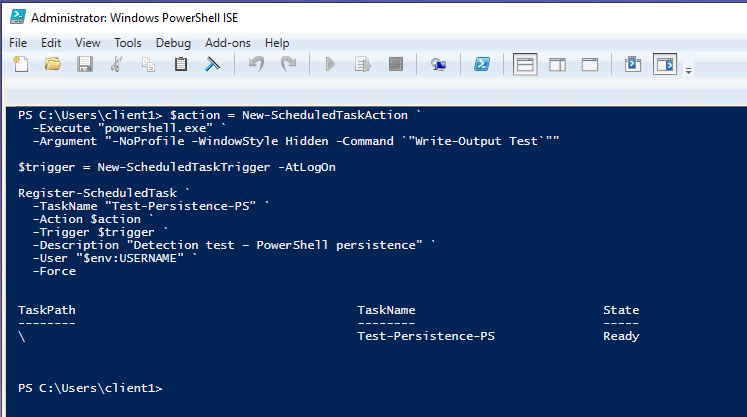
Log out and log back in.
Make sure the scheduled task event gets logged.
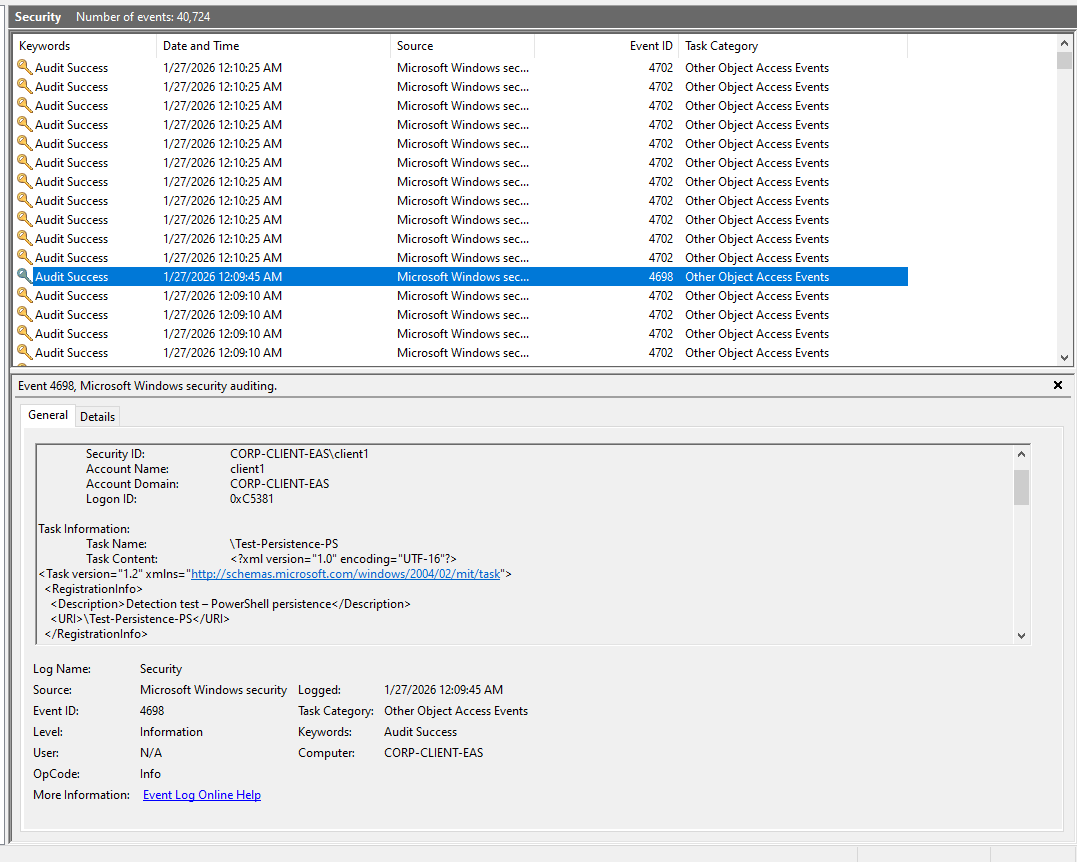
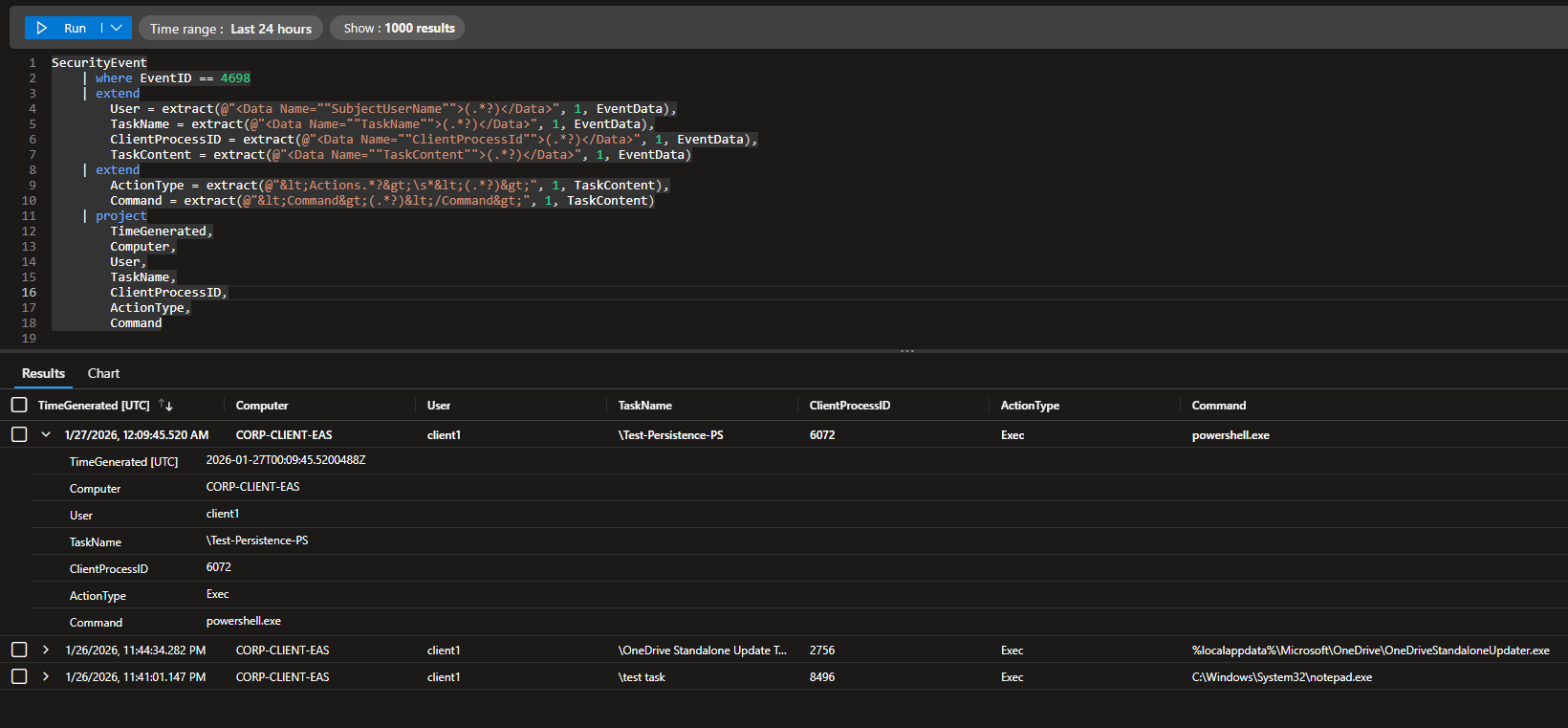
Let’s run our old query.
Keep note of the 3 alerts: 2 are irrelevant to what we want our detection to capture, and the other captures PowerShell being executed (the task named Test-Persistence-PS).
Refined Query
Available at: https://github.com/walterg7/azure-soc/blob/main/analytics-rules/scheduled-task-persistence.kql, or you can copy the query below:
1
2
3
4
5
6
7
8
9
10
11
12
13
14
15
16
17
18
19
20
21
22
23
24
25
26
27
28
29
30
31
32
33
34
35
36
37
38
39
40
41
42
43
44
45
46
SecurityEvent
| where EventID == 4698
// Core identity
| extend
User = extract(@"<Data Name=""SubjectUserName"">(.*?)</Data>", 1, EventData),
TaskName = extract(@"<Data Name=""TaskName"">(.*?)</Data>", 1, EventData),
TaskContent = extract(@"<Data Name=""TaskContent"">(.*?)</Data>", 1, EventData)
// Parse execution details
| extend
Command = extract(@"<Command>(.*?)</Command>", 1, TaskContent),
Arguments = extract(@"<Arguments>(.*?)</Arguments>", 1, TaskContent),
RunLevel = extract(@"<RunLevel>(.*?)</RunLevel>", 1, TaskContent),
TriggerType = extract(@"<(LogonTrigger|BootTrigger|CalendarTrigger)", 1, TaskContent)
// Noise reduction
| where not(TaskName startswith @"\Microsoft\Windows\")
| where User !in ("SYSTEM", "TrustedInstaller$")
| where
Command has_any (
"powershell",
"cmd.exe",
"wscript",
"cscript",
"mshta",
"rundll32"
)
or Arguments has_any (
@"\Users\",
@"\AppData\",
@"\Temp\"
)
// Final SOC view
| project
TimeGenerated,
Computer,
User,
TaskName,
Command,
Arguments,
TriggerType,
RunLevel
| order by TimeGenerated desc
Breakdown
- Targets Event 4698 for scheduled task creation, a common persistence technique
- Extracts the actual command, arguments, and run level that attackers try to hide
- Filters noise by excluding legitimate Microsoft and system tasks
- Looks for suspicious interpreters (PowerShell, CMD, scripting engines like WScript) and suspicious paths (Temp, AppData) where malware typically hides
- Identifies privilege escalation -
RunLevelextraction reveals if tasks run with elevated/SYSTEM privileges, a key indicator of compromise - Shows trigger type - reveals if the task runs at logon, boot, or scheduled times, helping determine persistence method
Sample Output
Notice our PowerShell task is the only event captured now.
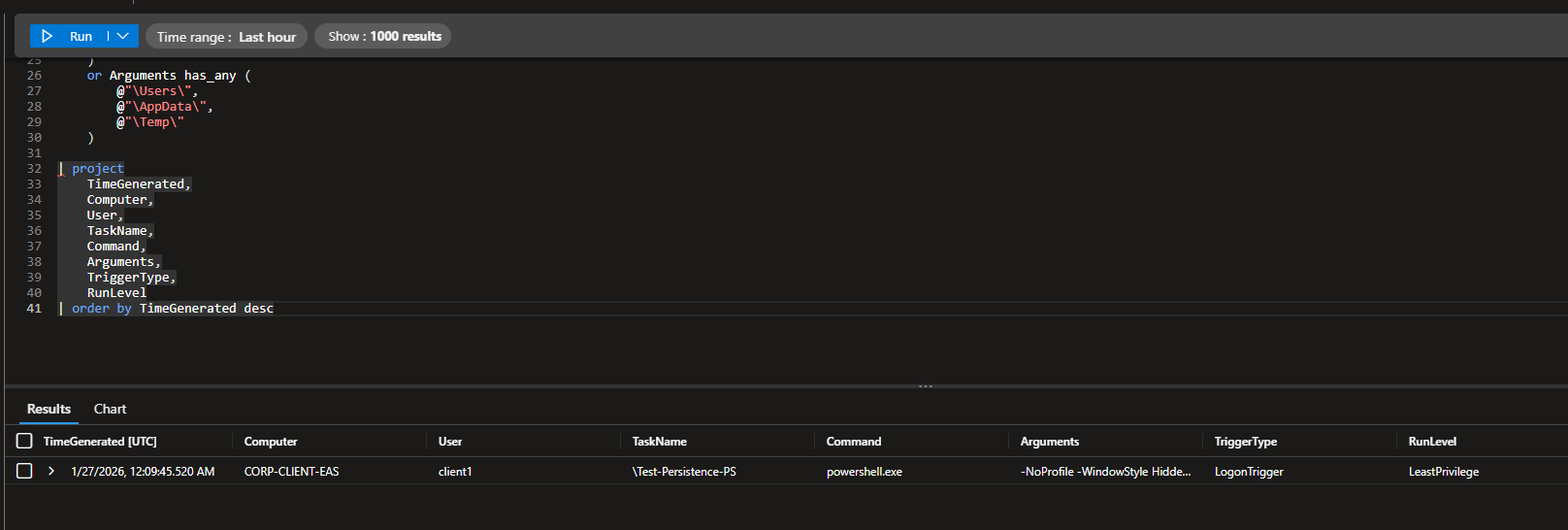
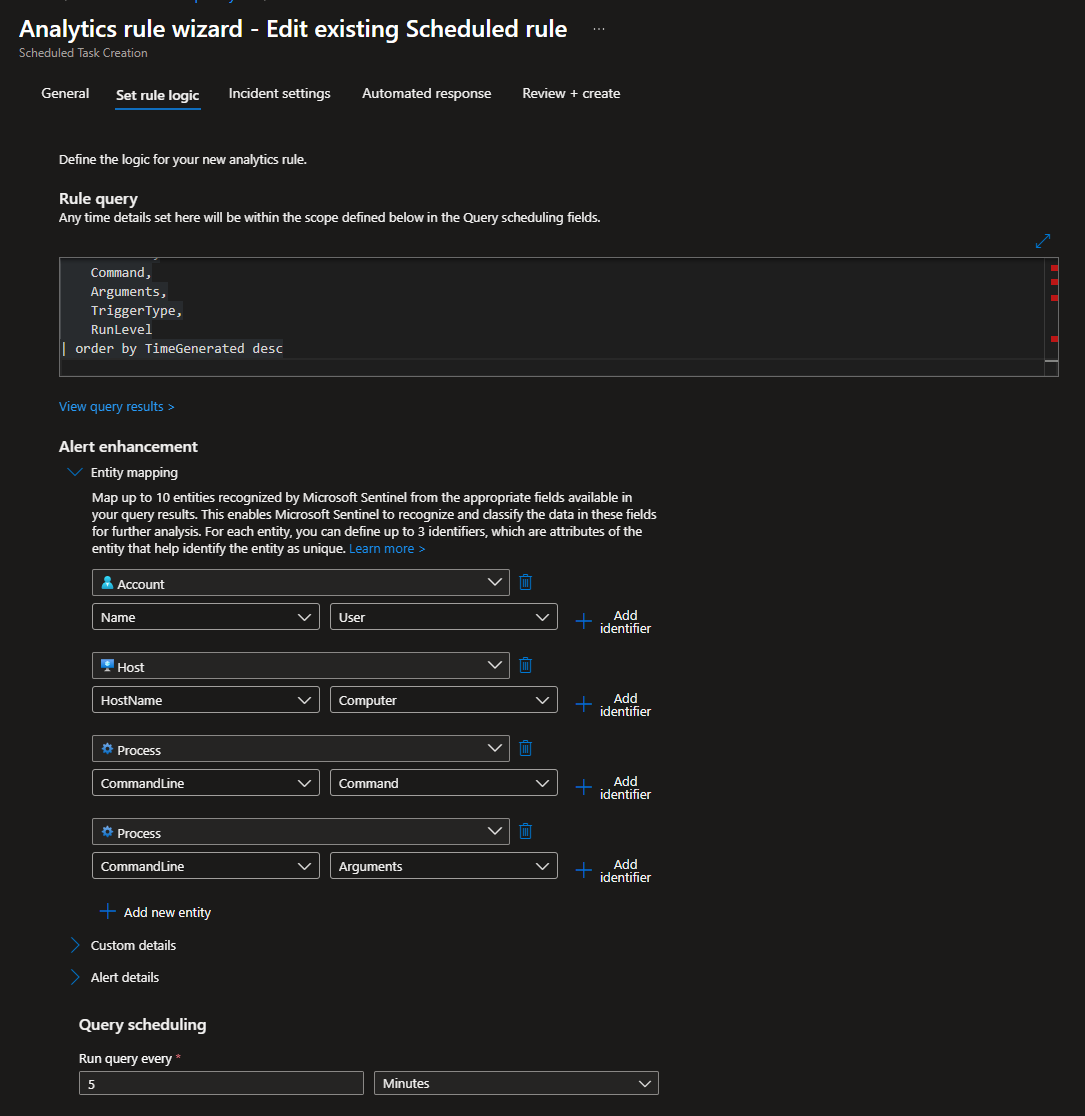
Let’s update our analytics rule to use this query instead.
I also modified the entity mapping.
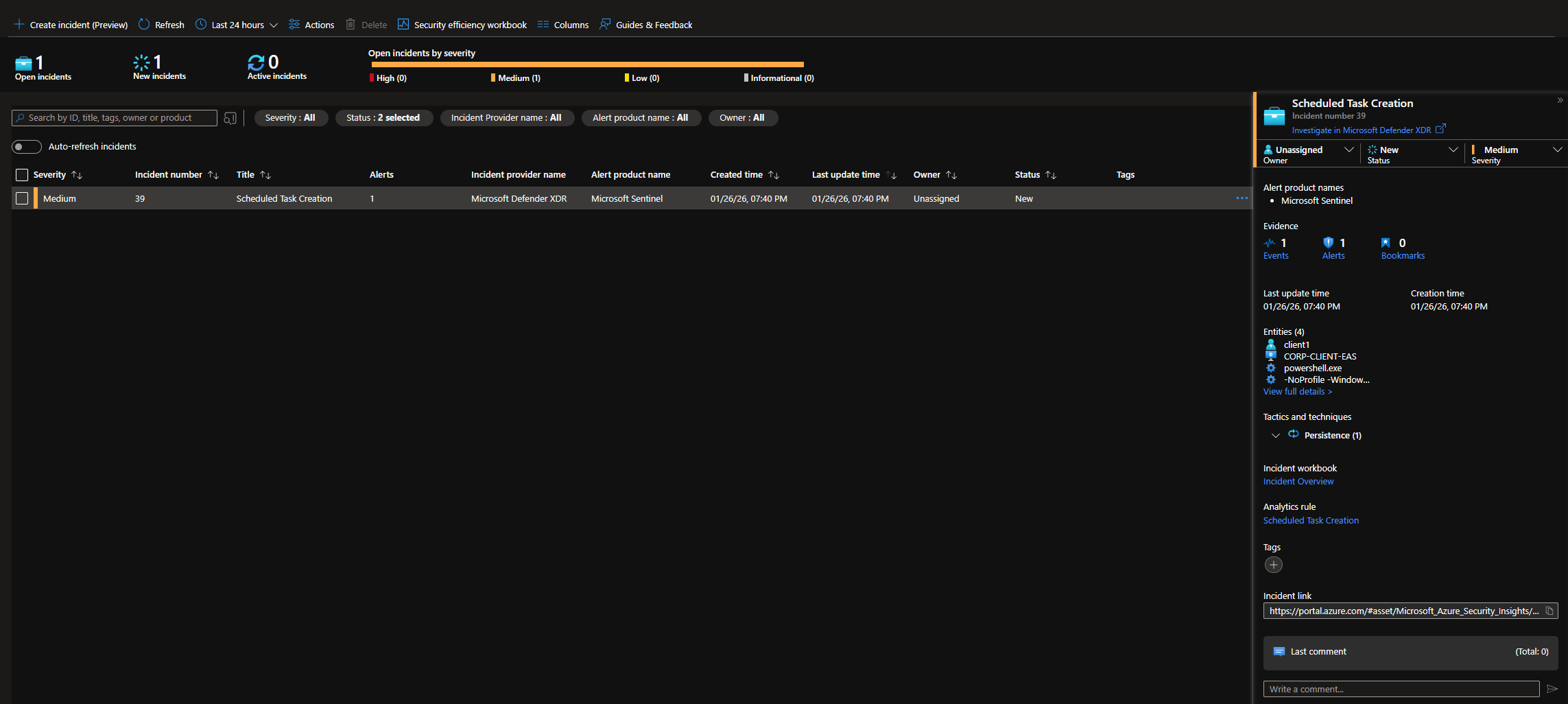
Head back to the Incidents tab, and wait for our alert to appear. You may need to run the PowerShell script again, but use a different task name or the alert may not get fired.
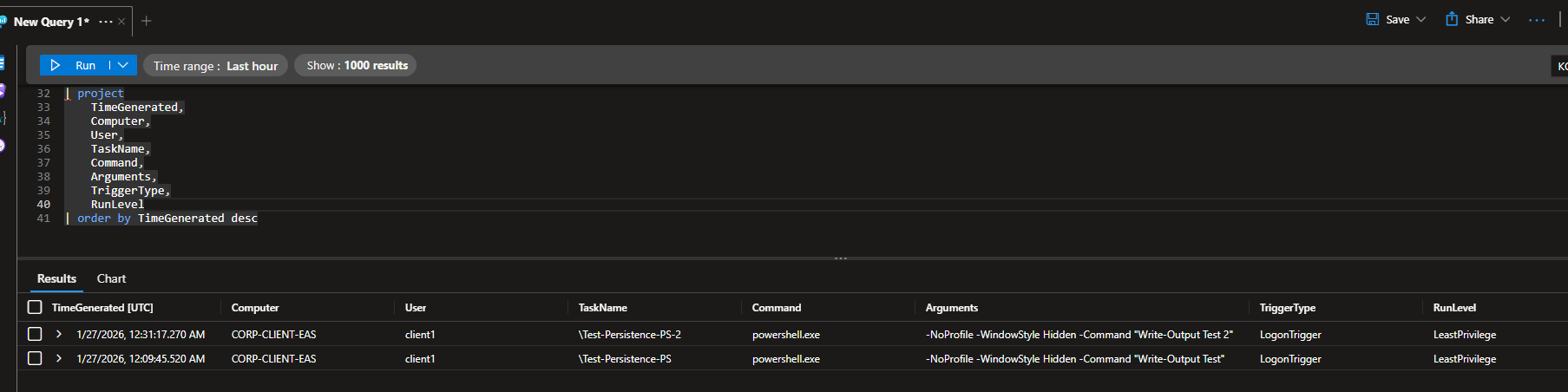
Updated incident
Before and After Tuning
Using the old query, which basically captures whenever any scheduled task was created, we see 18 events. Most of them are false positives because the alerts are expected system behavior.
Using the updated query, only 2 PowerShell related events were captured. These were the mock tests I ran to mimic attacker persistence. We effectively went from 18 alerts to 2 high confidence alerts.
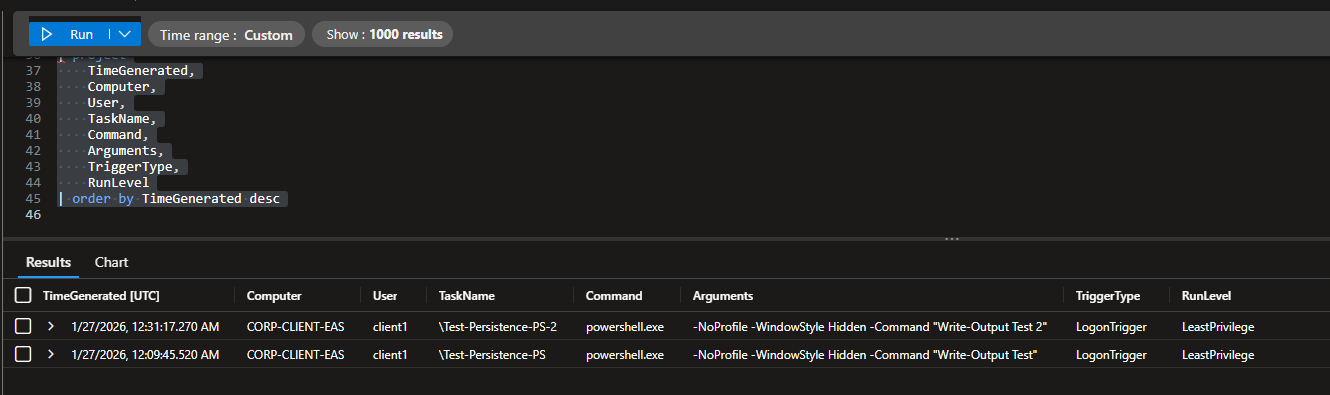
Queried across the entire duration of the project.