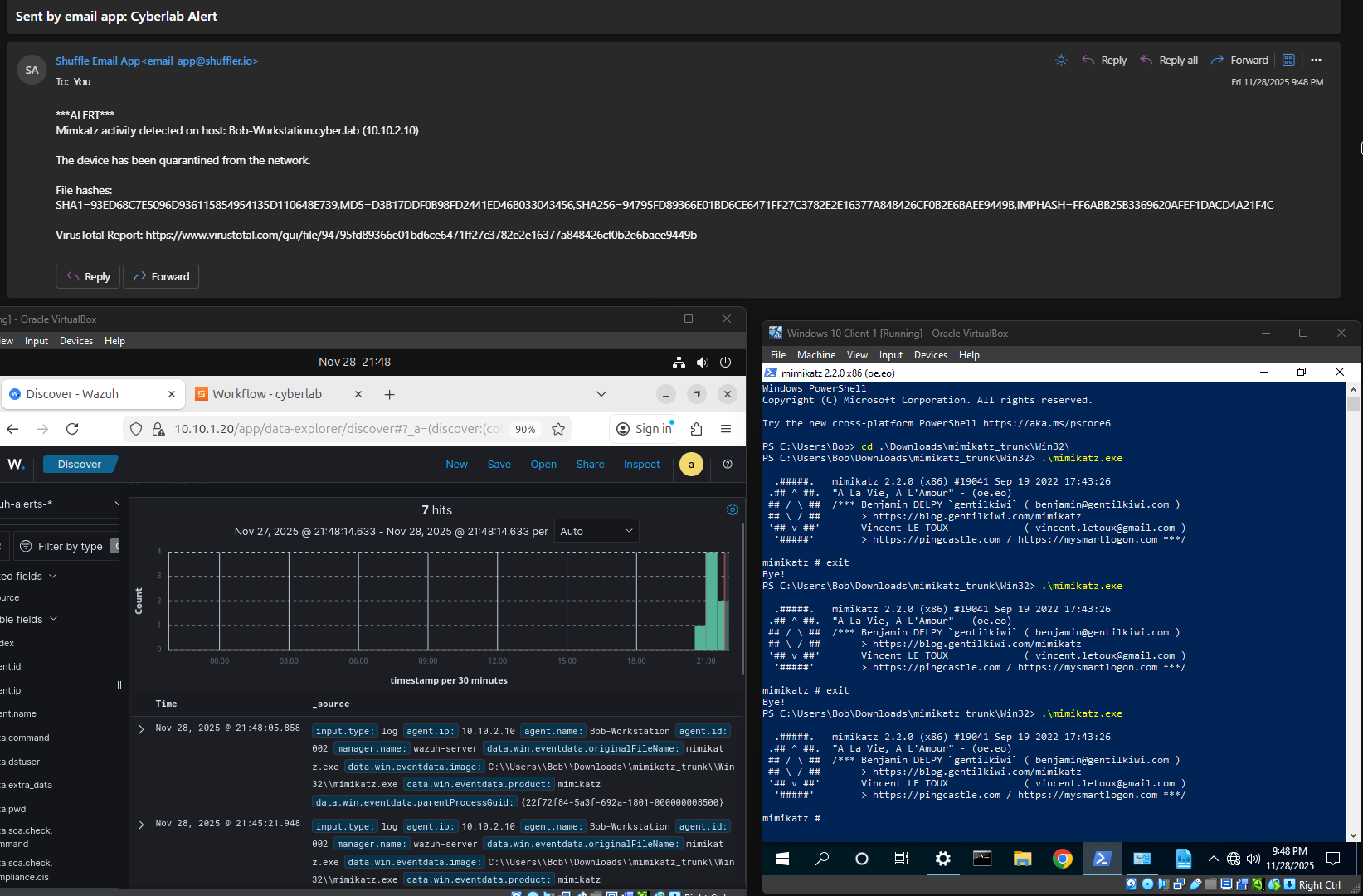
Wazuh Active Response Configuration
Creating a Wazuh Active Response rule to quarantine an endpoint that had Mimikatz activity detected on it.
We will configure a Wazuh Active Response (AR) rule to contain any host that has Mimikatz activity detected on it.
This will be done by using a Windows batch file that disables the network adapter, essentially quarantining the “infected” host.
This batch file will automatically be executed when Wazuh receives an alert that Mimikatz was executed on the host.
Windows Batch Script
On the Windows VM, head to C:\Program Files (x86)\ossec-agent\active-response\bin\
Create a new file named ar-quarantine-netadapter.bat
Open this file with Notepad++ and paste these contents:
1
2
3
4
5
6
@echo off
REM Immediately tell Wazuh to continue
echo {"version":1,"command":"add"}

REM Now perform the quarantine action
powershell -command "Disable-NetAdapter -Name 'Ethernet' -Confirm:$false"
Script breakdown:
echo {"version":1,"command":"add"}- Wazuh active responses expect a JSON command from the script to know whether to continue or stop.
- This line tells Wazuh to proceed with the response.
powershell -command "Disable-NetAdapter -Name 'Ethernet' -Confirm:$false"- Runs a PowerShell command to disable the network adapter named
Ethernet.- This only works if the VM has one adapter named exactly
Ethernet. You may need to adjust this value. - If the VM has multiple adapters or a different adapter name, the command will fail or only disable the specified adapter.
- This only works if the VM has one adapter named exactly
- The
Confirm:$falsepart suppresses confirmation prompts, so the action is immediate.
- Runs a PowerShell command to disable the network adapter named
Make sure the encoding is set UTF-8, not UTF-8-BOM otherwise you will run into errors.
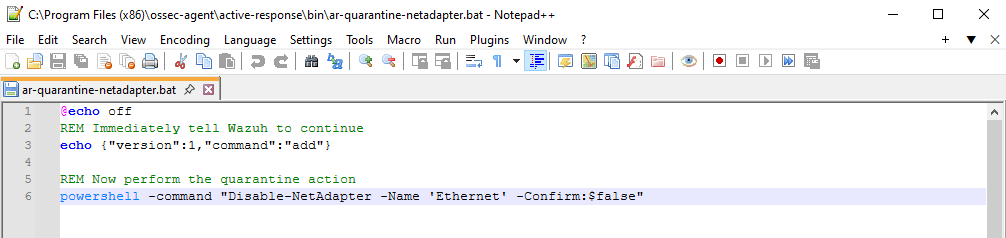
Run the bat file manually to make sure everything works
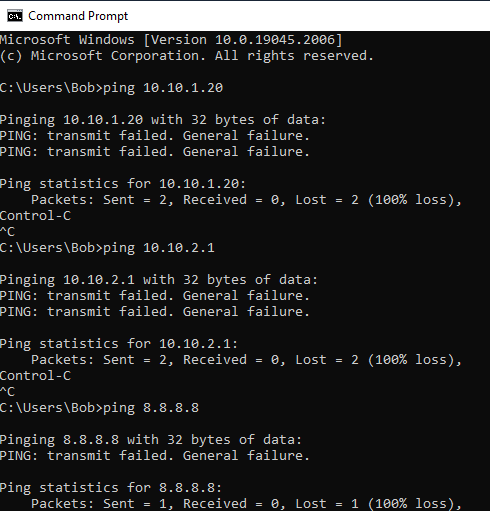
We should be disconnected from the network and unable to ping anything
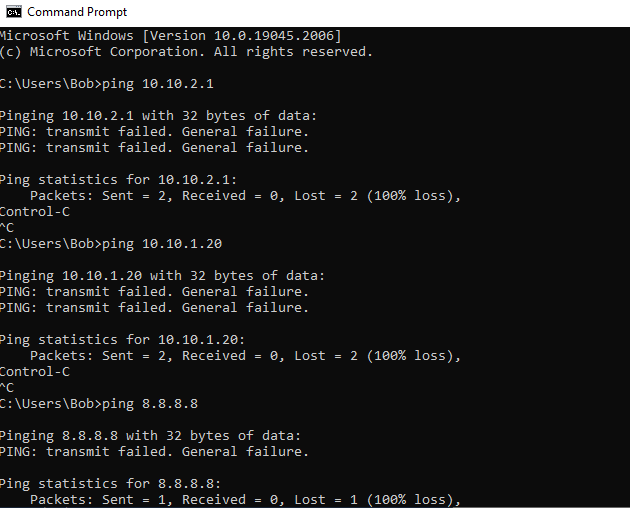
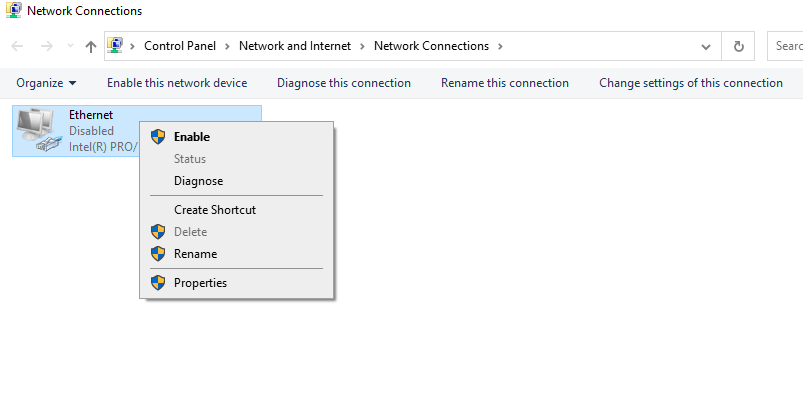
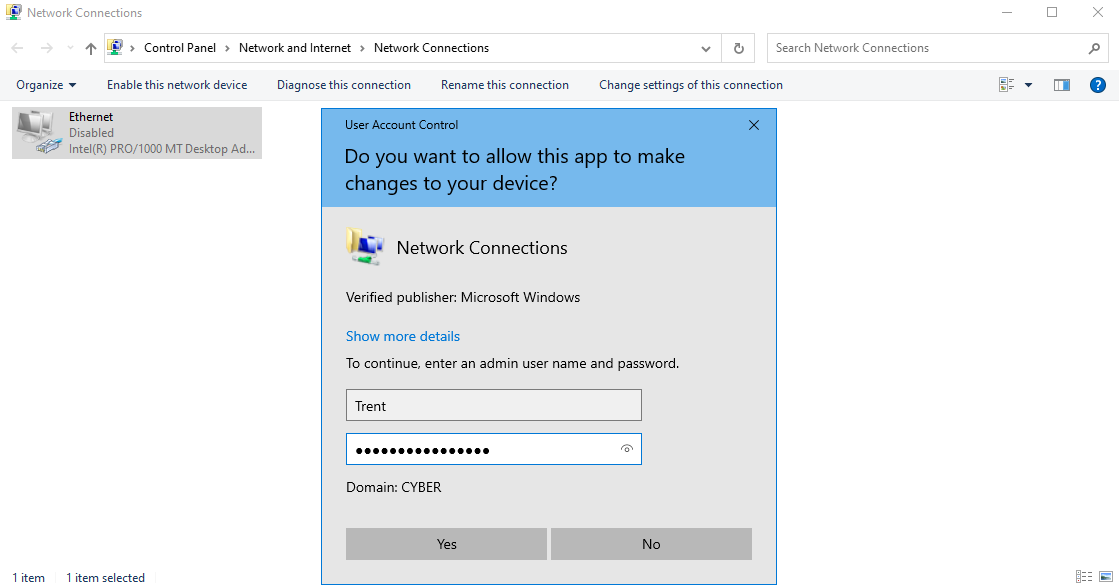
Reenable the network adapter (this will always have to be done manually)
Wazuh Manager and Agent Configurations
Wazuh Manager
SSH into the Wazuh VM if you haven’t already
Then, run nano /var/ossec/etc/ossec.conf
Paste the following contents; this is the definition for our quarantine command. I did this right above the Log analysis section of the config file:
1
2
3
4
5
6
7
8
9
10
11
12
  <command>
    <name>quarantine_net</name>
    <executable>ar-quarantine-netadapter.bat</executable>
    <timeout_allowed>yes</timeout_allowed>
  </command>

  <active-response>
    <disabled>no</disabled>
    <command>quarantine_net</command>
    <location>local</location>
    <rules_id>100002</rules_id>
  </active-response>
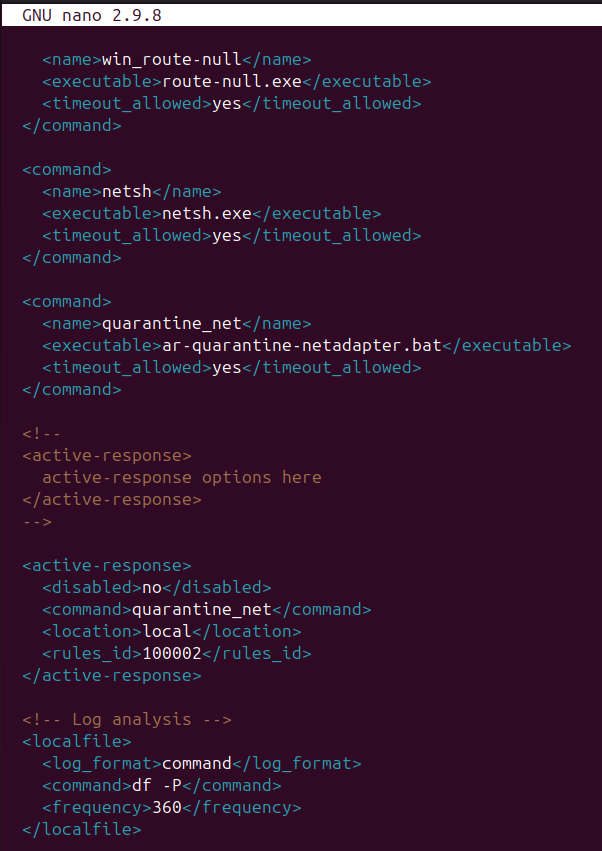
Breakdown:
When rule 100002 (Mimikatz detected) fires,
- The agent will run the
quarantine_netcommand<executable>is the file name as placed on the agent in the agent’sC:\Program Files (x86)\ossec-agent\active-response\bin\In this case, this action will executear-quarantine-netadapter.bat(quarantines the host from the network)<location>local</location>means the action runs on the endpoint where the alert occurred (in this case, Bob-Workstation/ the Windows 10 client)
Finally, run systemctl restart wazuh-manager.service
Windows Agent
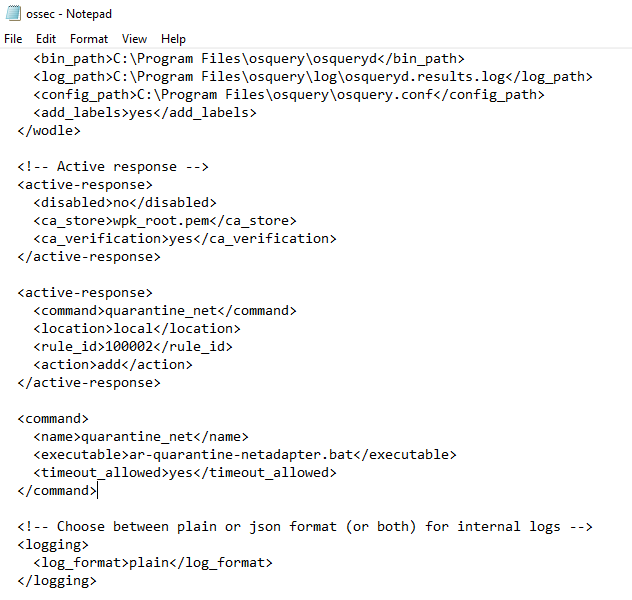
Open ossec.conf (Should be in C:\Program Files (x86)\ossec-agent\)
Paste the following contents:
1
2
3
4
5
6
7
8
9
10
11
12
  <active-response>
    <command>quarantine_net</command>
    <location>local</location>
    <rule_id>100002</rule_id>
    <action>add</action>
  </active-response>

  <command>
    <name>quarantine_net</name>
    <executable>ar-quarantine-netadapter.bat</executable>
    <timeout_allowed>yes</timeout_allowed>
  </command>
Save changes then restart the Wazuh service
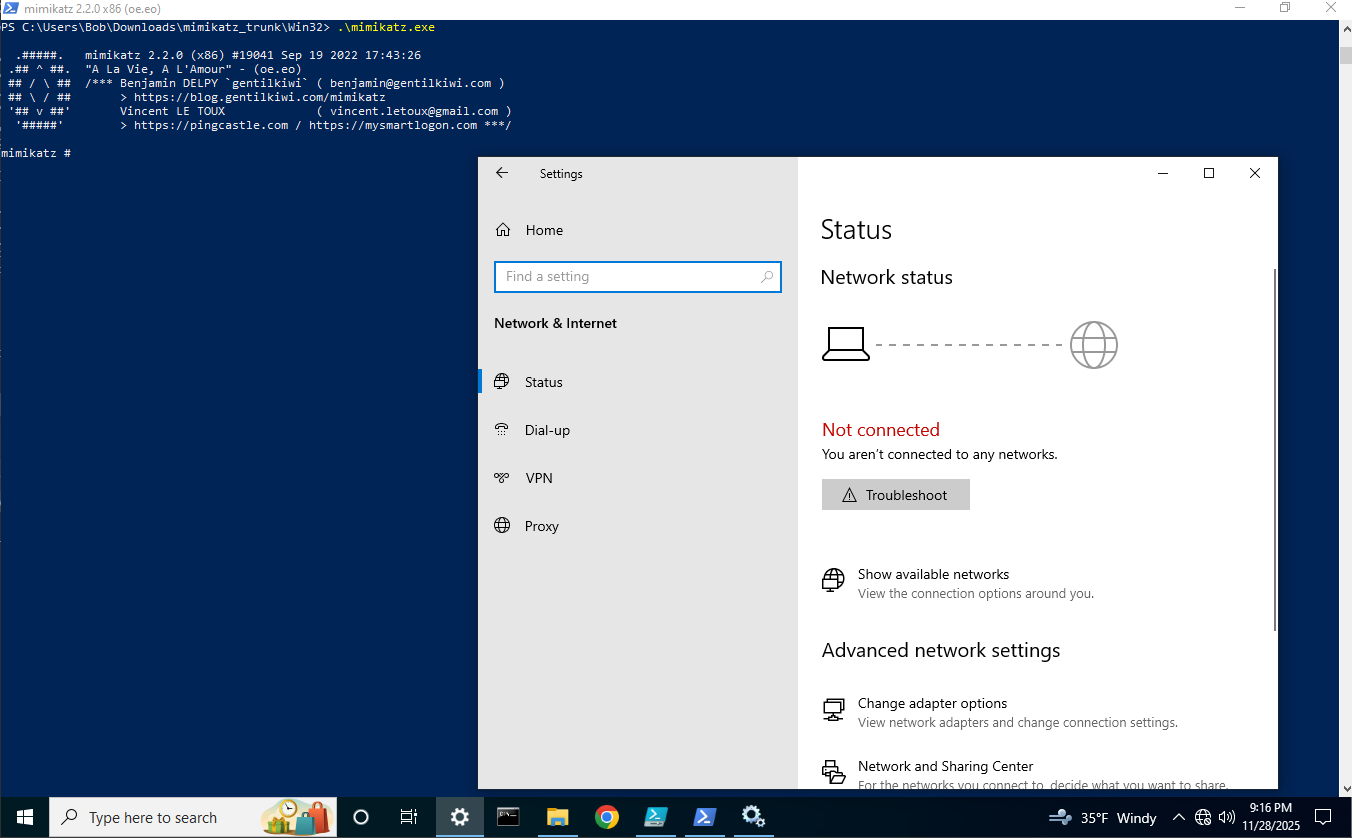
Active Response Test
Open a PowerShell session and execute Mimikatz.
The bat file should automatically be executed right after, and we should be disconnected from the network.
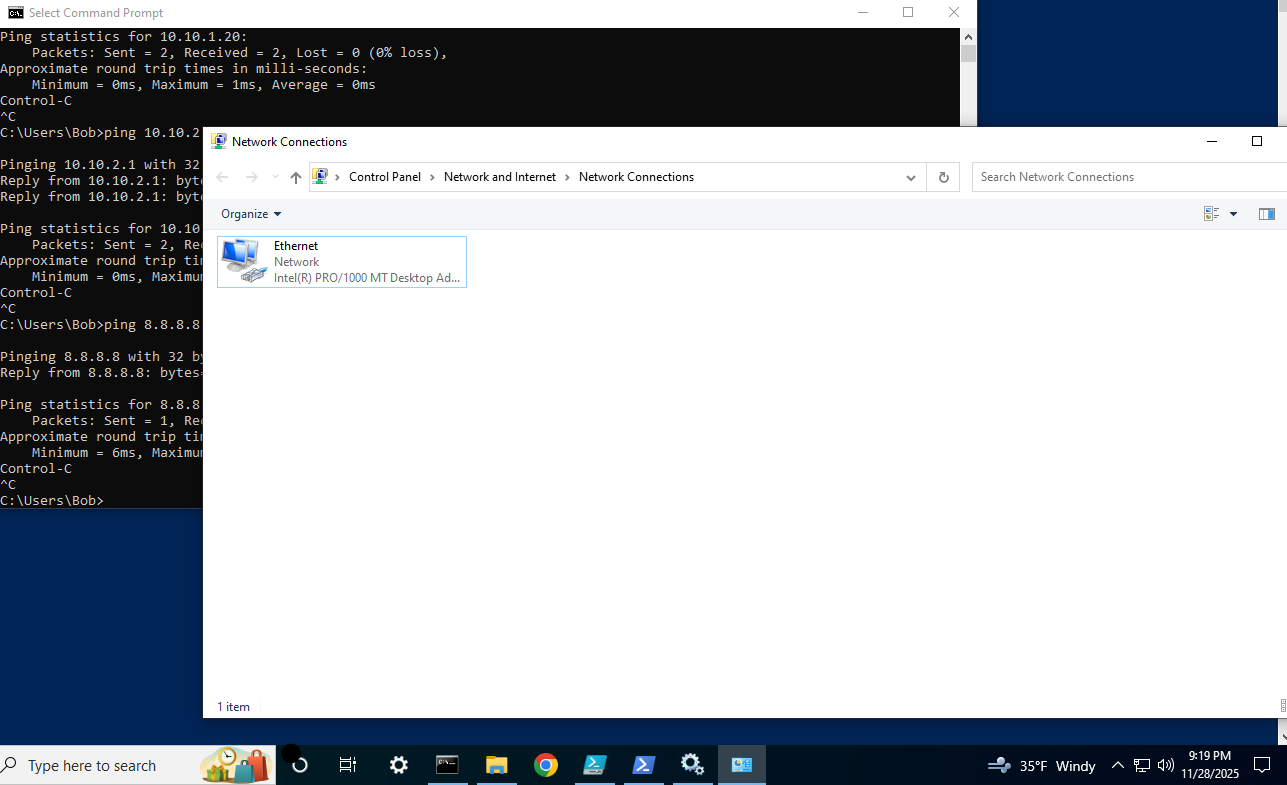
Try pinging other endpoints on the network to make sure. Notice the pings fail.
Reenable the network. Again, this will always have to be done manually and is intended behavior. This setup basically simulates the containment phase. In this scenario, an incident responder may want to collect artifacts and remove the malware before bringing the host back online.
If you are doing this in an AD environment, you will need to enter a domain admin’s credentials, which is good.
Network is back up
Shuffle Test
I did not make any changes to the Shuffle workflow besides updating the email body.
Click on the Email icon on the work area and paste these contents into the body section (your arguments may be need to be adjusted)
1
2
3
4
5
6
7
8
***ALERT***
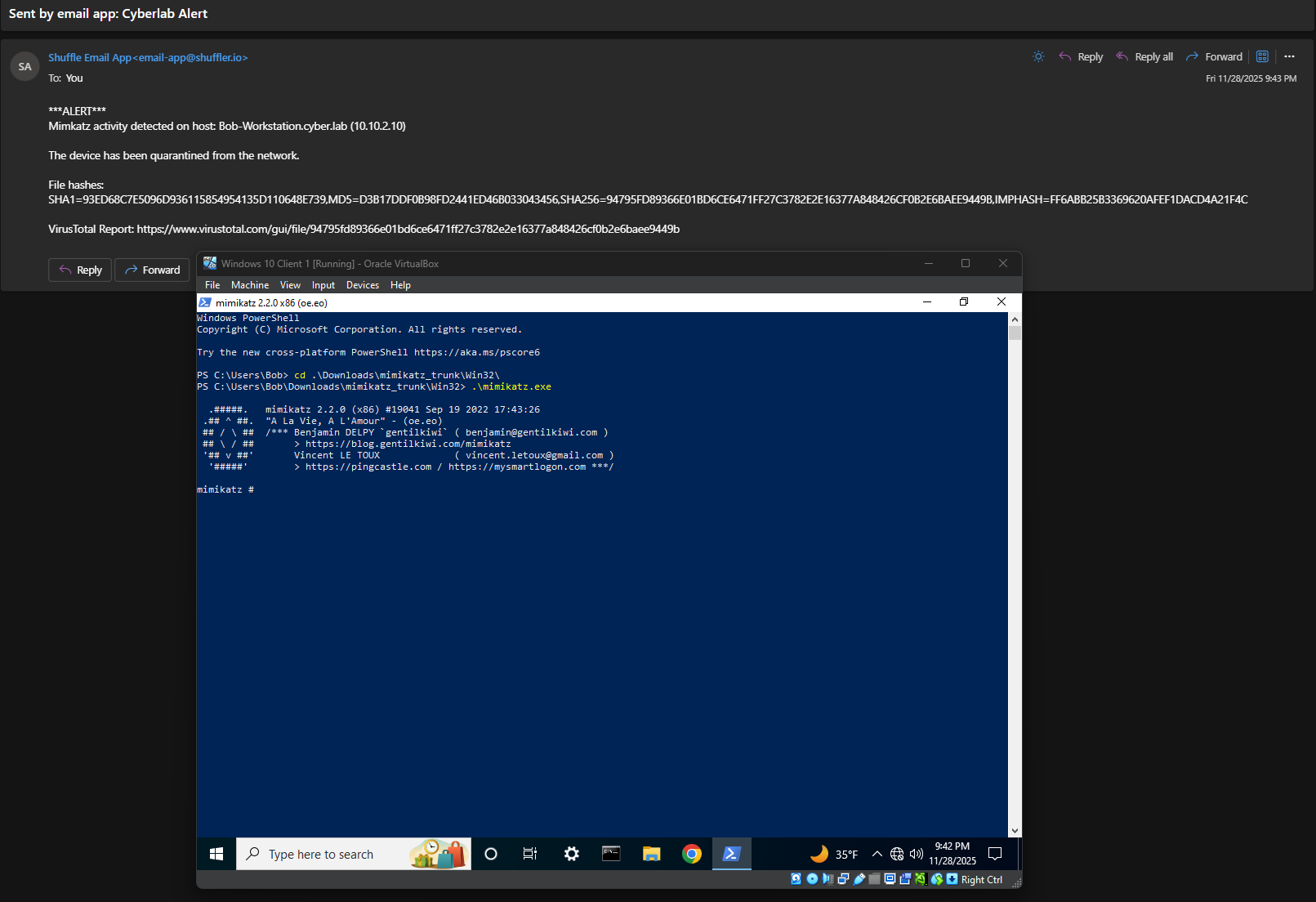
Mimkatz activity detected on host: $exec.all_fields.full_log.win.system.computer ($exec.all_fields.agent.ip)

The device has been quarantined from the network.

File hashes: $exec.text.win.eventdata.hashes

VirusTotal Report: https://www.virustotal.com/gui/file/$virustotal_v3_1.#.body.data.id
Save and rerun the workflow
Test 1: Email alert received right after executing Mimkatz
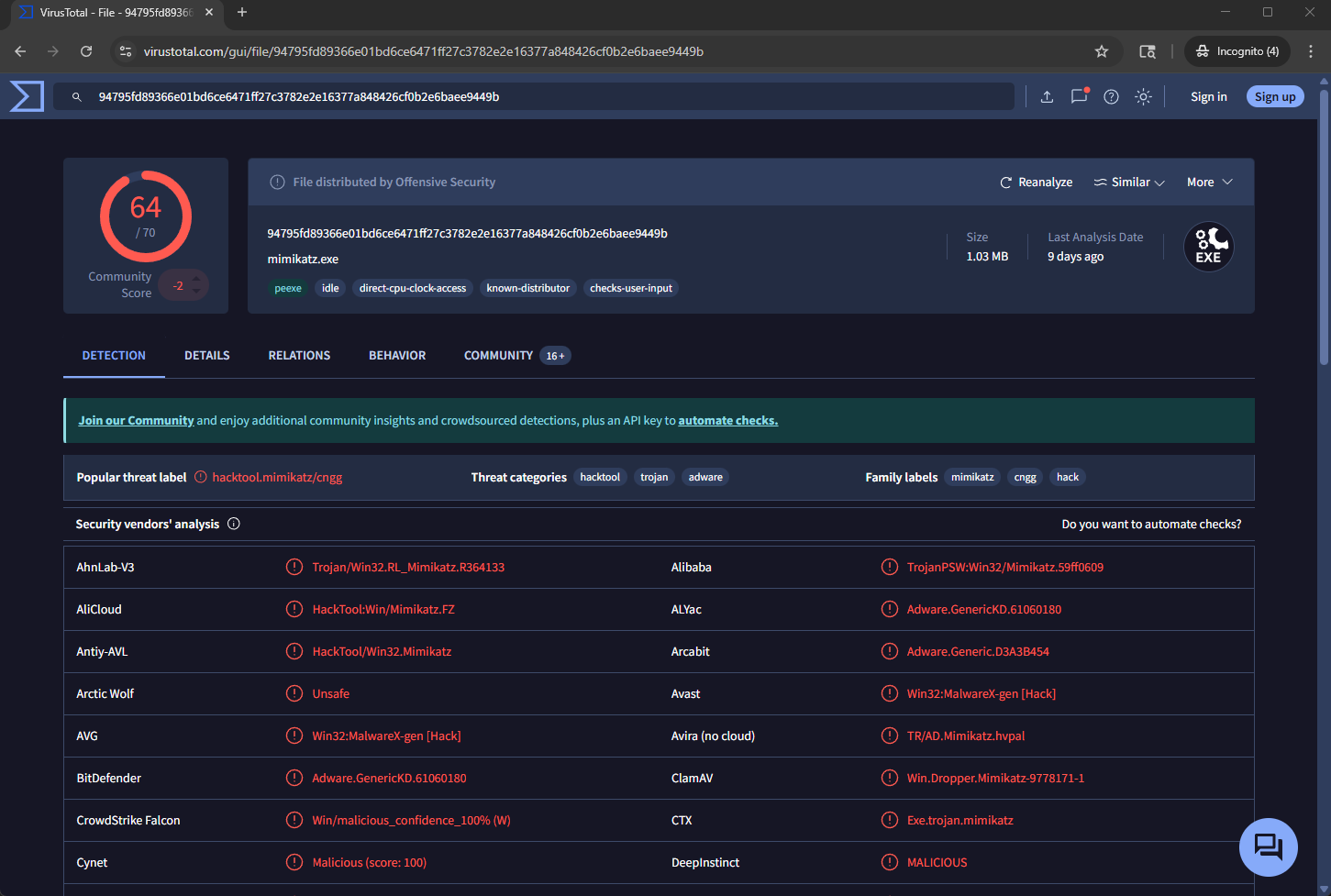
VirusTotal report from the email:
Test 2: Notice the timestamps of the Windows host, the Wazuh log, and the email. This workflow happens almost instantaneously, giving our incident responder an immediate notification of the alert. Our “infected” host is of course quarantined from the rest of our lab network, reducing the risk of spread.