Firewall Configurations
Configuring OPNsense for routing and Internet connectivity for all VMs.
Firewall Configurations
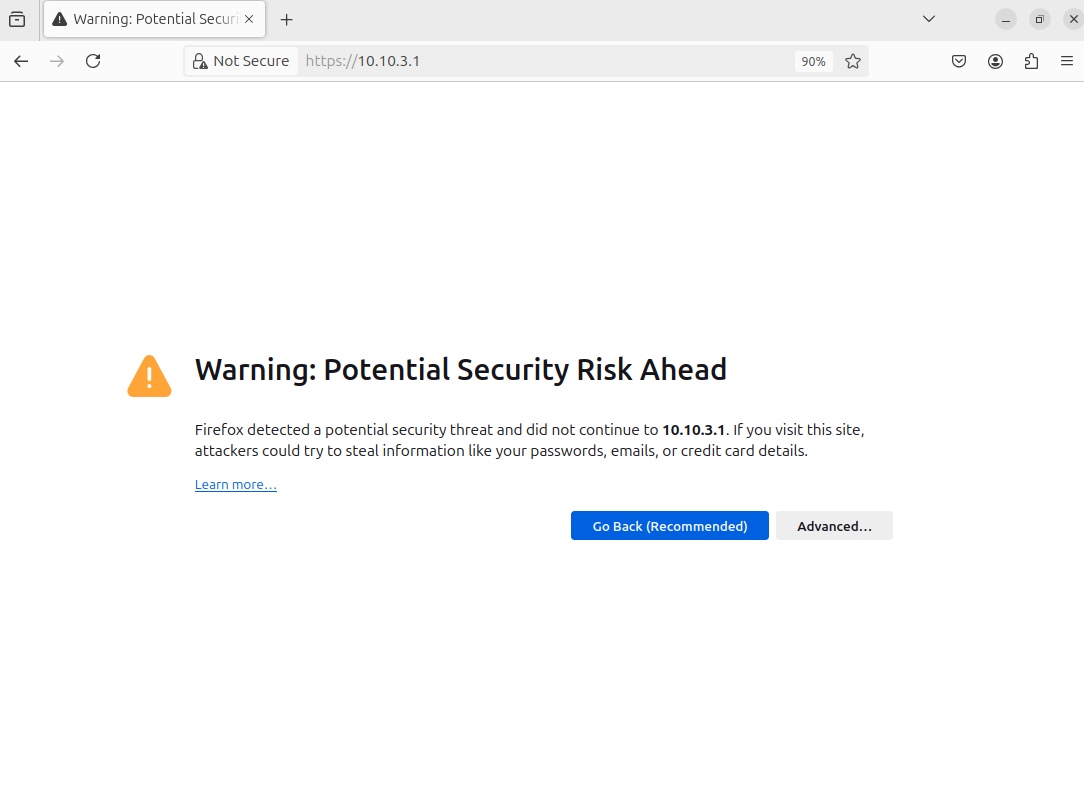
On the Ubuntu VM, head to the OPNsense dashboard by entering the gateway IP (10.10.3.1)
If you get this message, just click Advanced > Accept the Risk and Continue
Log in using the credentials
user: root
password: opnsense (default)
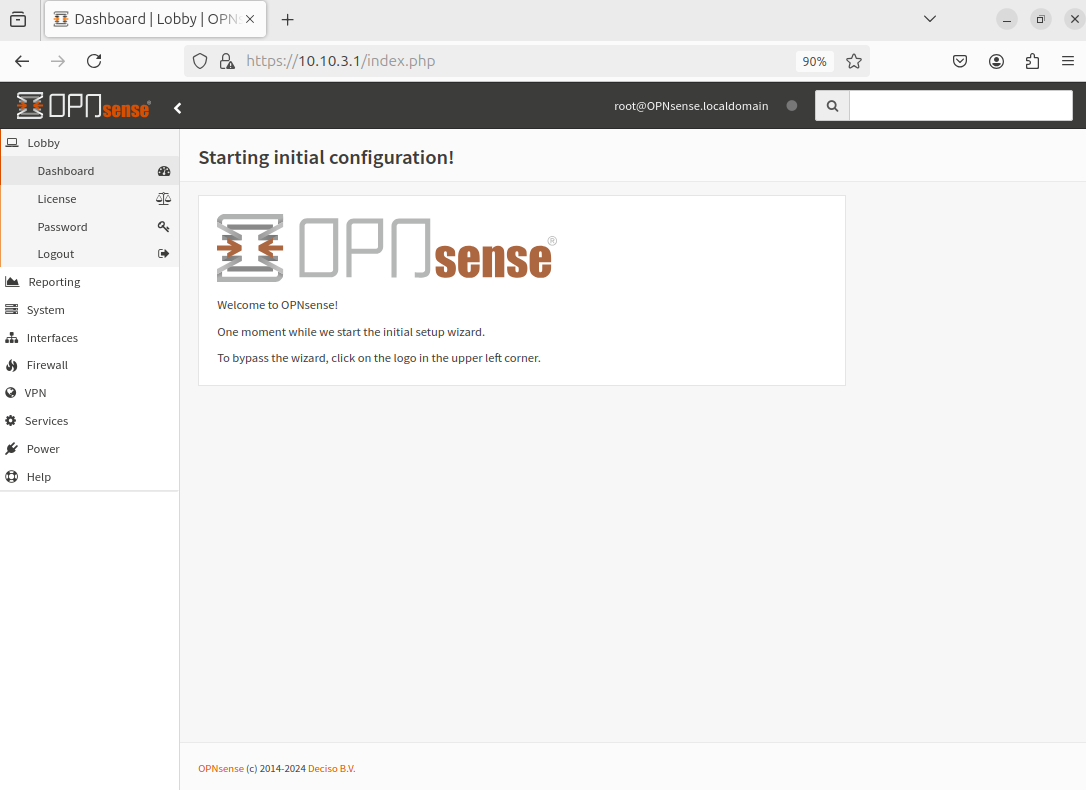
We should be presented with a dashboard like this
Guest Additions Installation
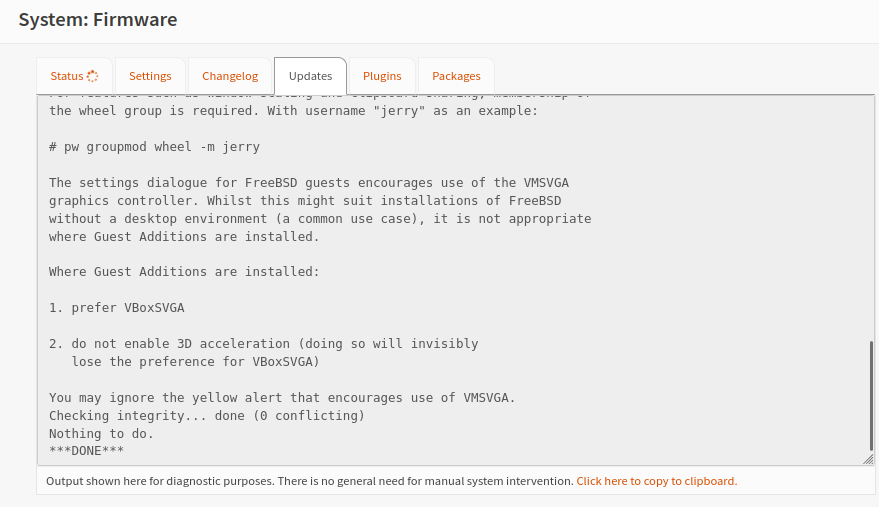
Head to System > Firmware > Status
Click Check for Updates
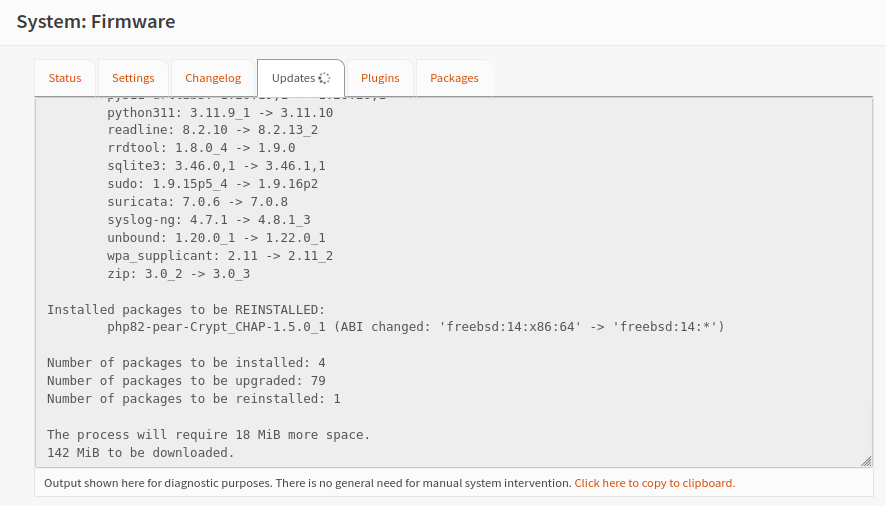
Update
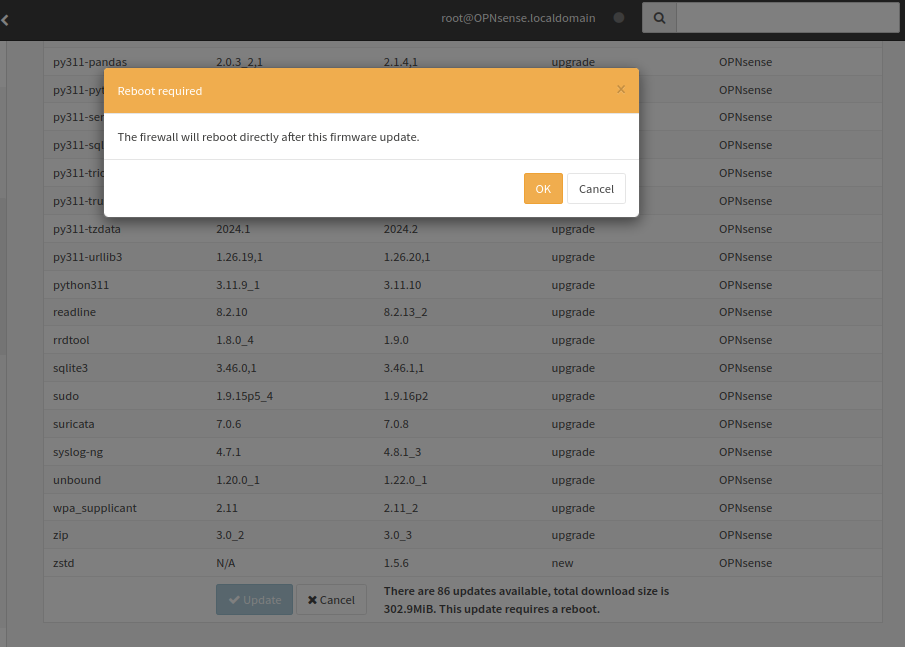
This should not take too long
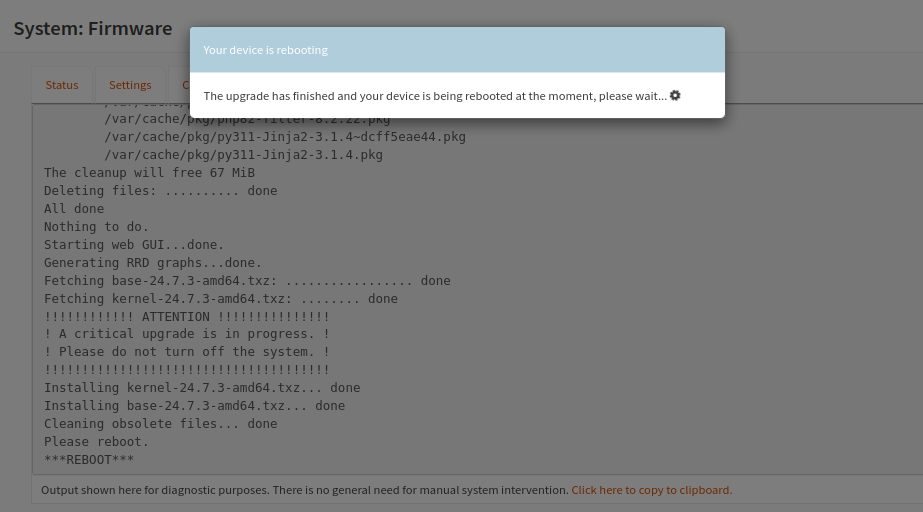
Everything should now be up to date
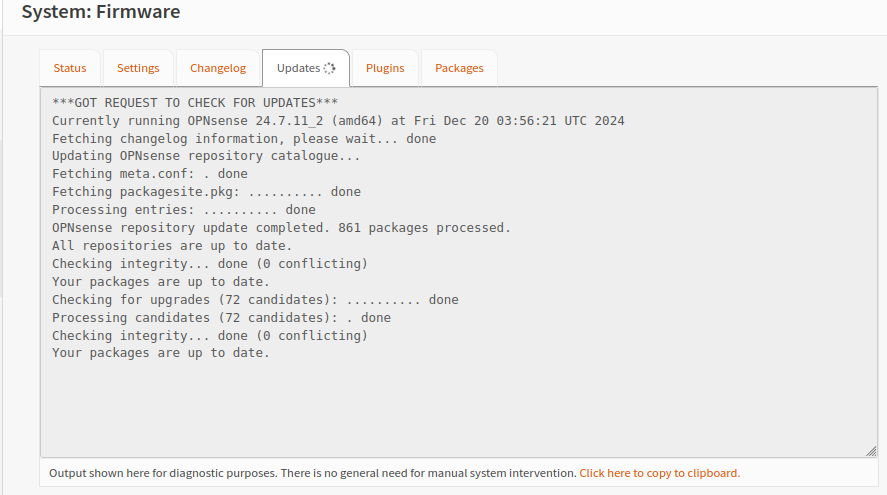
Stay on System > Firmware
Head to Plugins and Install Vbox guest additions (os-virtualbox)
Click the “+” button on the far right
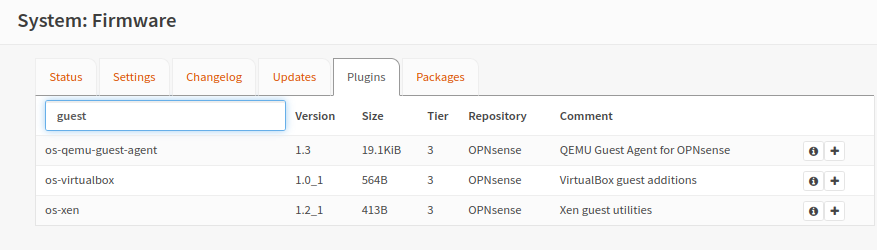
Done
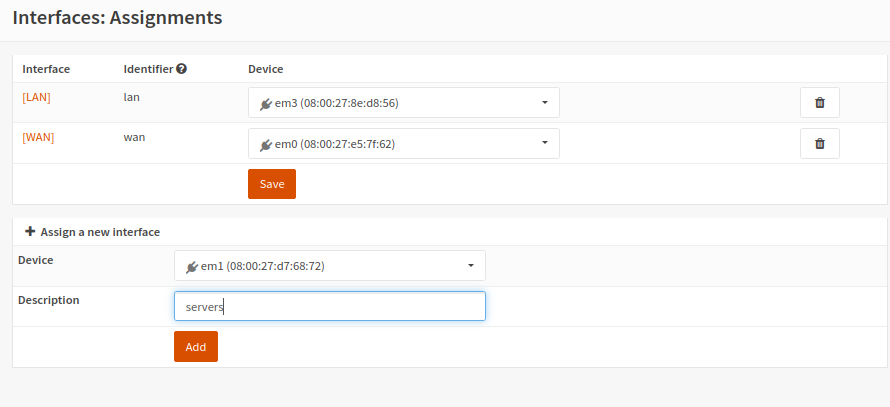
Adapter Assignments
Head to Interfaces > Assignments
Add em1 (this should be internal network: cyberlab-servers)
Make sure the MAC address of the device (em1) matches the MAC address of Adapter 2 of the OPNsense VM (cyberlab-servers)
Give the interface a name (servers)
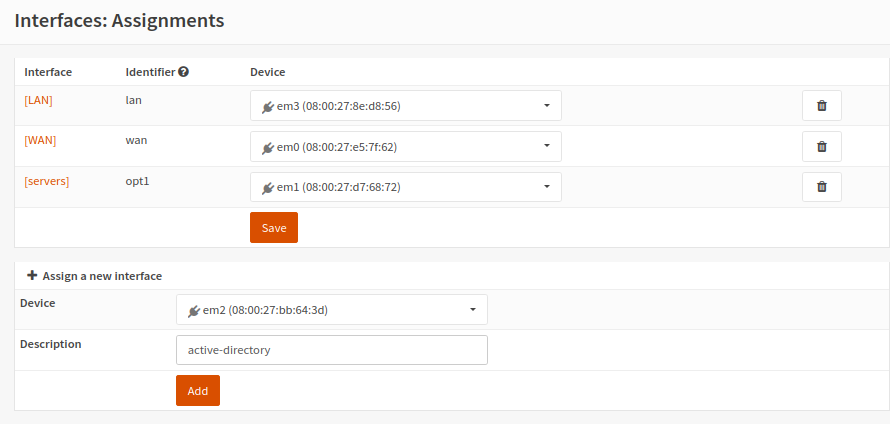
Add em2 (this should be internal network: cyberlab-ad)
Again, make sure the MAC addresses match and give the interface a name
Active Directory Interface
Click the Active Directory interface from the left hand side under Interfaces
Enable this interface
Set the IP to static
Do not configure IPv6
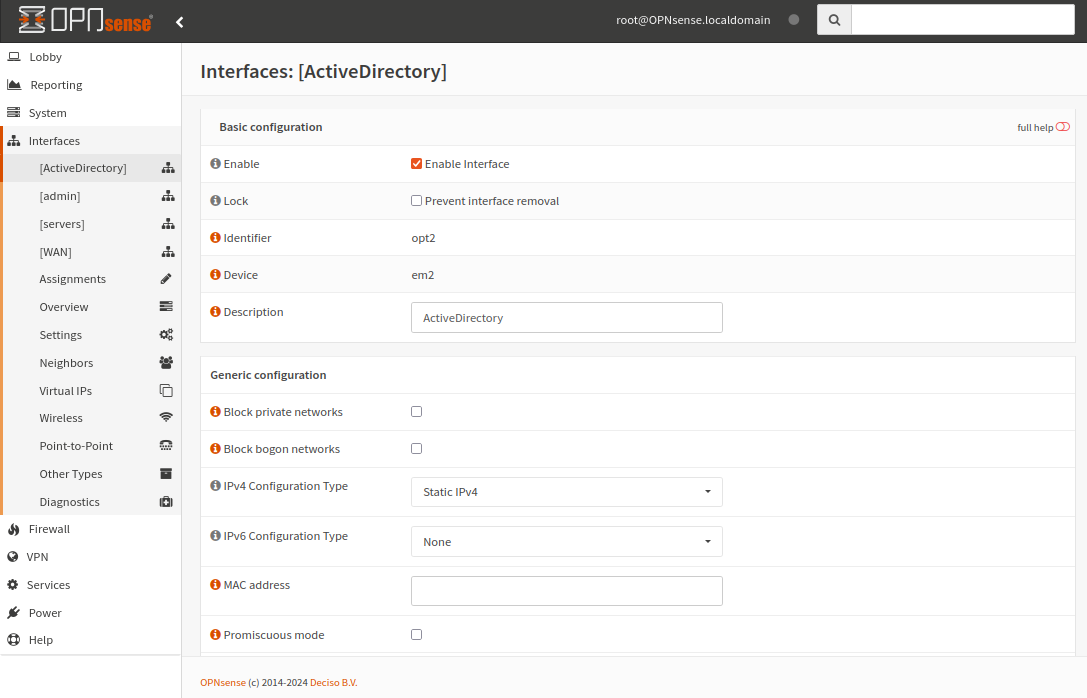
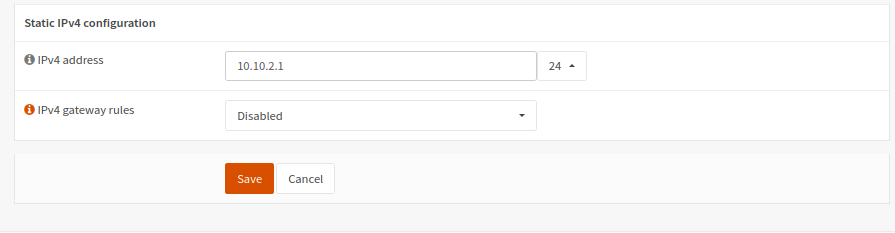
Set the IP of the interface to 10.10.2.1/24
Leave IPv4 gateway rules disabled
Save and apply
Servers Interface
Click the Servers interface under Interfaces
Enable this interface
Set the IP to static
Do not configure IPv6
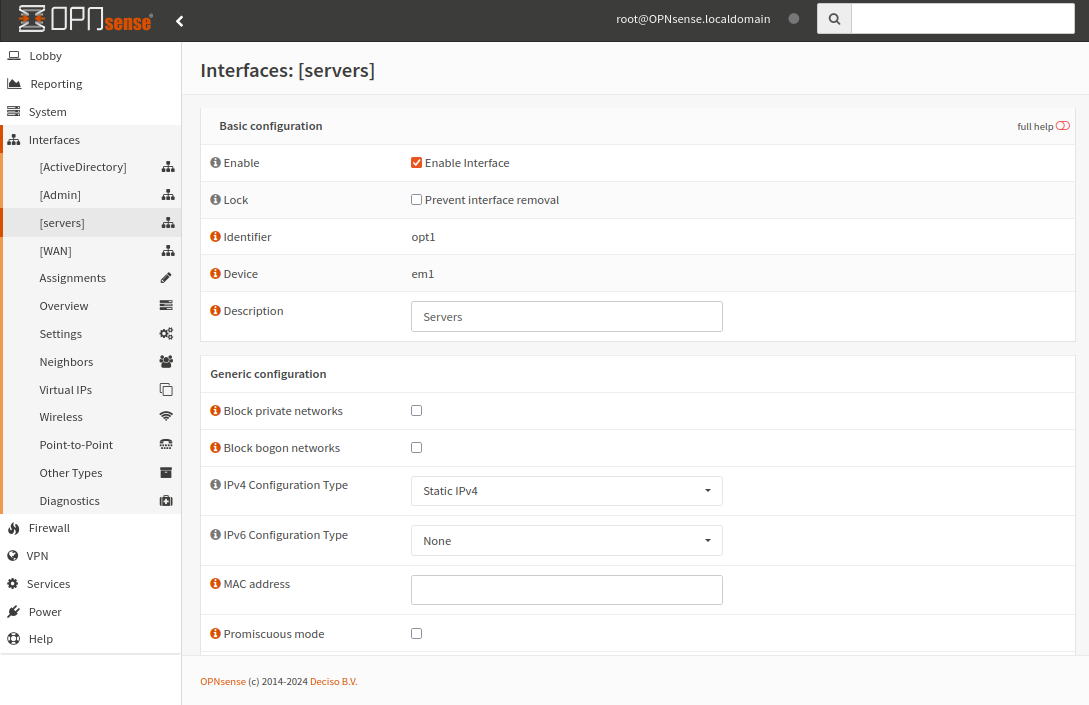
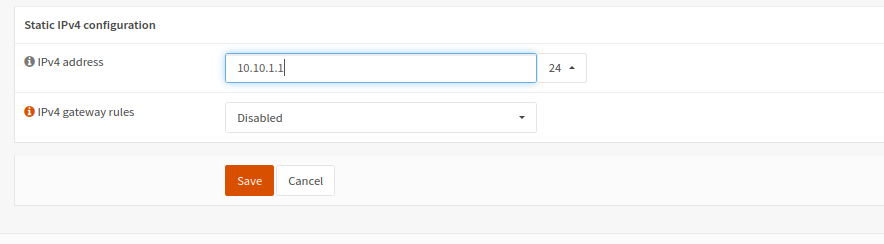
Change the IP to 10.10.1.1/24
Leave IPv4 gateway rules disabled
Save and apply
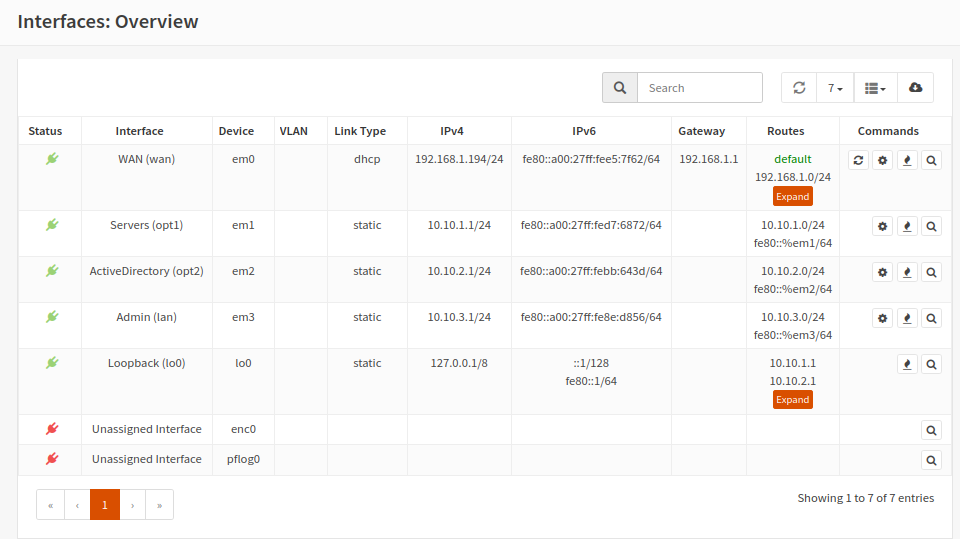
Head to Interfaces > Overview
It should look like this
I renamed the LAN interface to Admin (10.10.3.1/24)
Routing Rules
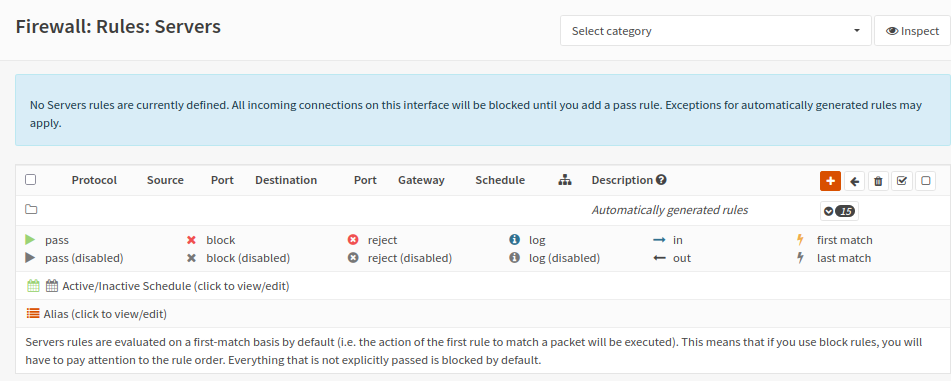
Head to Firewall > Rules > Servers
Click the orange (+) button to add a new rule
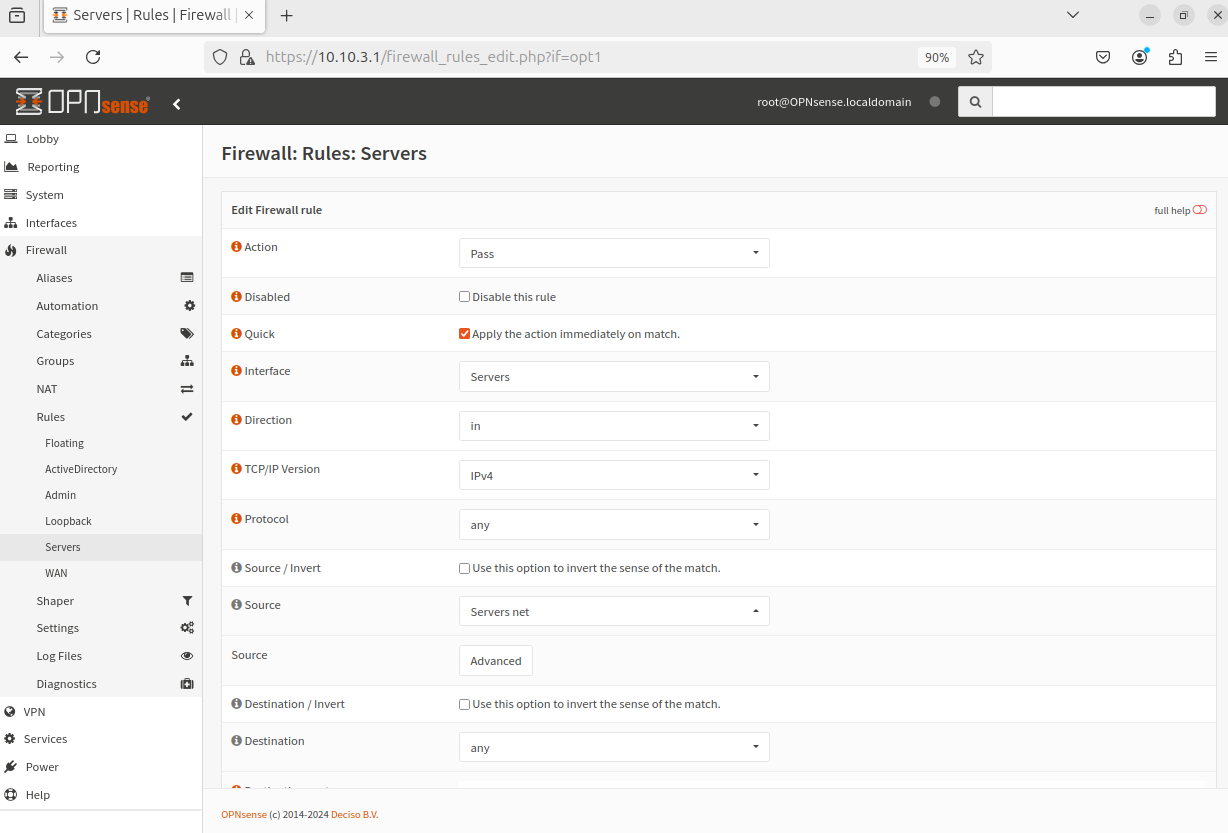
The rule should look like this:
Action: Pass
Interface: Servers
Direction: in
TCP/IP Version: IPv4
Protocol: any
Source: Servers net
Destination: any
Save
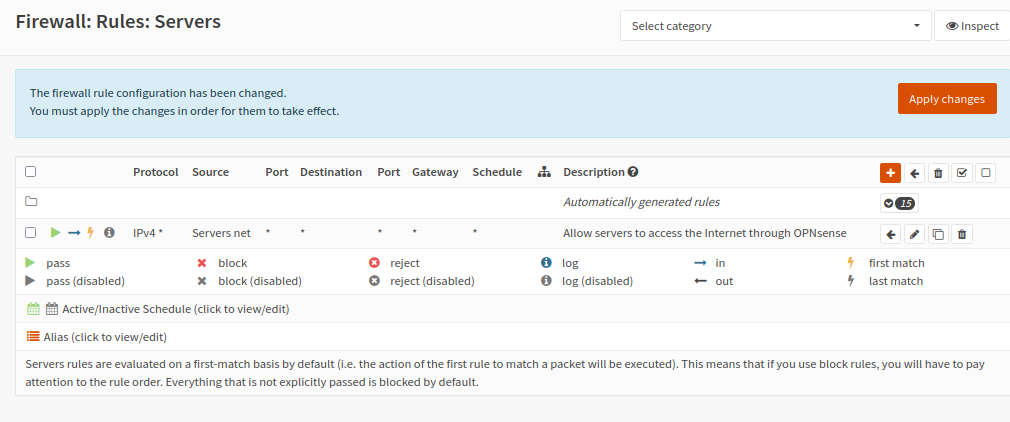
This rule basically gives the Servers network (10.10.1.0) access to the Internet through the OPNsense router
Apply changes
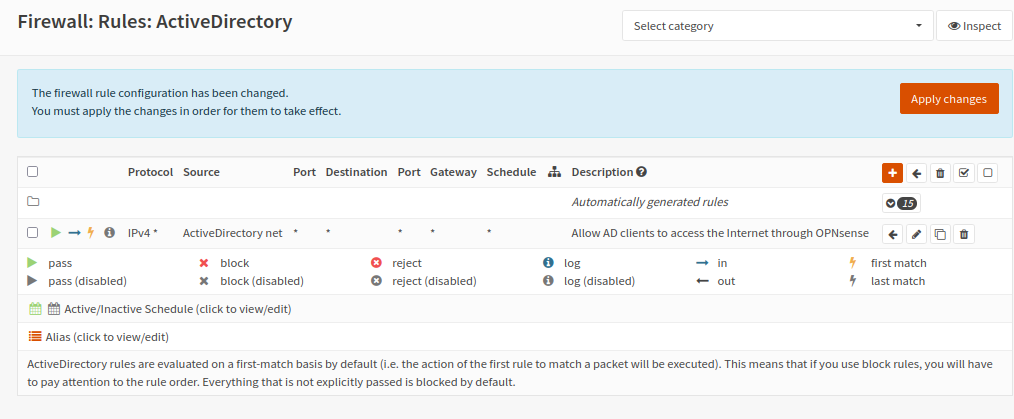
Follow the same process for the AD Clients net
Head to Firewall > Rules > ActiveDirectory
Action: Pass
Interface: ActiveDirectory
Direction: in
TCP/IP Version: IPv4
Protocol: any
Source: ActiveDirectory net
Destination: any
Save
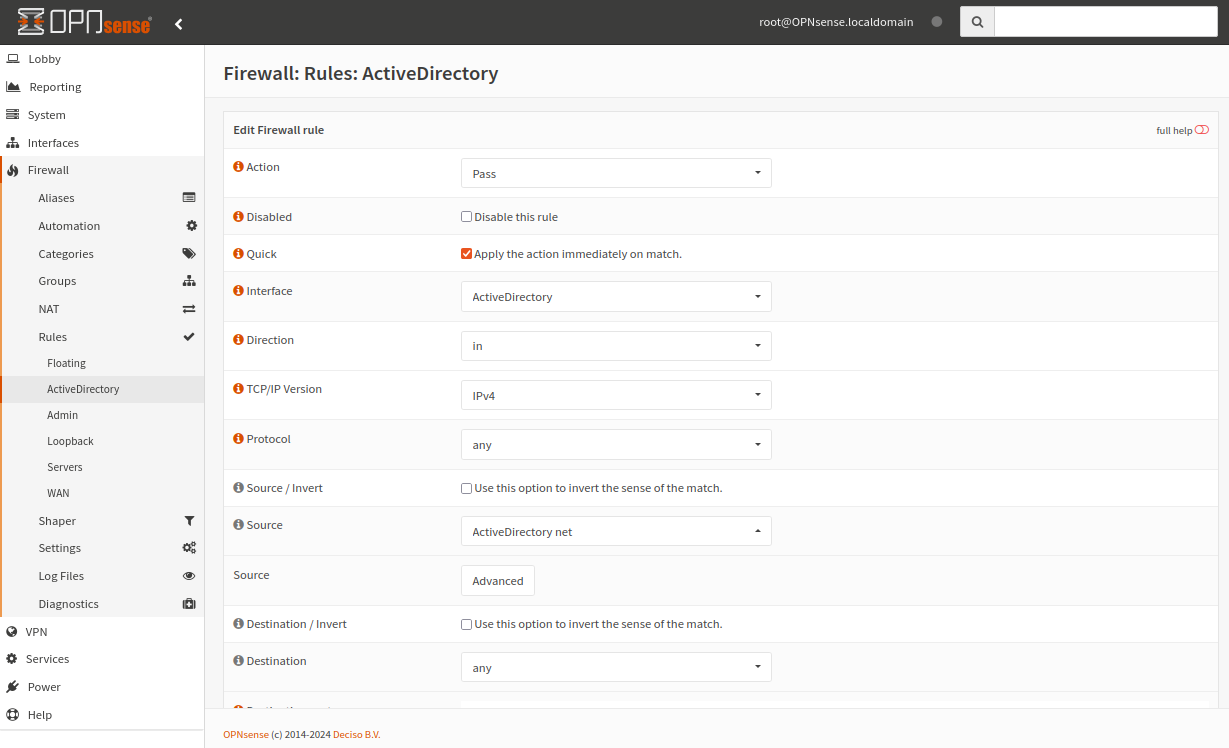
Looks good
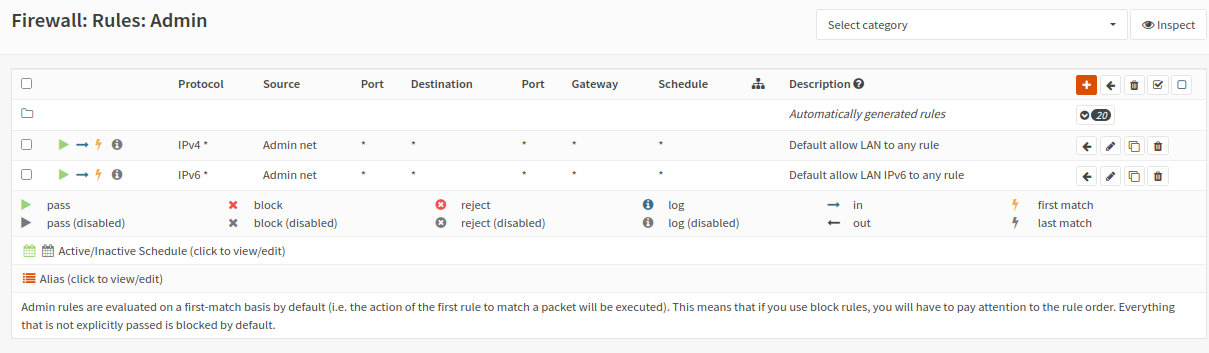
For Admin, head to Firewall > Rules > Admin
The default routing rule for Internet connectivity is already applied since we chose this network (10.10.3.0) to be the LAN during the OPNsense installation. Nothing more has to be done for now. If this is not the case for you, then just follow the same steps as before.
DNS
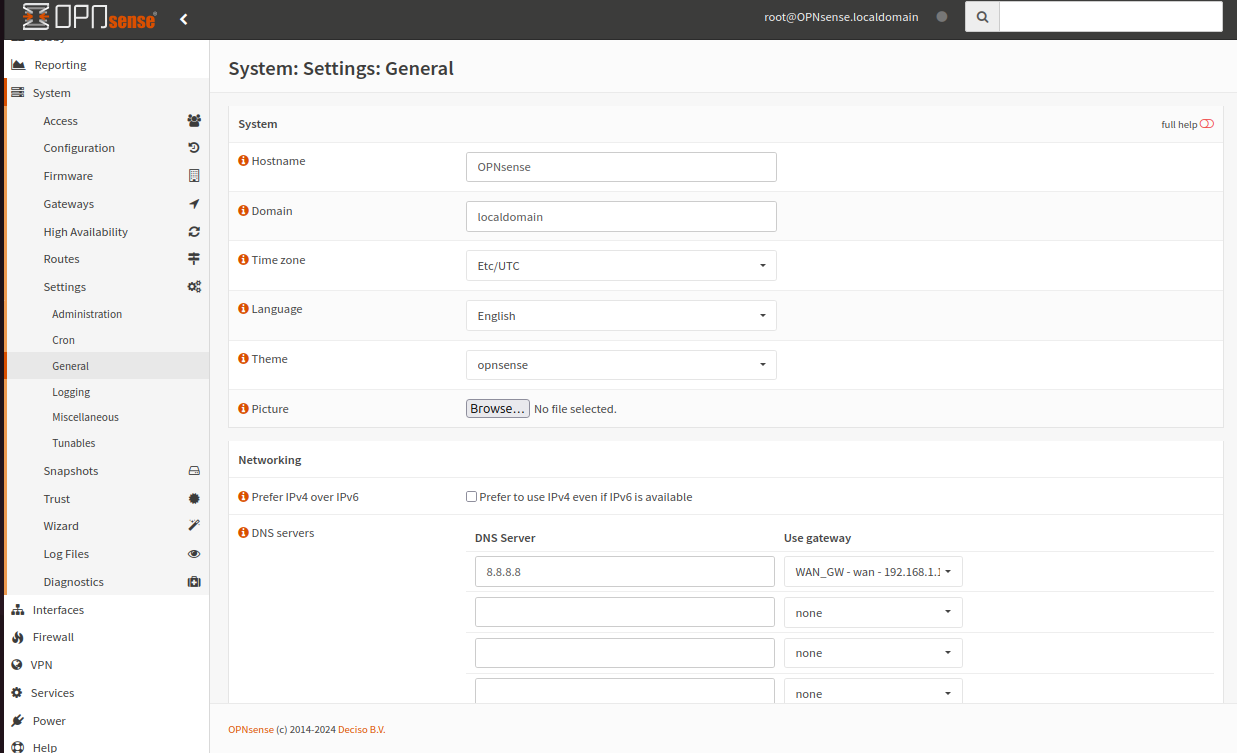
Head to System > Settings > General
Under Networking, enter your DNS server of choice
I chose 8.8.8.8
Use the WAN gateway
Now shut off the Ubuntu VM and disable the NAT adapter
The Ubuntu VM should only have 1 adapter (cyberlab-admin)

Reboot the VM and open a terminal
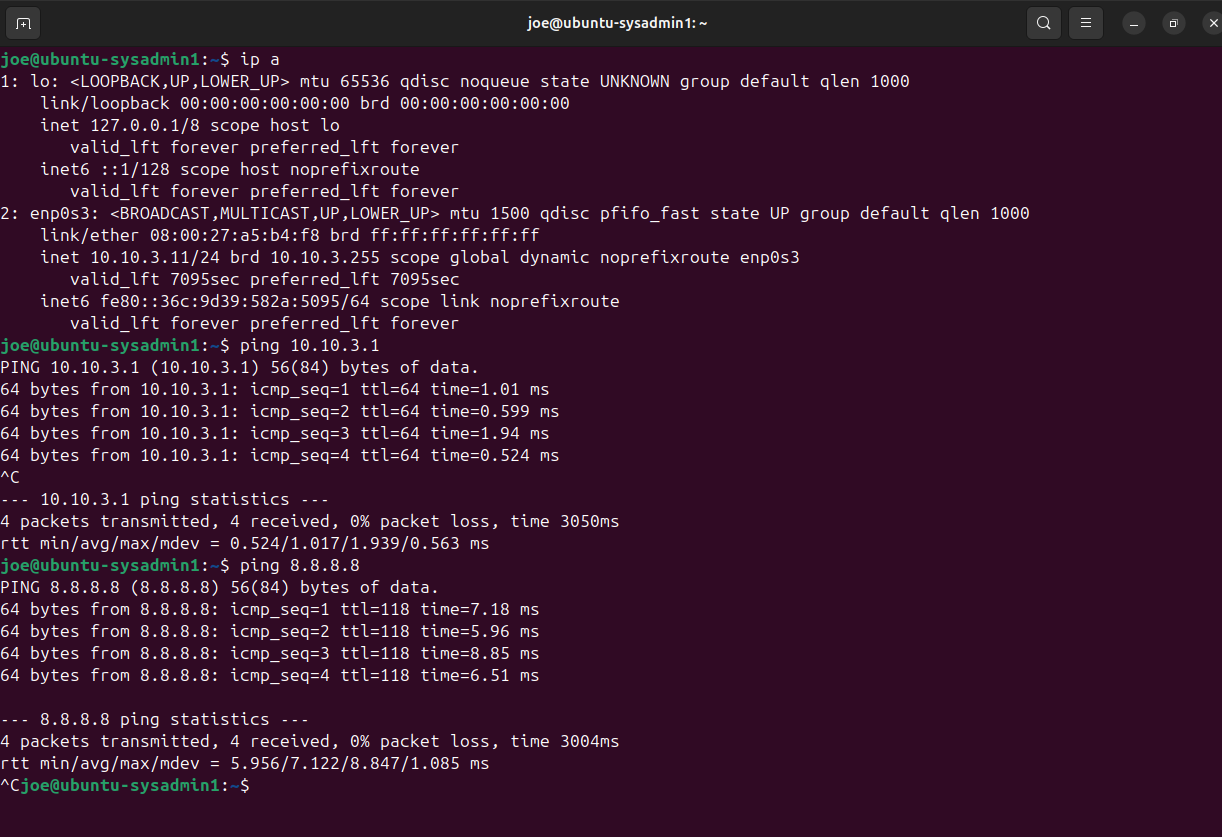
Run ip a
The VM should only have 1 IP address (10.10.3.11 in my case)
We should also be able to ping the gateway and the DNS server
All of our VMs should be able to connect to the Internet through OPNsense