Infrastructure Setup
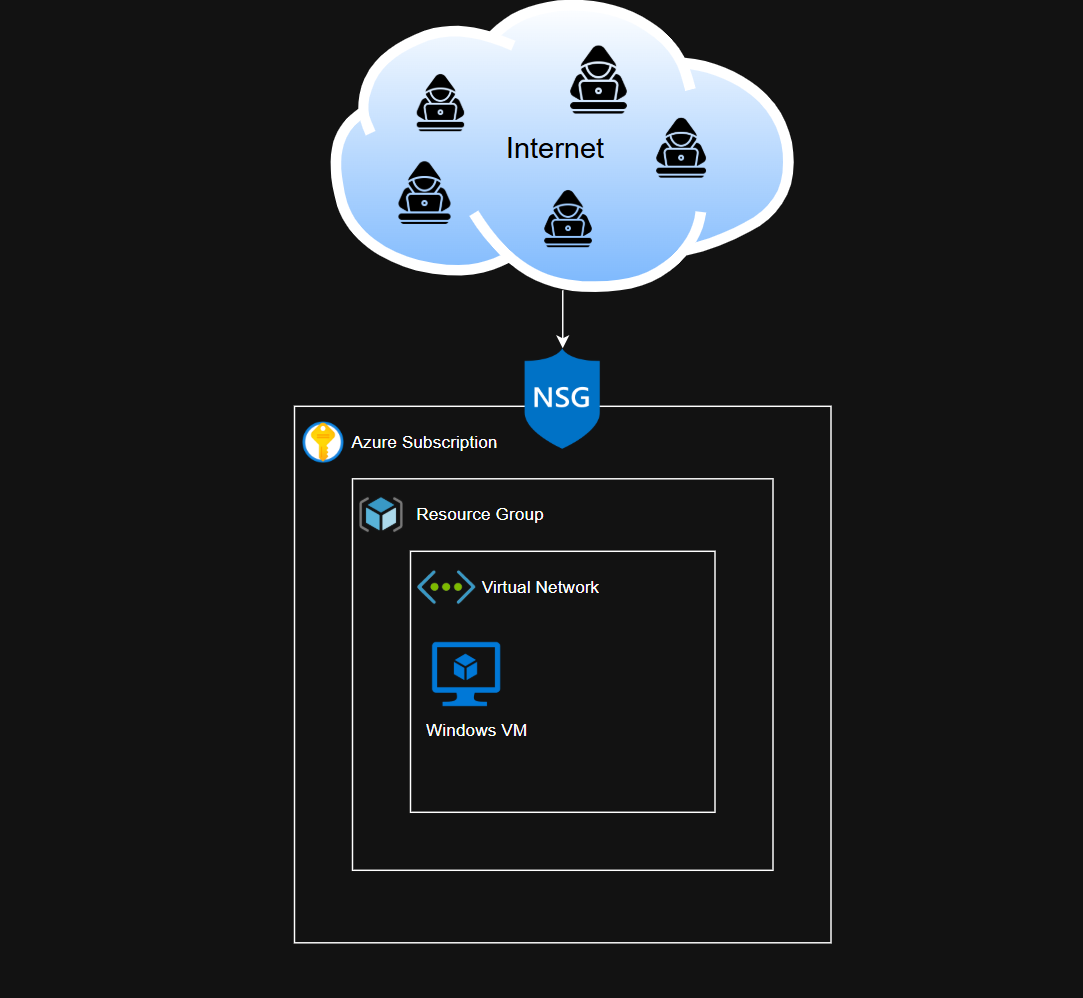
Simple lab environment setup for Azure
This is a very simple envrionment, so I am not going to go step-by-step for creating the resource group (RG) and VM, as these are very straightforward processes.
By the end of this exercise, we will have a resource group, virtual network, a network security group (NSG), and a VM within that virtual network. These resources are all under the same subscription. The VM will be open to ALL traffic, so any endpoint should be able to RDP into it.
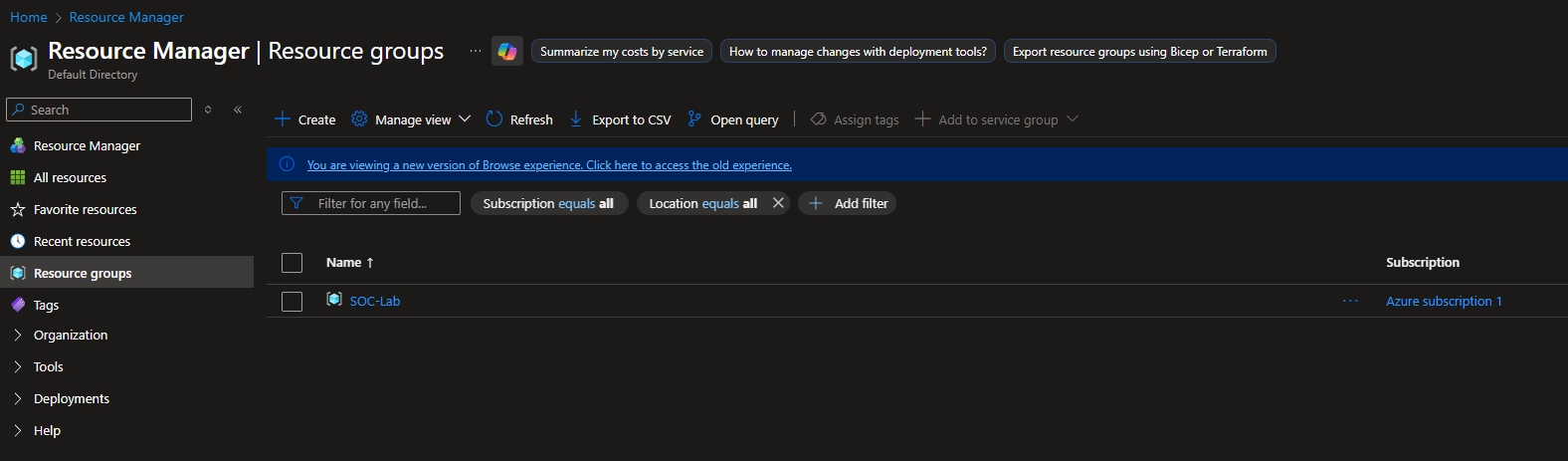
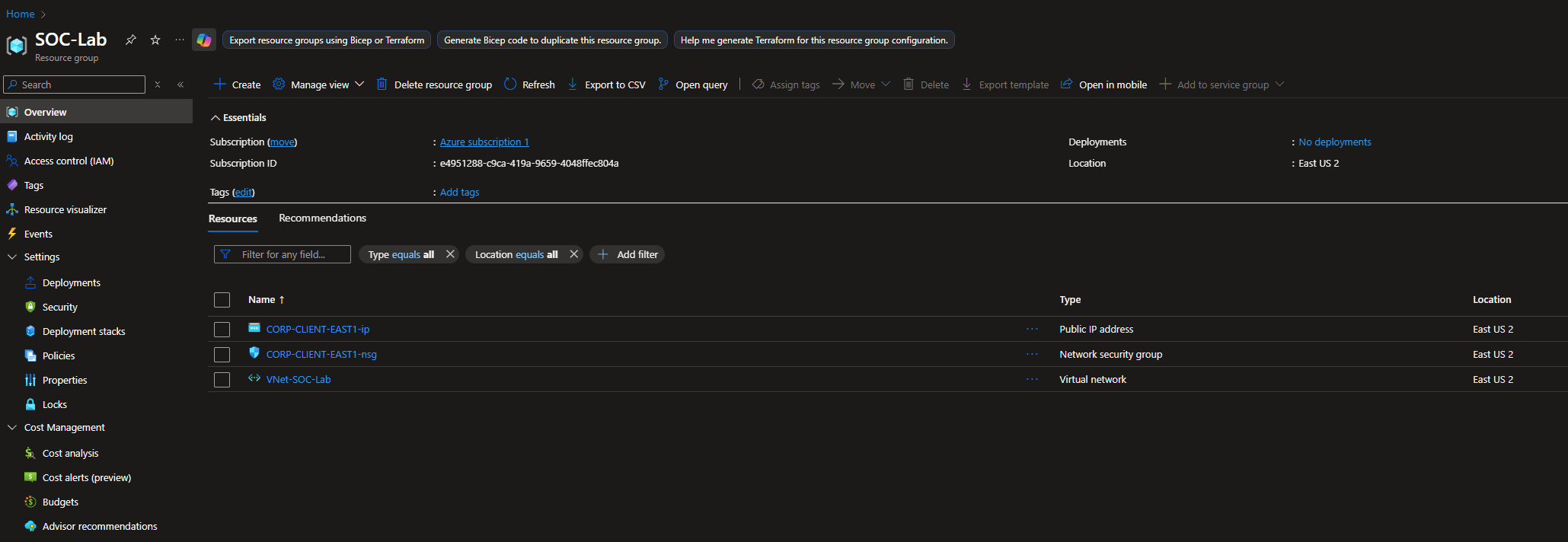
Checkpoint 1 - Resource Group Created
I have the region for this RG set to US East 2, so all other resources must be in the same region.
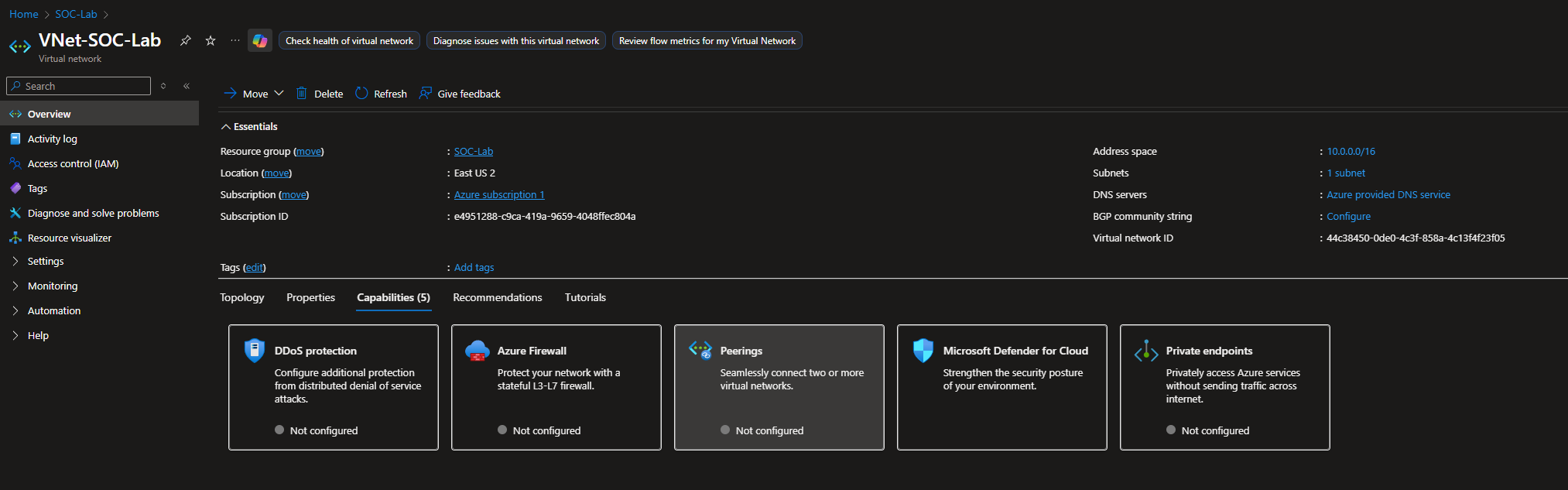
Checkpoint 2 - Virtual Network Created
I left everything at default settings.
Make sure to select the appropriate RG (SOC-Lab), Azure subscription and region (East US 2)
Checkpoint 3 - VM Created
I chose a Windows 10 Enterprise VM.
Again, make sure to select the appropriate RG (SOC-Lab), Azure subscription and region (East US 2).
When creating the user, set the password to something strong. We do not want full compromise; we do not want attackers actually getting access to the VM. The purpose of this lab is to generate logs/telemetry. Keep note of this password somewhere safe.
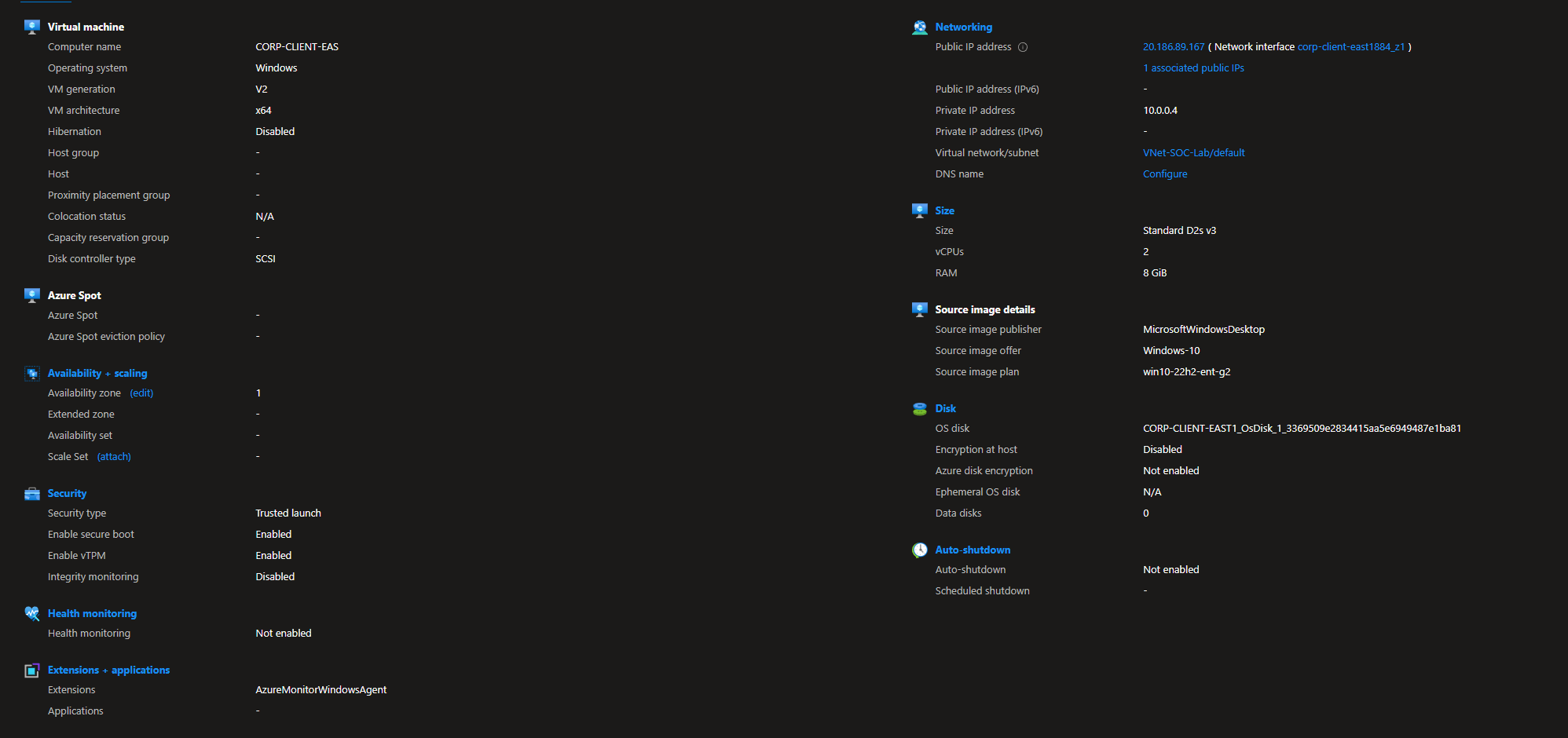
Additional VM details for reference.
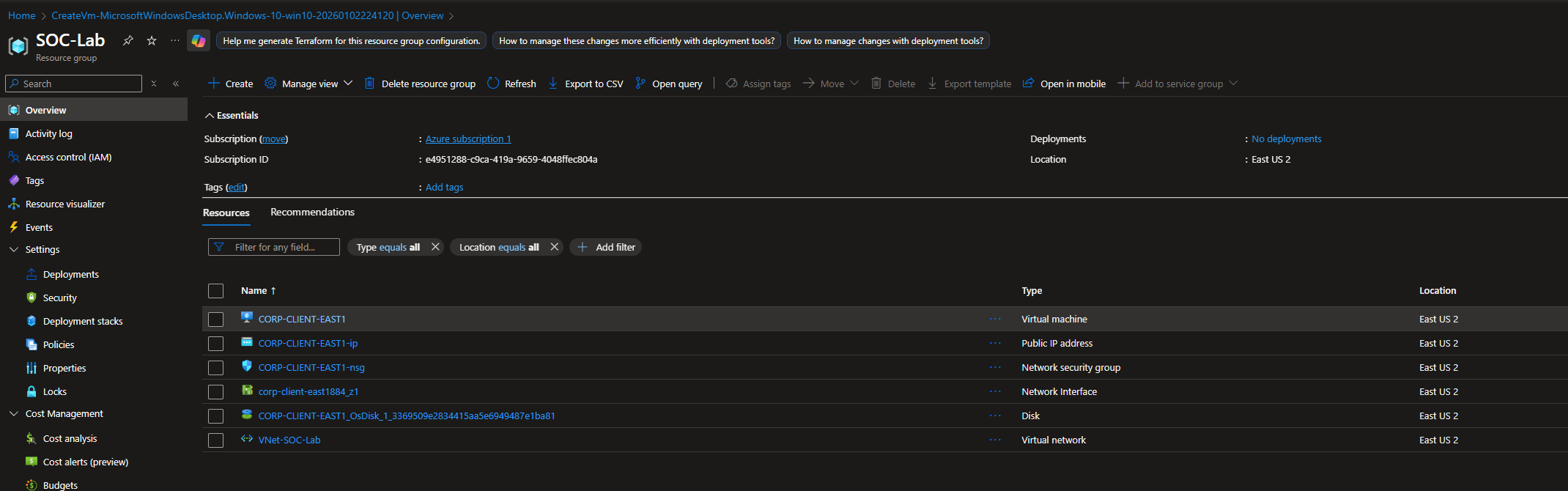
After creating the VM, a public IP, NIC, NSG and disk resources will automatically be created.
Network Security Group (NGS)
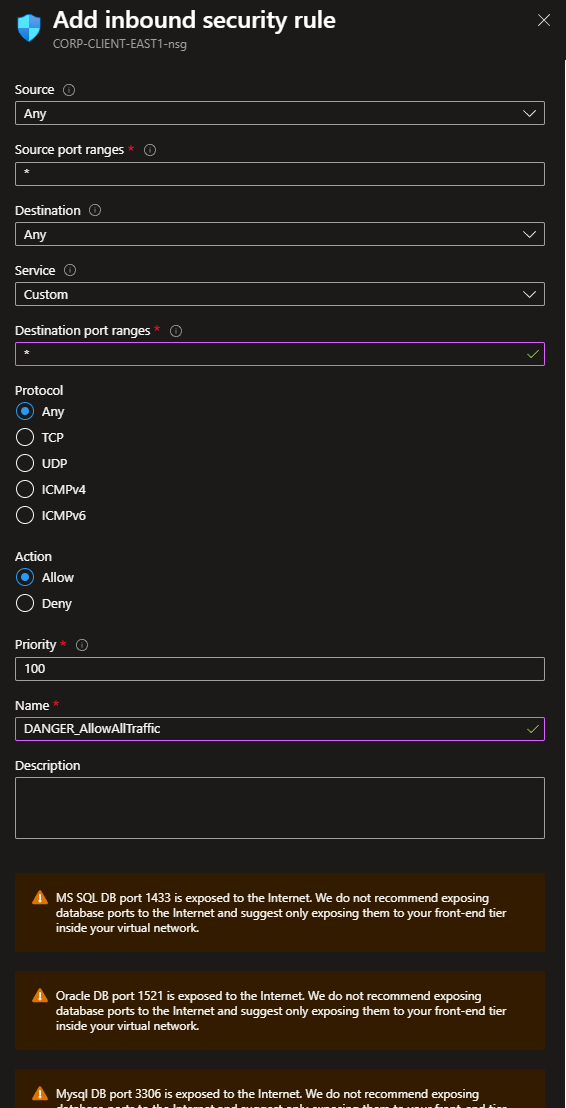
We will create a rule that allows ALL ingress traffic
Rule configuration:
Our inbound rules should now look like this

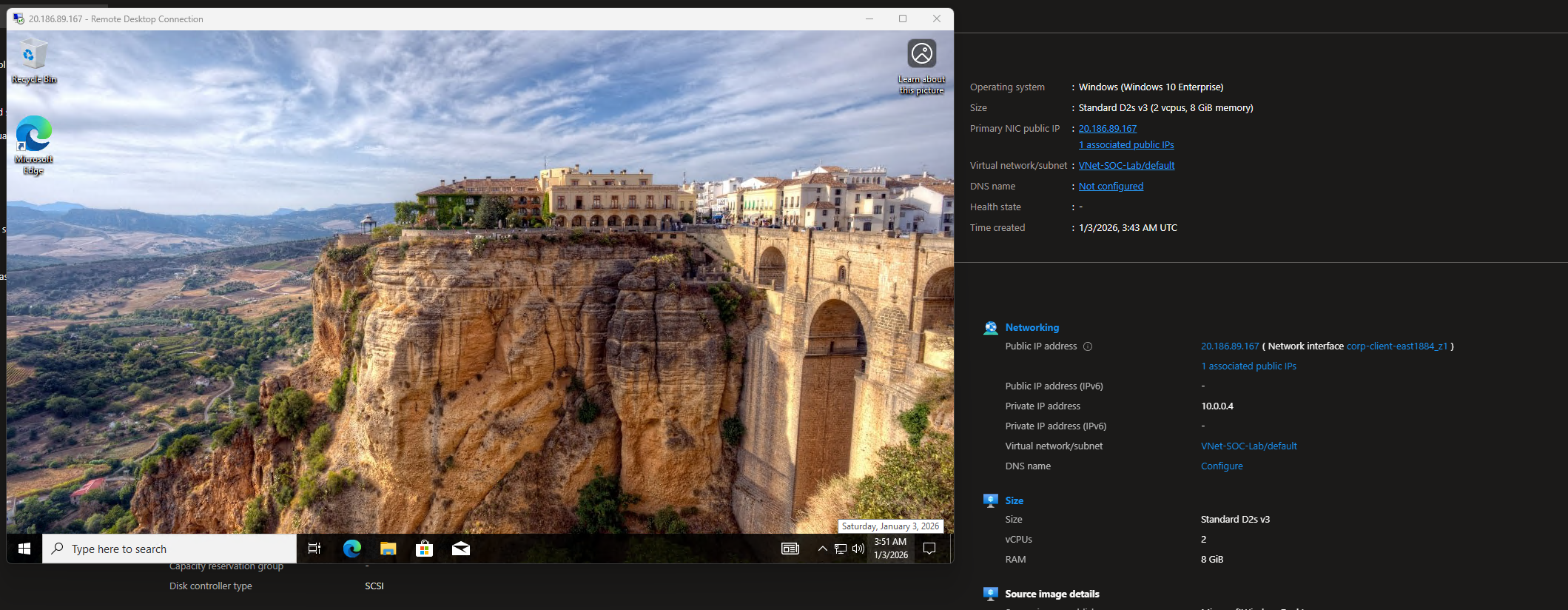
RDP Test
RDP from your host PC, using the VM’s public IP address.
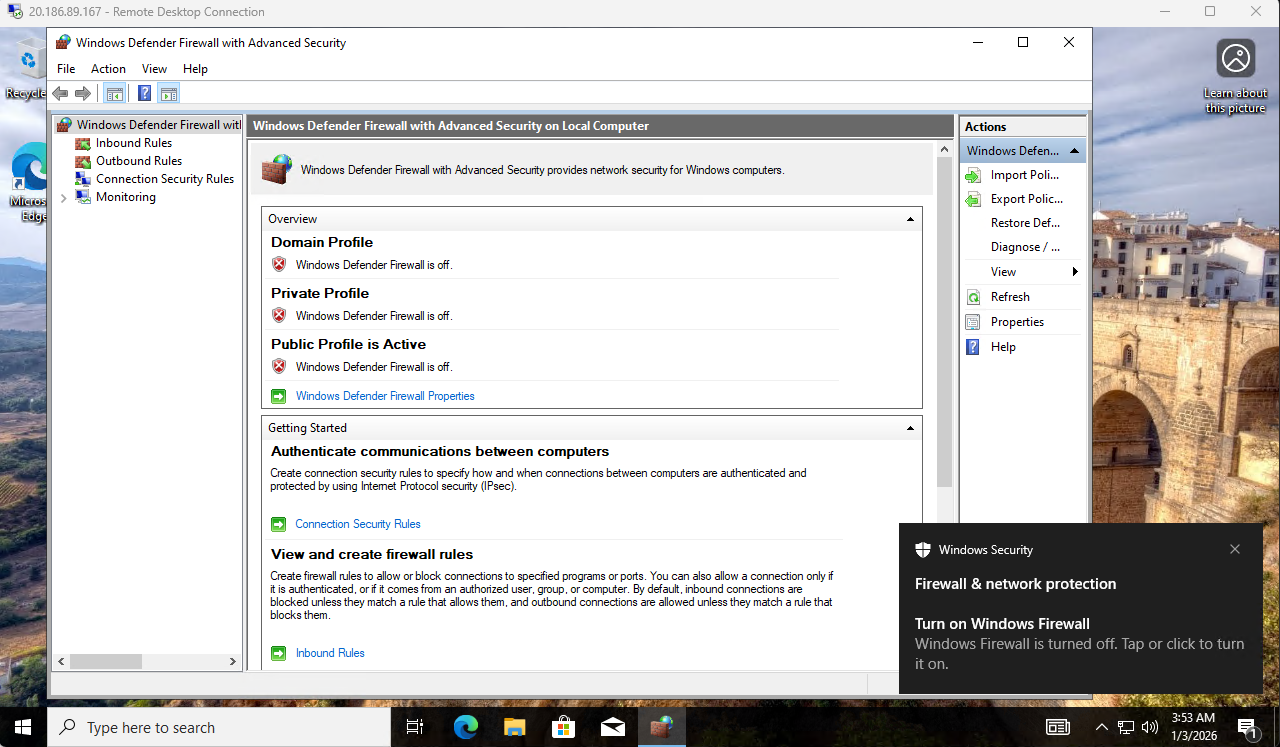
Turn off the firewall for all profiles (domain, private, public)
Sanity Check
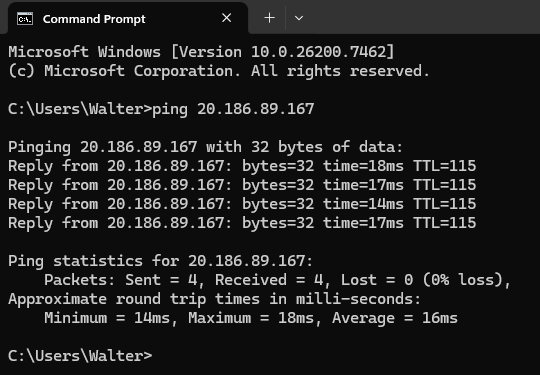
Afterwards, make sure you can ping the VM (from your host PC).
If you can ping it, then every single device on the Internet will be able to as well.