Setting Up Logging for Windows VM in Azure
Setting up logging for Windows VM in Azure via Log Analytics Workspace
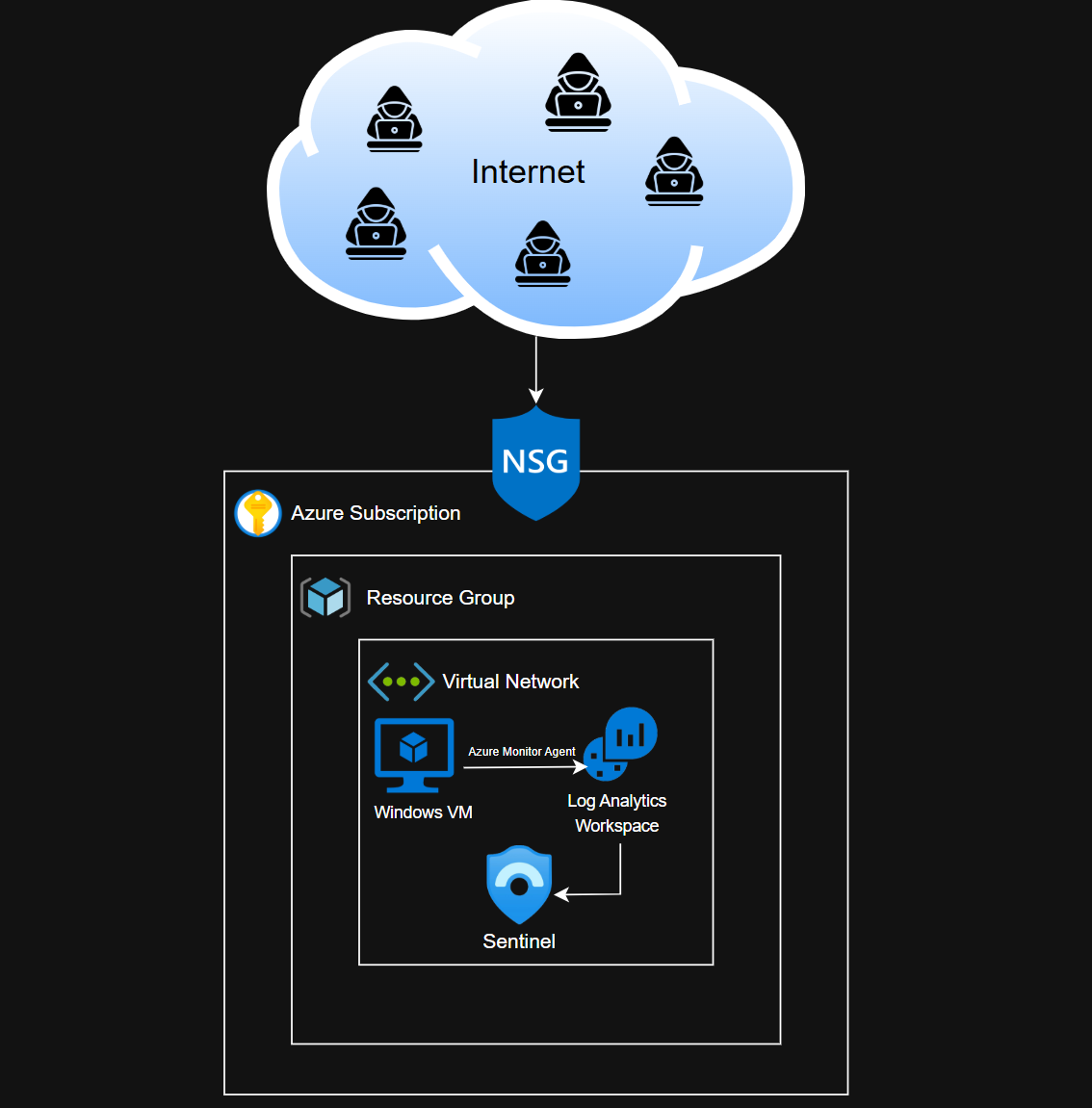
By the end of this exercise, our Windows VM will be able to forward logs to Logs Analytics Workspace via the Azure Monitor Agent. We should be able to view all security related logs from the Setninel SIEM.
Generating Windows Security Logs
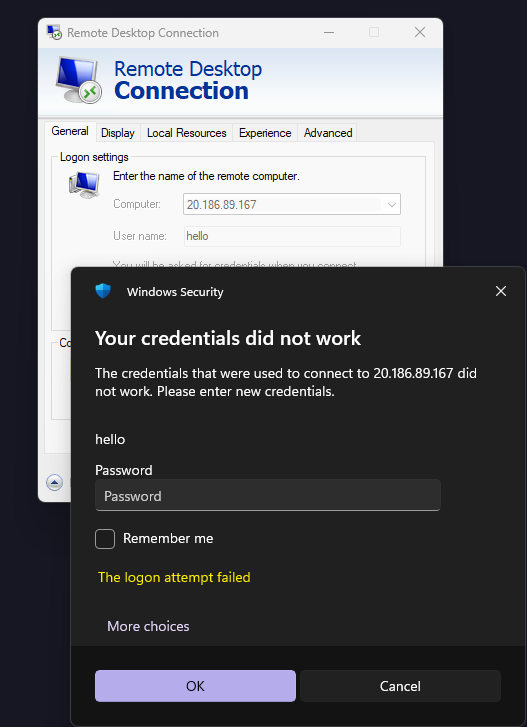
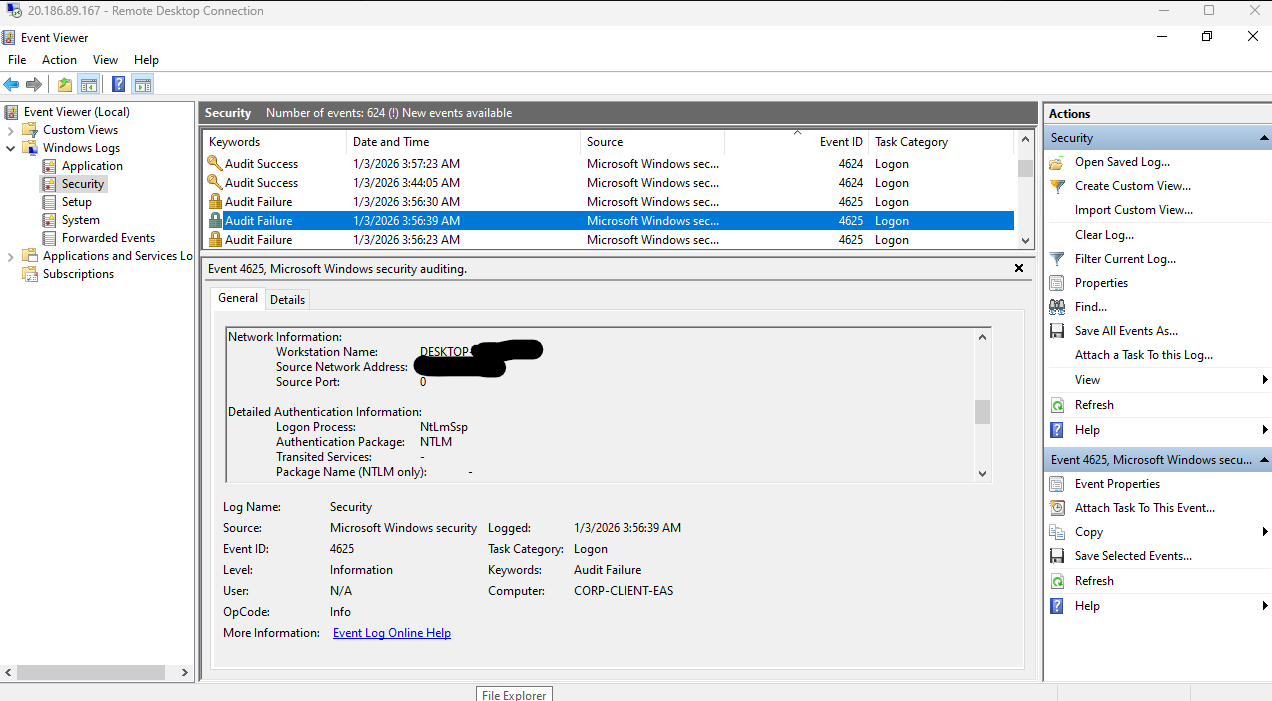
If you are still RDP’d to your VM, exit the RDP session and generate a few failed log in attempts.
Then, log back into the VM and head to event viewer.
Notice our failed log in attempts. These events will have the code 4625 (Failed log in).
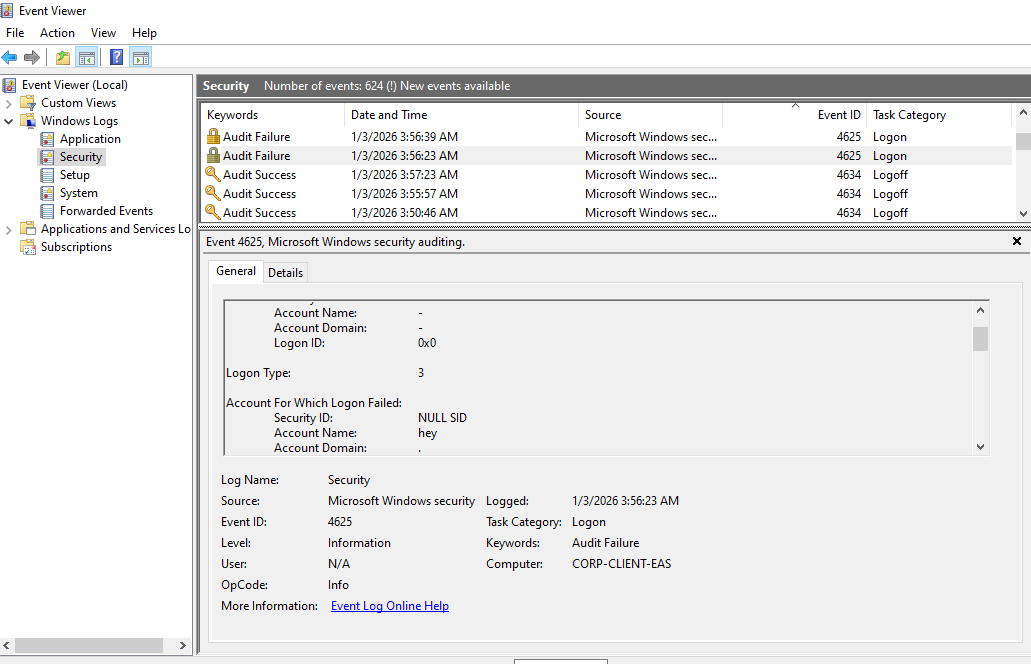
Additionally, it will show the workstation name and IP address of the device that tried to access the VM. This showed my information, which I blurred out for privacy. This is valuable data for investigations, so we want these logs in a centralized repository.
Log Analytics Workspace Integration
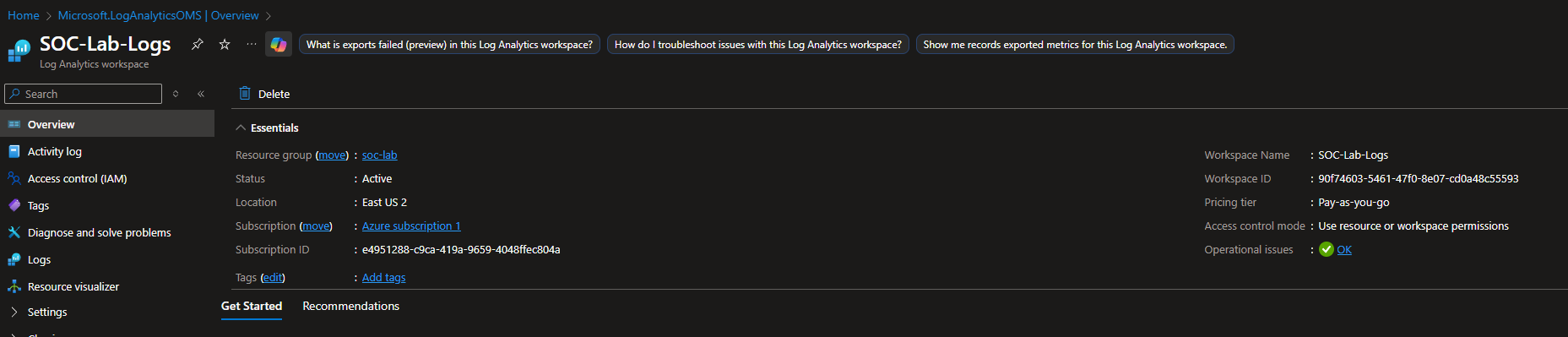
The Log Analytics Workspace (LAW) will be our centralized data store for logs.
On the Azure portal, head to LAW and click create.
Set a name and make sure you use same RG and location as your subscription.
Sentinel SIEM Setup
We will use Sentinel to query these logs.
Head to the Sentinel dashboard and click create new workspace.
Select the Log Analytics Workspace and click add.
Once finished, you should see this screen.

Forwarding Windows Logs to Sentinel
On the Sentinel dashboard, head to Content management > Content hub
Look for Windows Security Events and install the plugin
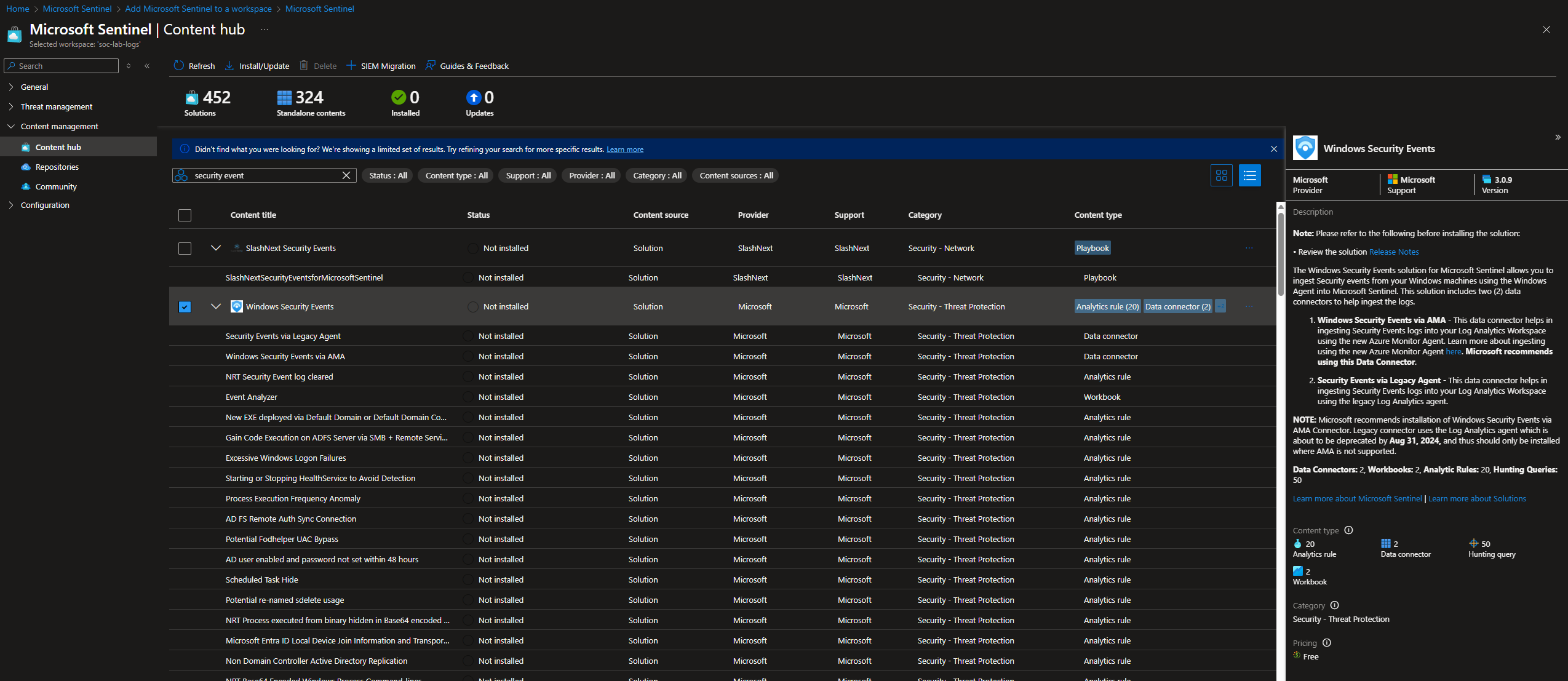
Once it’s finished installing, click manage
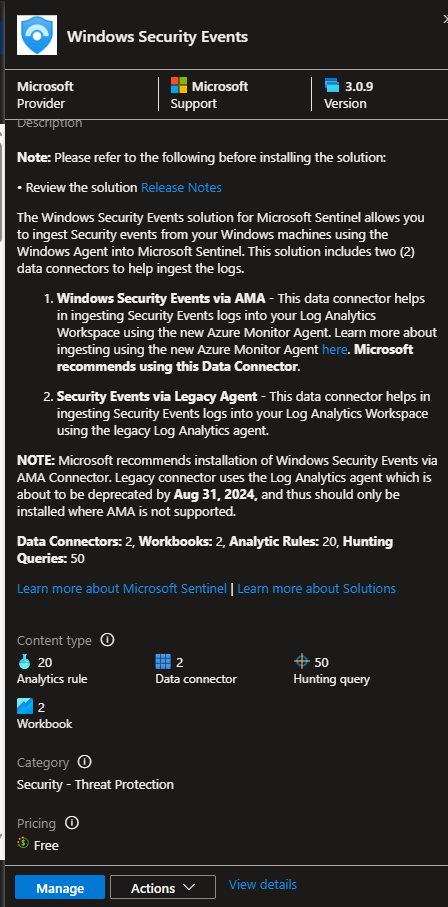
Look for Windows Security Events via AMA and open click Open connector page
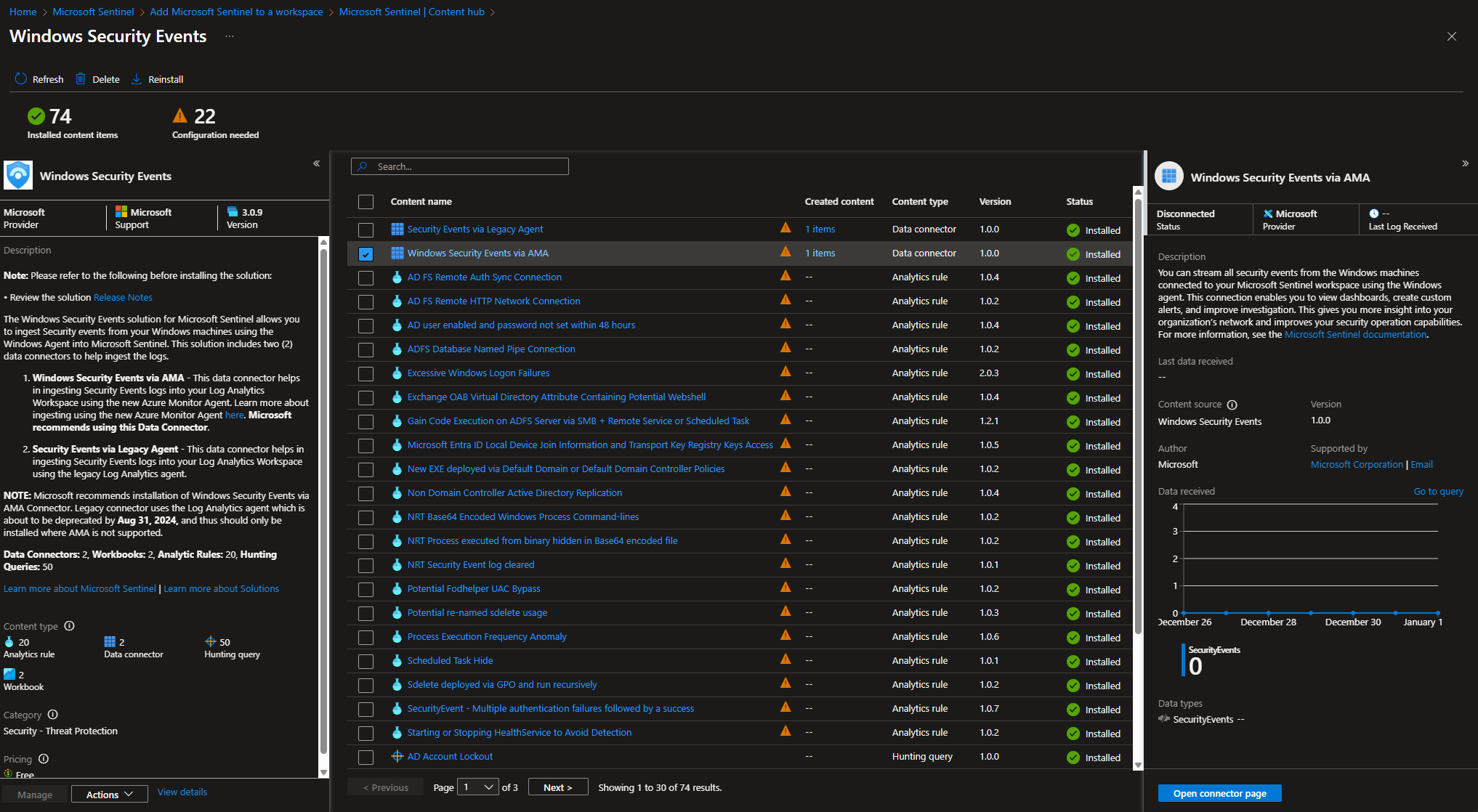
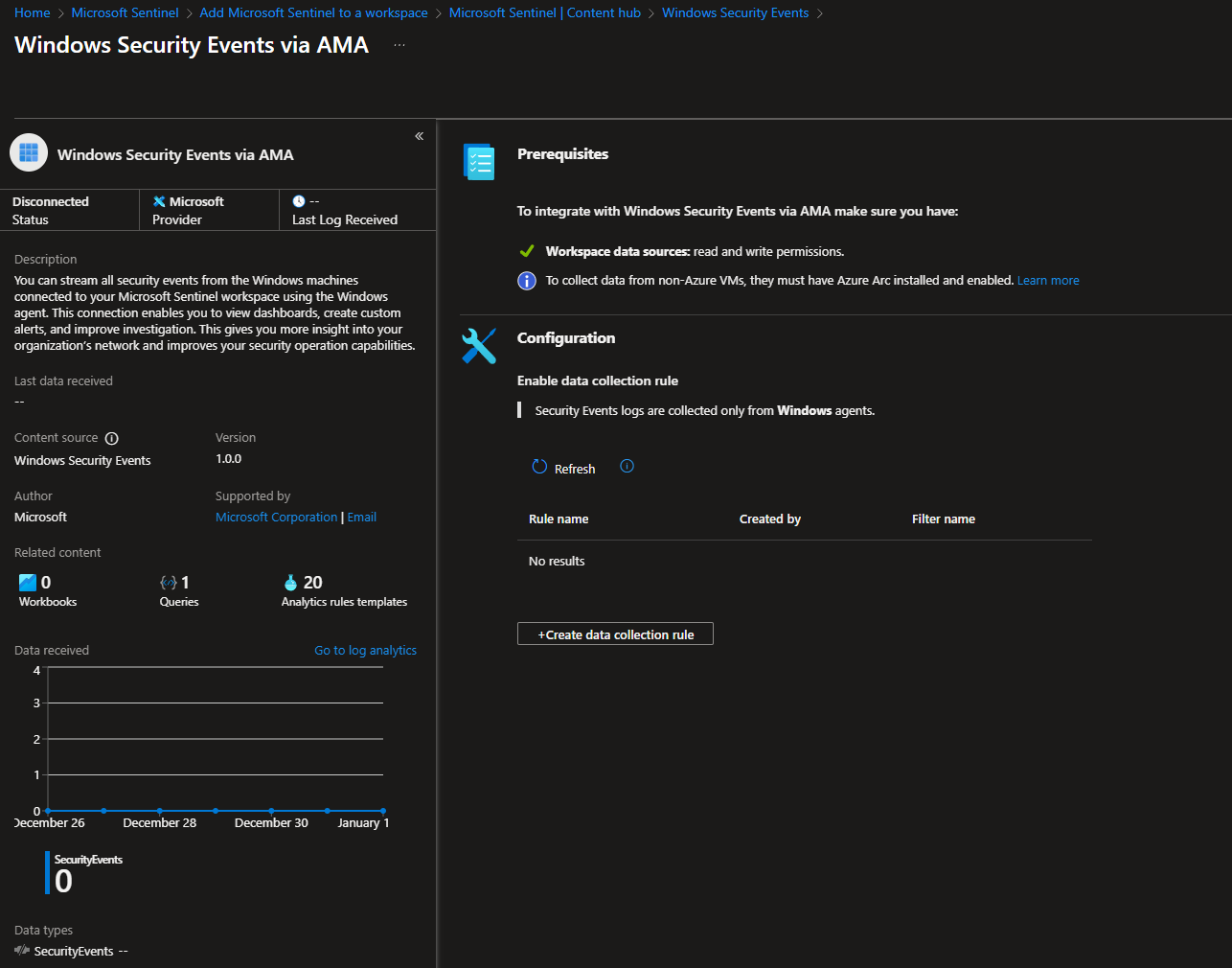
Click Create data collection rule
This rule will be used by our VM to forward logs to LAW, so we can view them in Sentinel
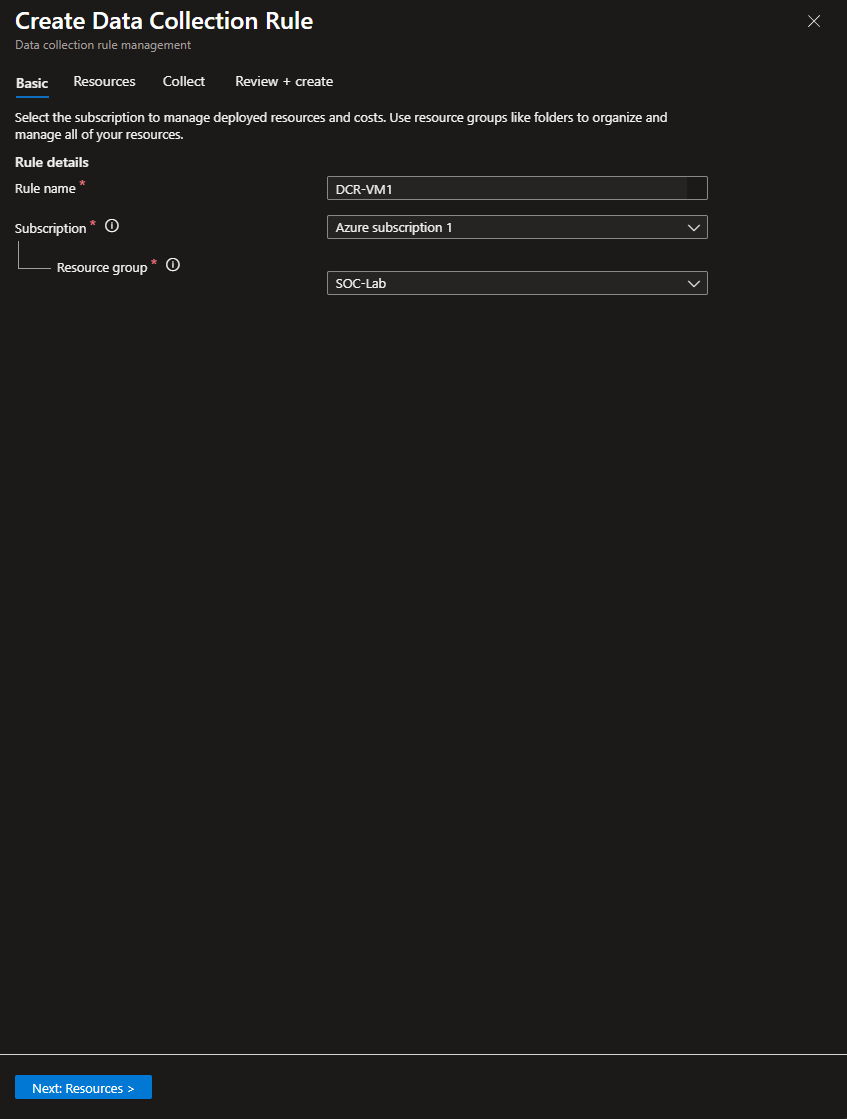
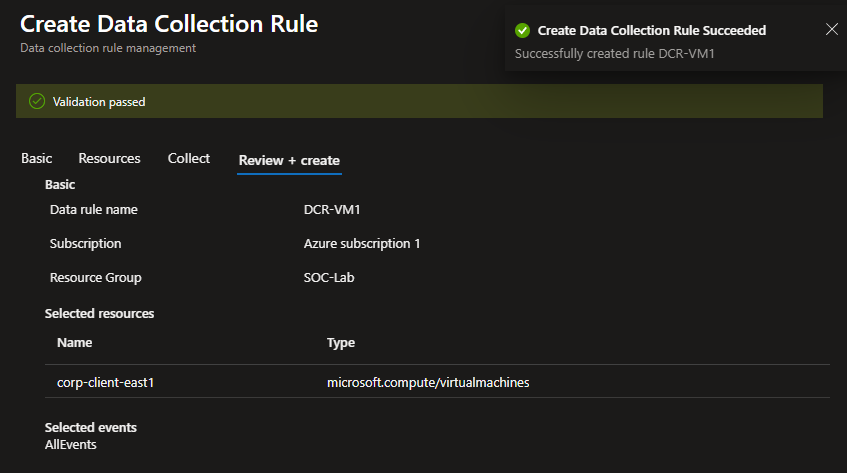
Give the rule a name and make sure you are using the same subscription and RG
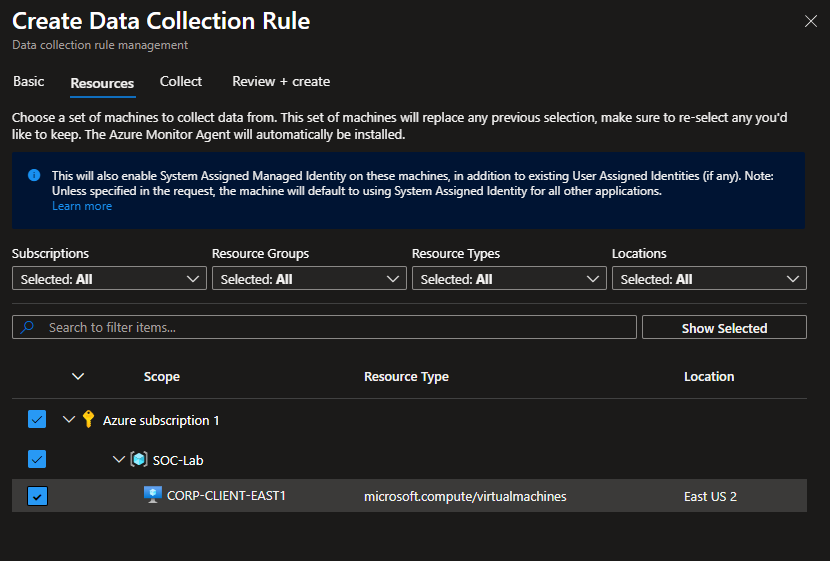
Select the VM from the hierarchy
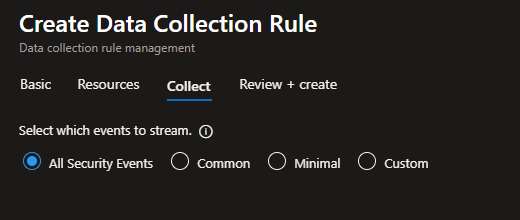
Leave to All security events
Create
VIewing Logs on Sentinel
Head to the VM dashboard
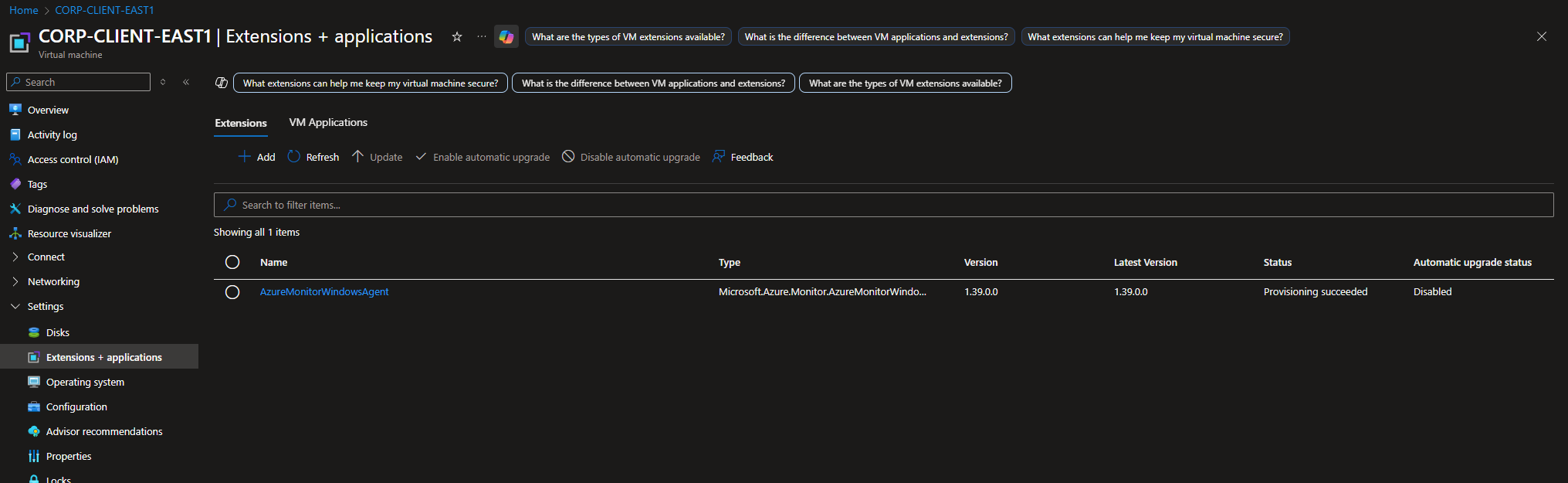
Head to Settings > Extensions + Applications
Under status for AzureMonitorWindowsAgent, it should show “Provisioning succeeded”
Head to LAW
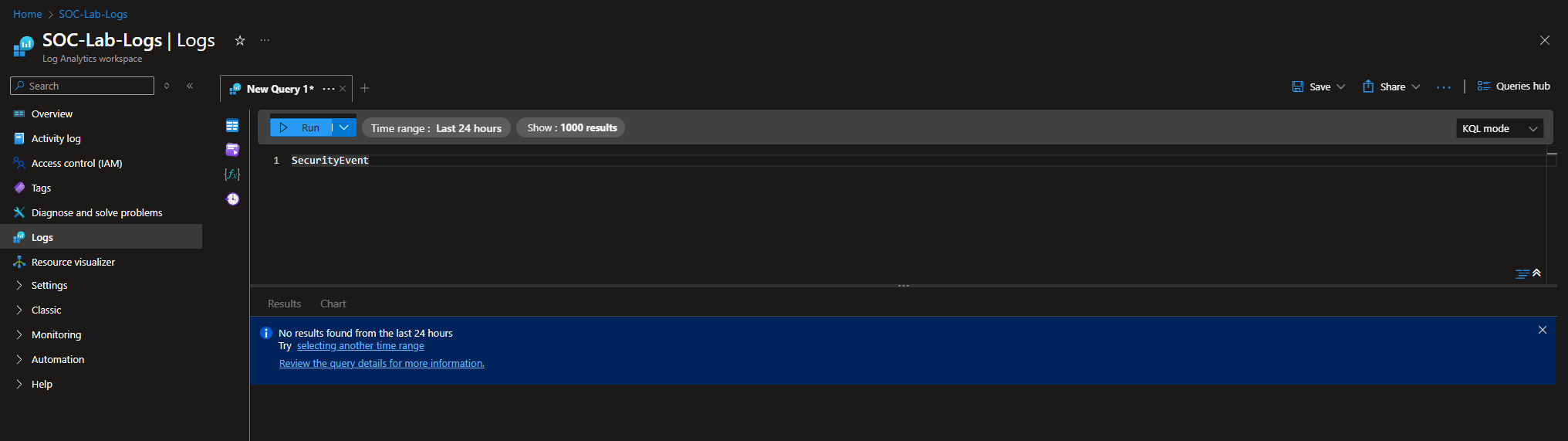
Go to the Logs tab
On the top right, change the mode to KQL mode
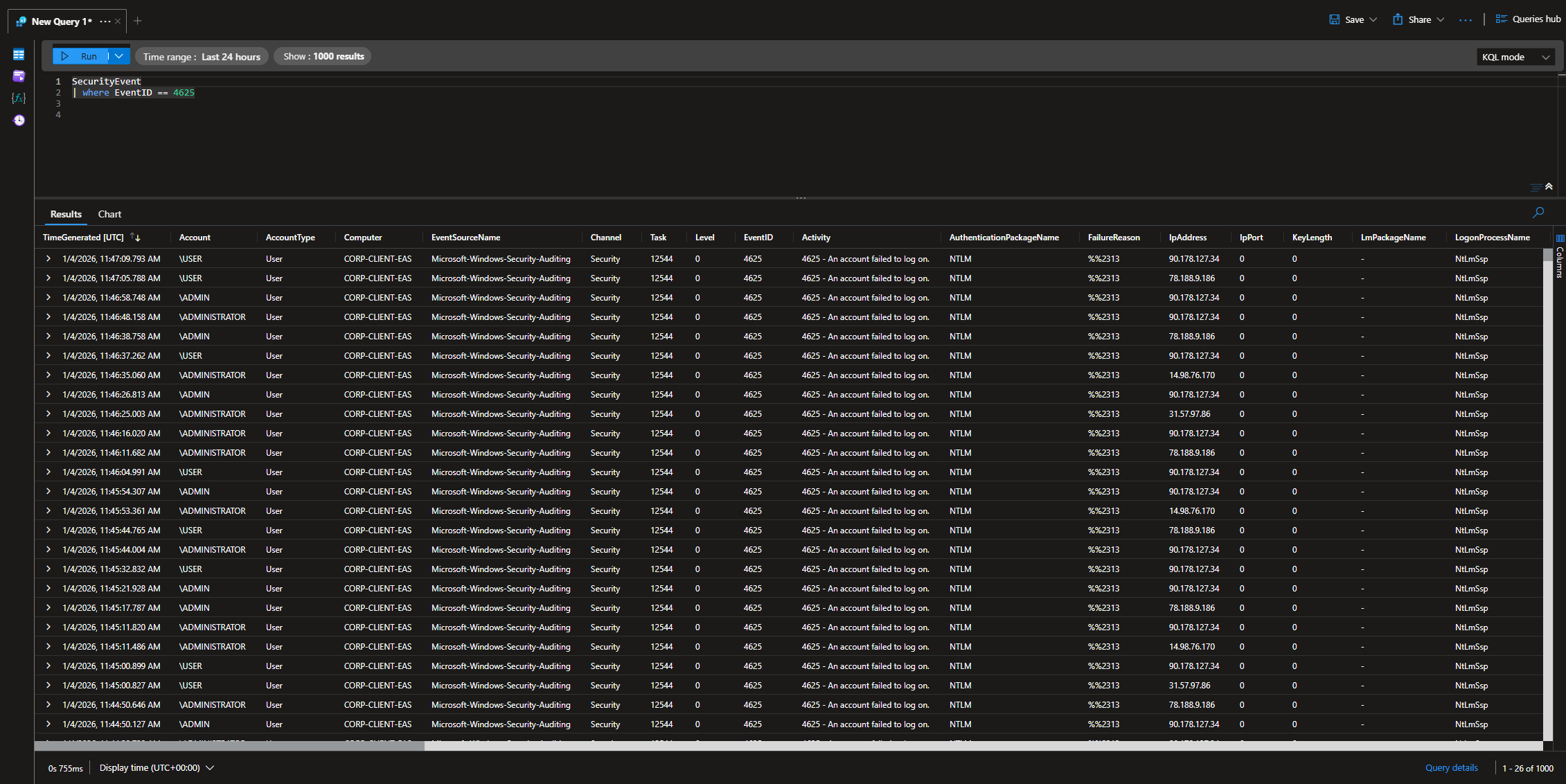
Run a test query (SecurityEvent | where EventID == 4625)
At this point, generate a failed log in attempt log like we did before to make sure things are working, then leave your VM running overnight. We should see hundreds if not thousands of failed logins overnight
I left my VM running overnight on 1/4/26, from 12am to 12pm.
I ran a query that looks for failed log in attempts (4625), and I got thousands of logs. Notice the different IP addresses.
Keep in mind the logs use UTC time. 11:47am in UTC is 6:47 AM EST, so it seems like the attacks stopped around that time.