Shuffle Workflow Setup
Creating the Shuffle workflow
Before we get started, make sure your Wazuh, TheHive, Windows and Ubuntu VMs are all running.
Creating the Workflow
On the left hand side, select Automate > Workflows > Create Workflow
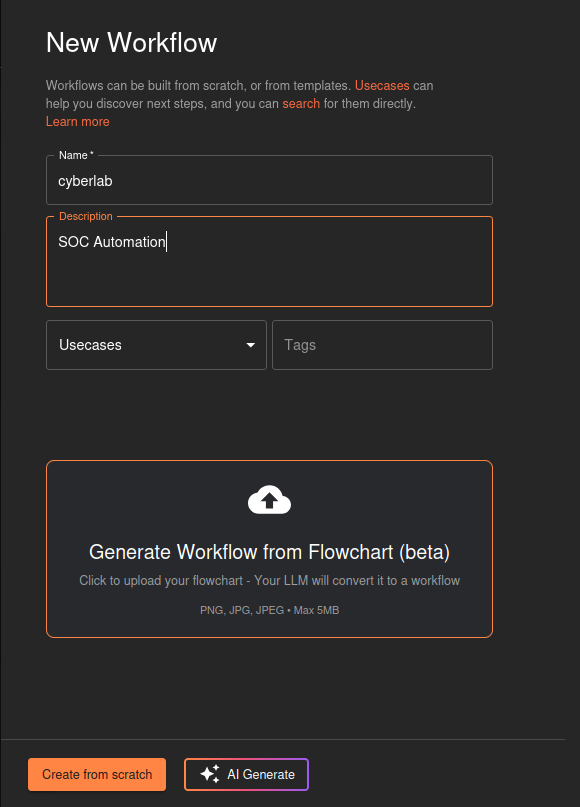
Give it a name and description then click Create from scratch
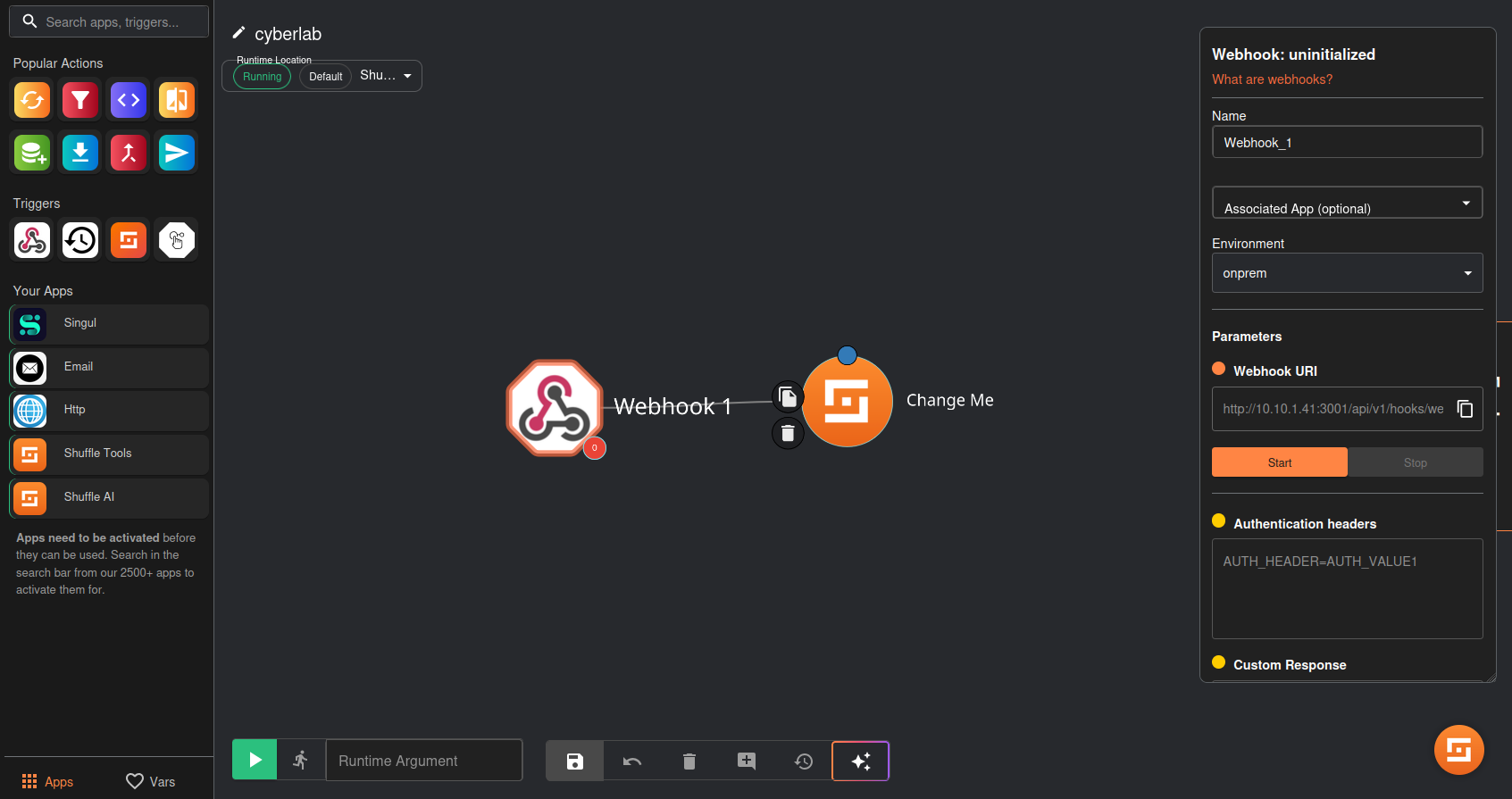
Under triggers (left hand side), drag the webhook (1st icon) onto the work area
Click on it and copy the webhook URI
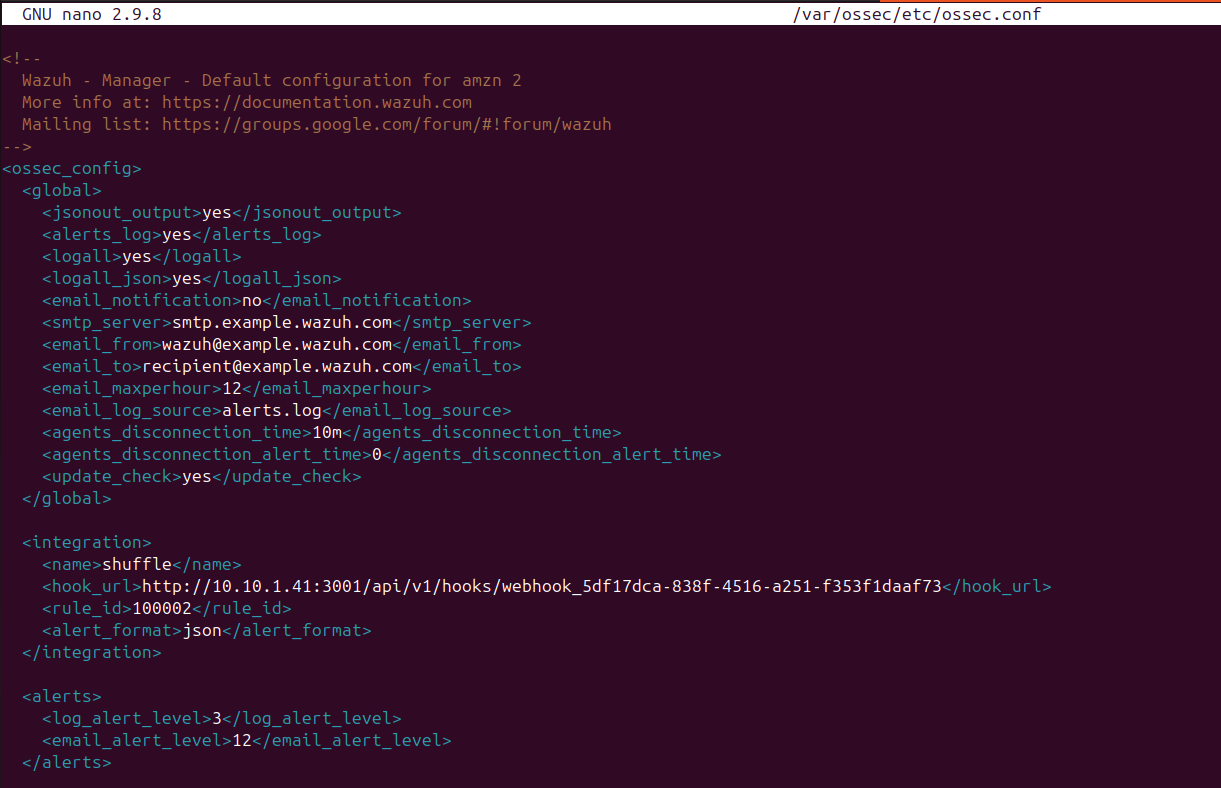
SSH into the Wazuh VM
run nano /var/ossec/etc/ossec.conf
In between the “global” and “alerts” tag, paste the following:
1
2
3
4
5
6
  <integration>
    <name>shuffle</name>
    <hook_url>http://your_webhook_uri</hook_url>
    <rule_id>100002</rule_id>
    <alert_format>json</alert_format>
  </integration>
Make sure “hook_url” includes your unique webhook URI (the one you copied from Shuffle)
Save and write changes, then run systemctl restart wazuh-manager.service to apply the changes
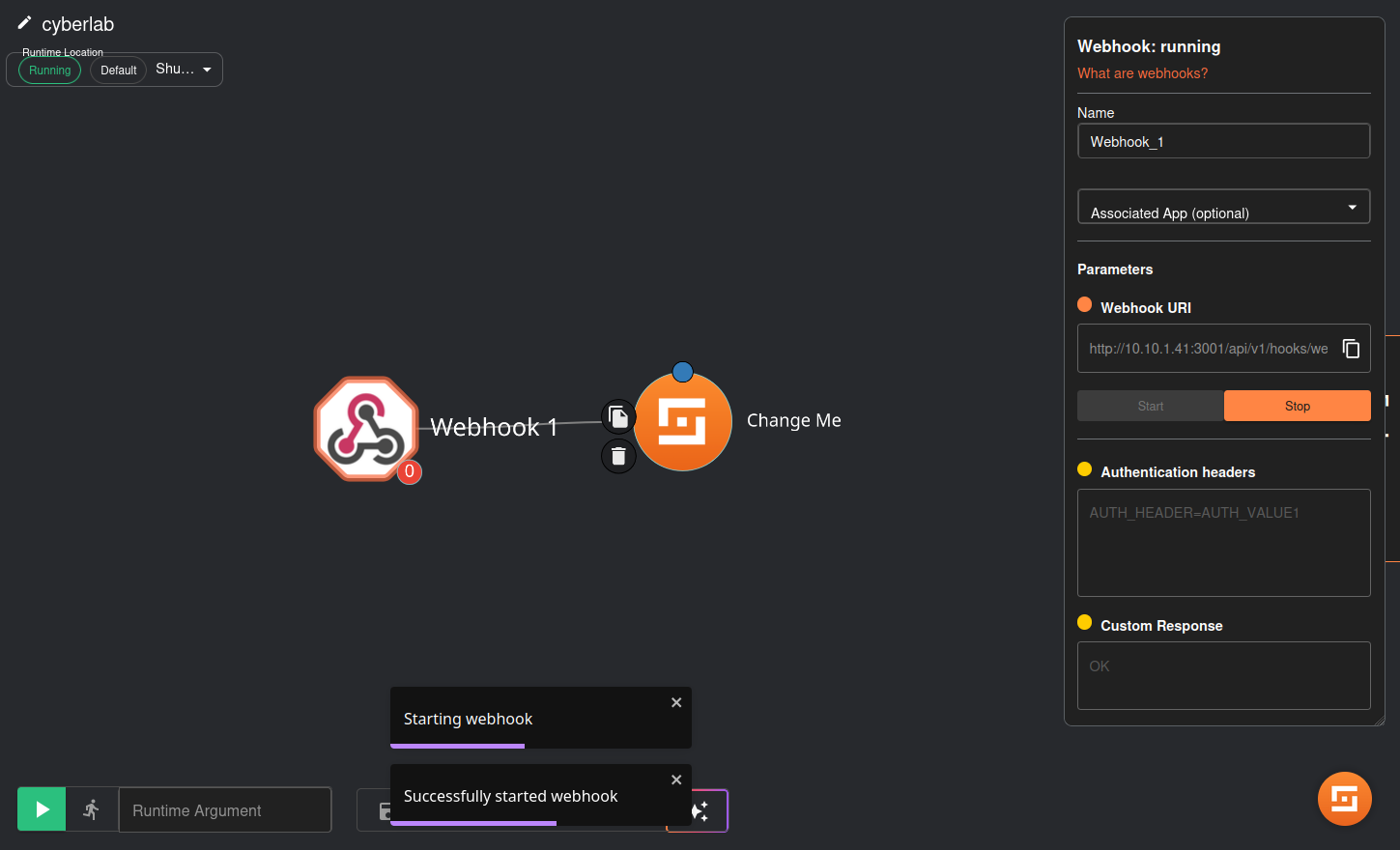
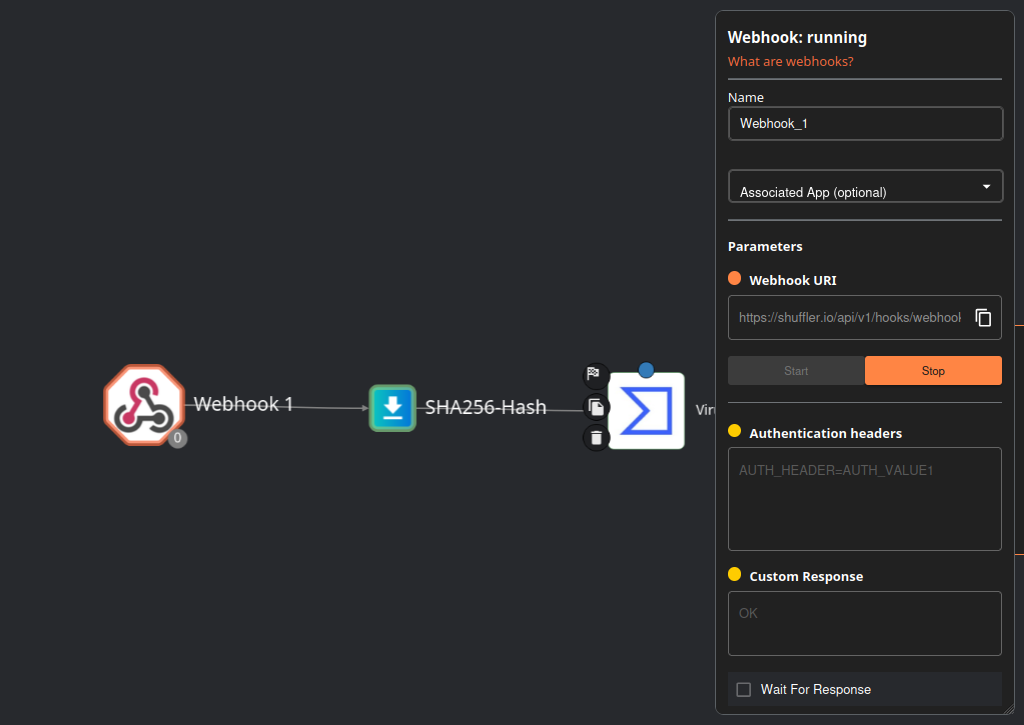
On Shuffle, click start on the webhook
On the Windows VM, trigger the alert by executing Mimikatz
My path to the Mimikatz executable is \Downloads\mimikatz_trunk\Win32
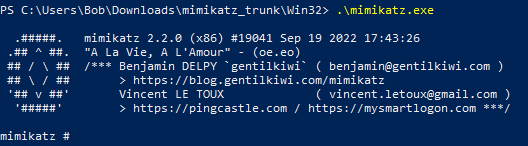
Head back to Shuffle. Click Explore all runs (right side)
Our Mimikatz alert should pop up
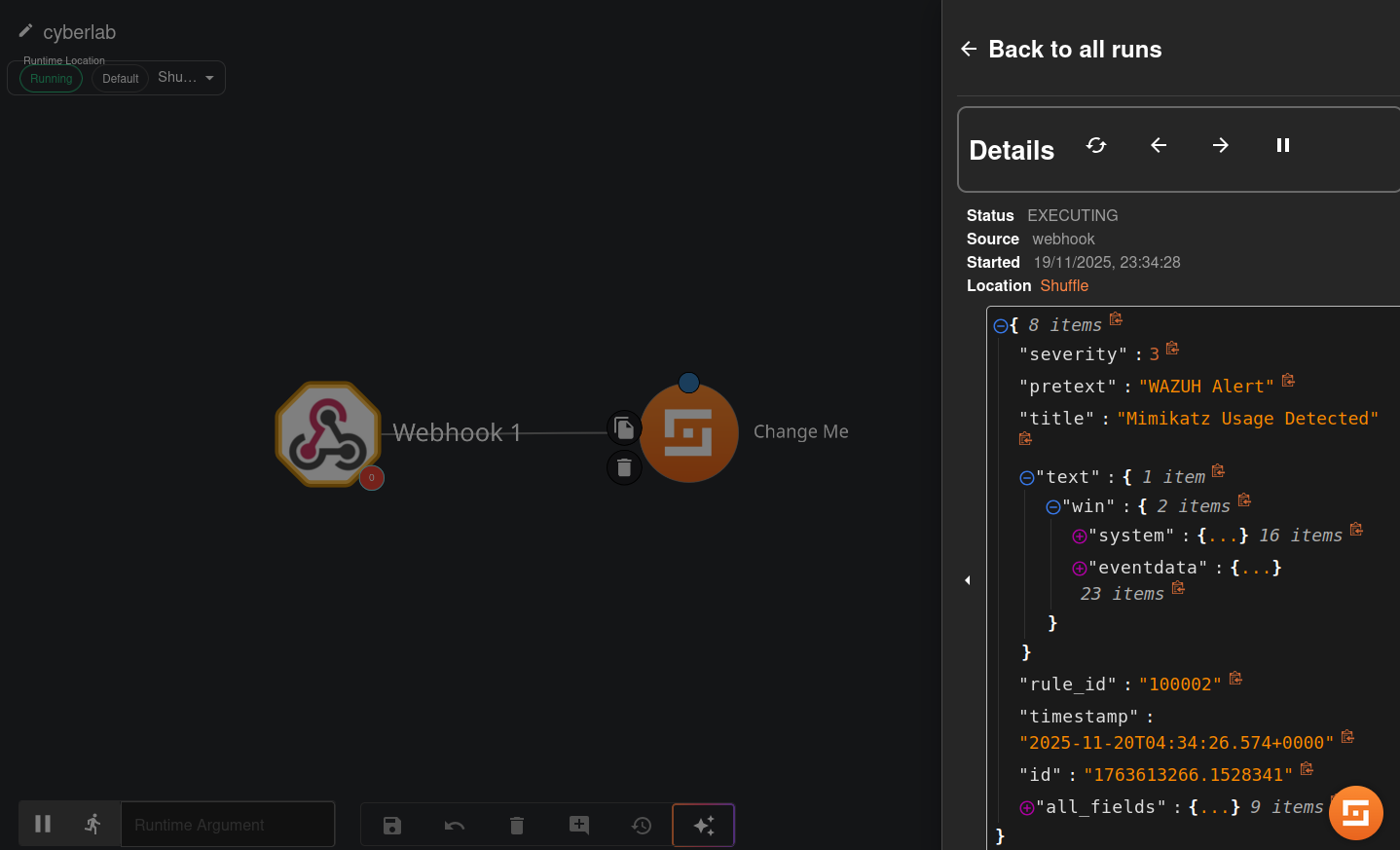
Delete the “Change me” item
Drag the “repeat back to me” item (orange box with recycle symbol) onto the work area and change “Repeat back to me” to “Regex capture group”
Under regex, enter: SHA256=([0-9A-Fa-f]{64})
This regex basically retrieves the SHA256 file hash from the Wazuh alert.
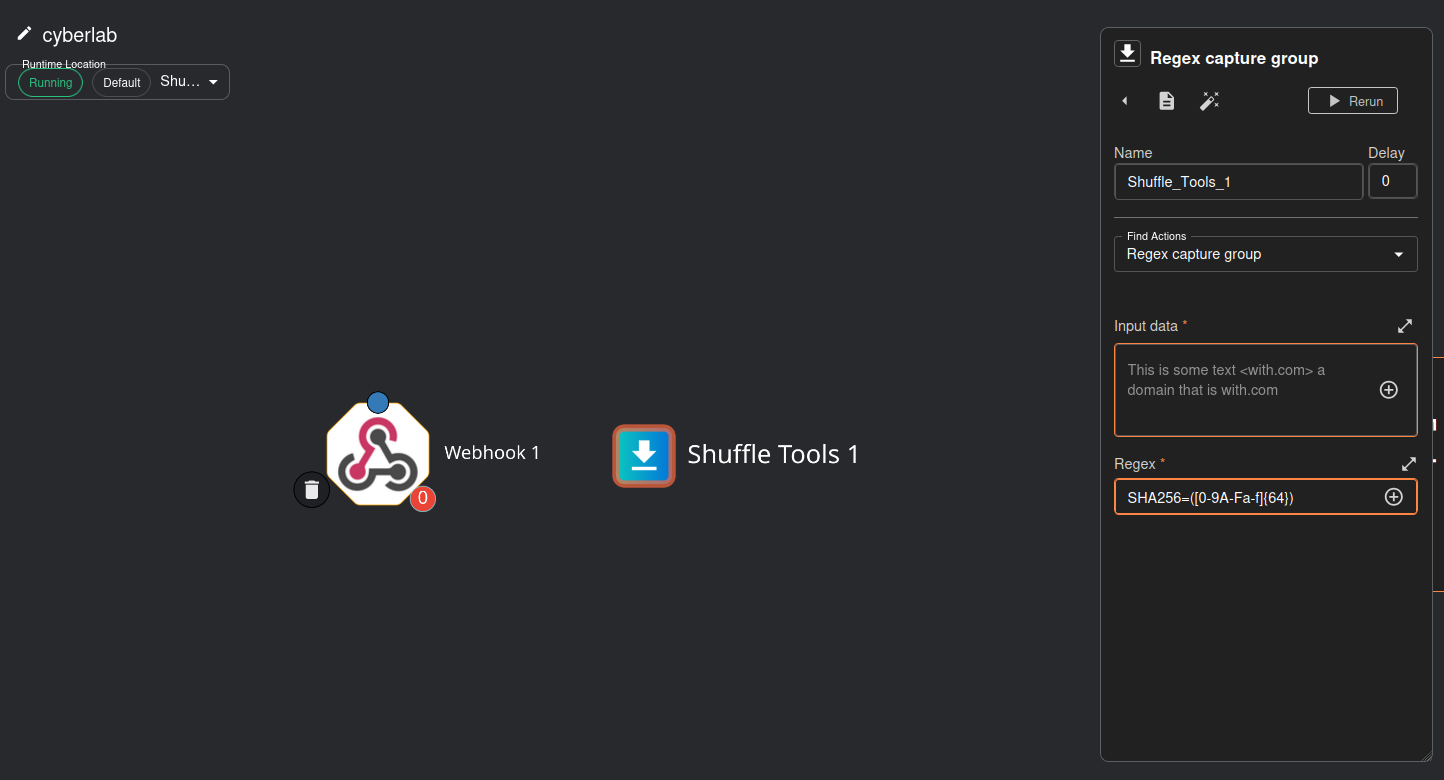
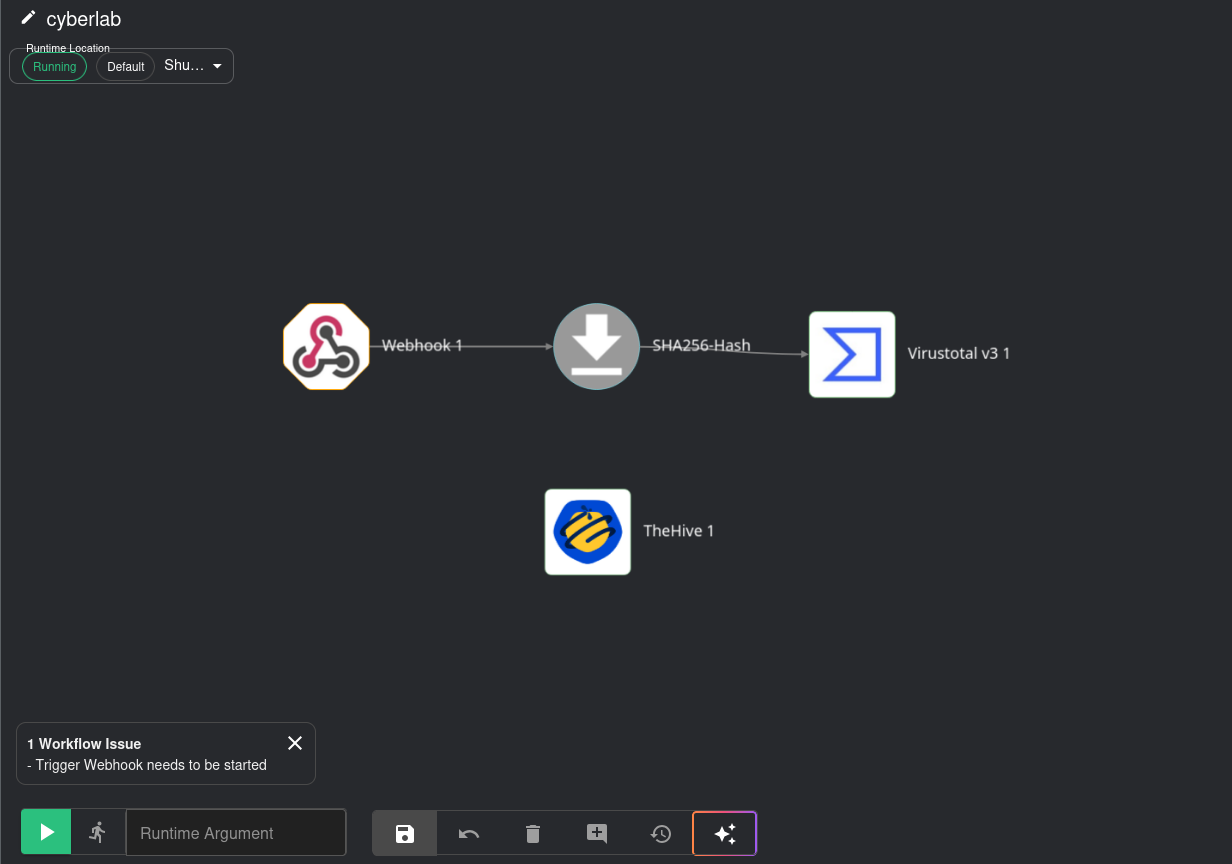
Attach the webhook to the Shuffle tool (the arrow should point to Shuffle Tools 1)
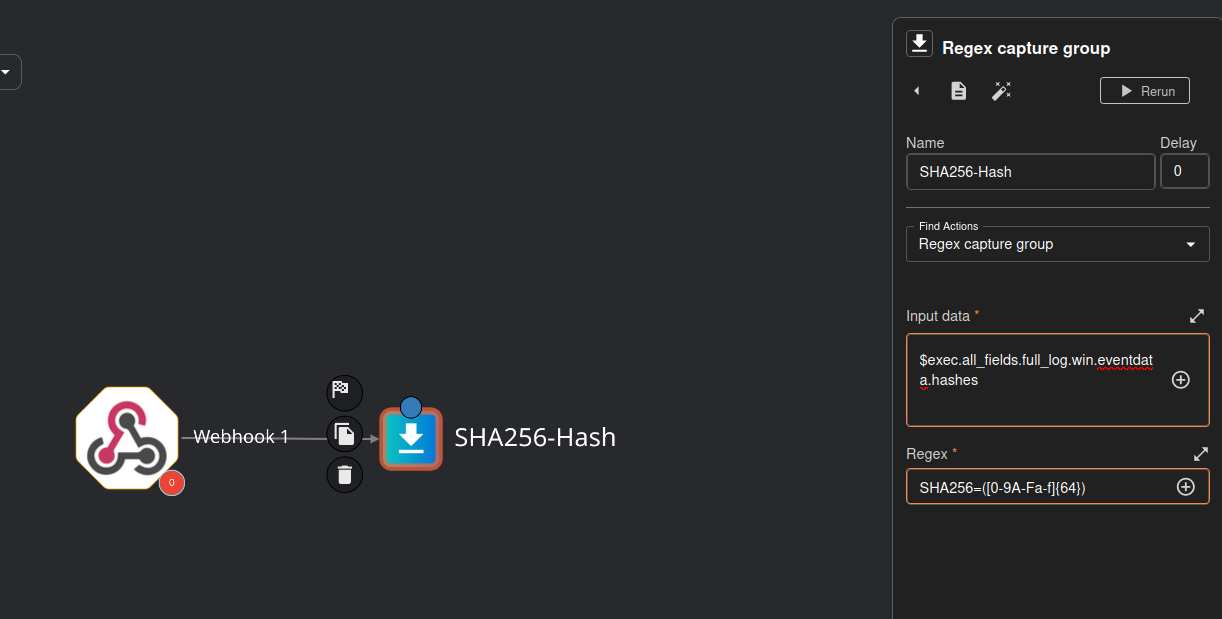
Rename Shuffle Tools 1 to SHA256-Hash
Under input data, click runtime argument > hashes
My runtime argument ended up being $exec.all_fields.full_log.win.eventdata.hashes, yours may be different
VirusTotal Integration
If you haven’t already, register for a VirusTotal account to get a free API key: https://www.virustotal.com/gui/home/upload
Log in, click on the top right > API key
Copy your API key
Look for the VirusTotal app on Shuffle and drag it onto the work area
Click on VirusTotal > Authenticate to VirusTotal
Change the label name and paste your API key
Click Submit
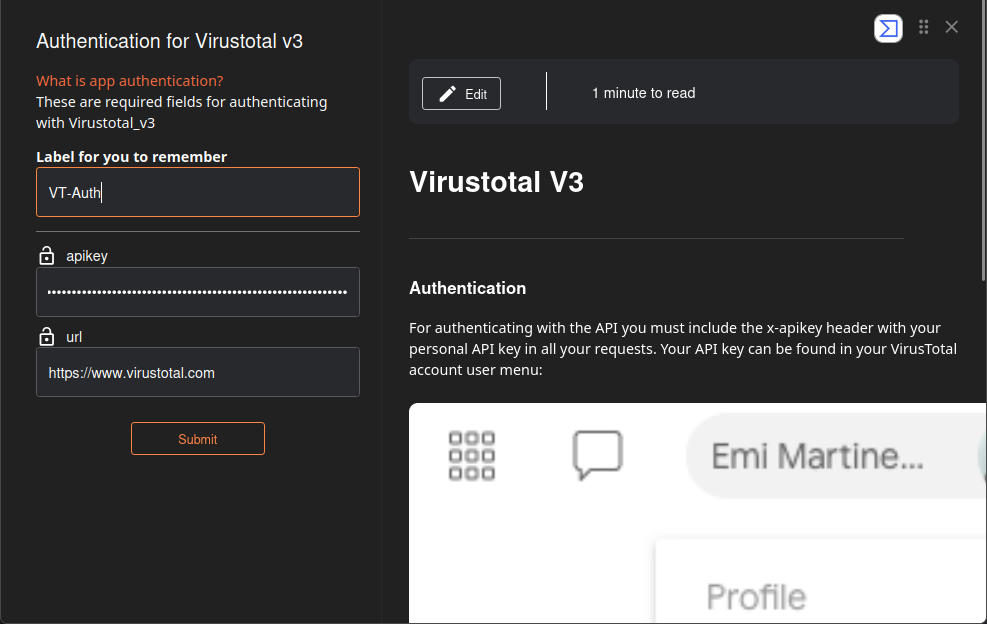
Click on VirusTotal
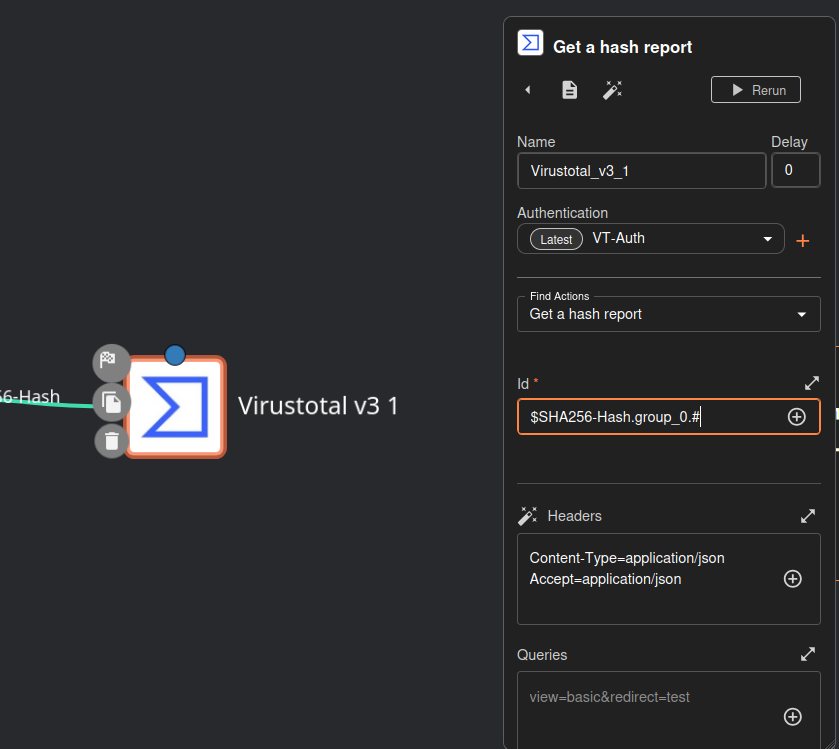
For find actions, select Get a hash report
For id, select SHA256-Hash and click list
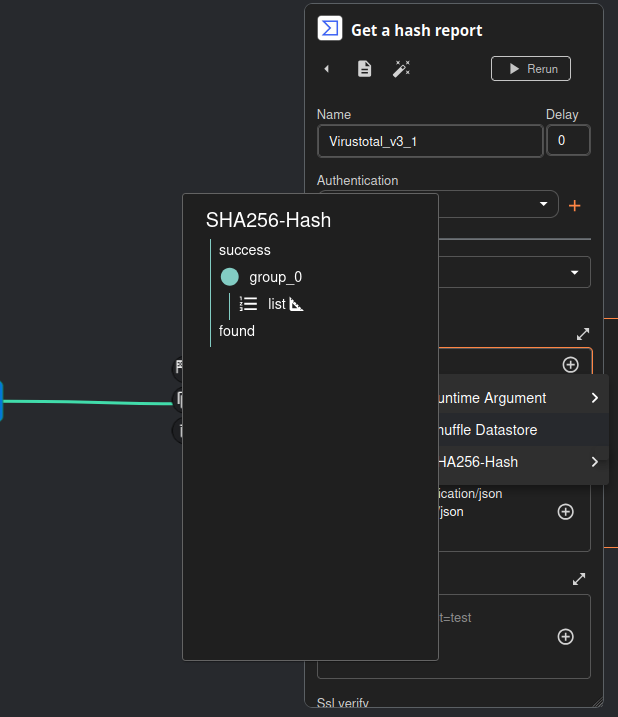
The id field should be: $SHA256-Hash.group_0.#
Make sure the webhook is still running
Head to Explore all runs > Rerun workflow
We should get an HTTP 200 code. The id field should match the hash from our Wazuh log
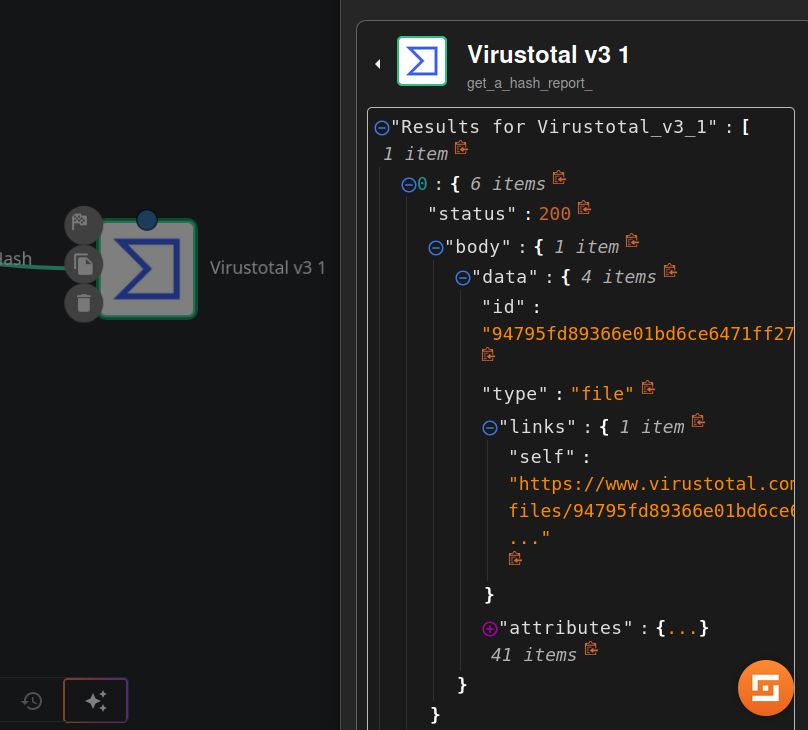
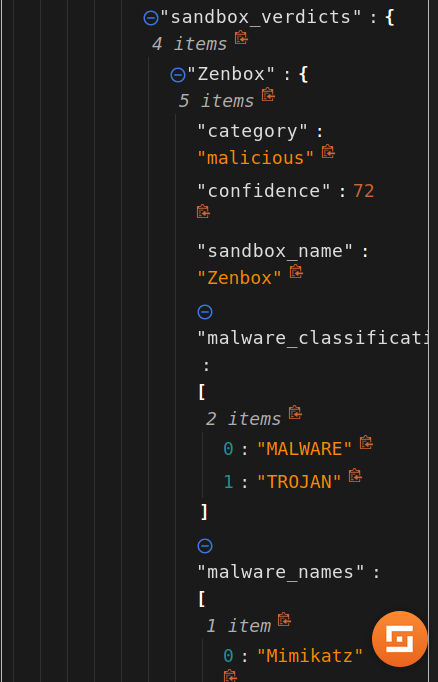
Some of the VirusTotal data
TheHive Integration
Drag TheHive onto the work area (do not attach it to anything yet)
Head to TheHive dashboard (http://10.10.1.40:9000 in my case)
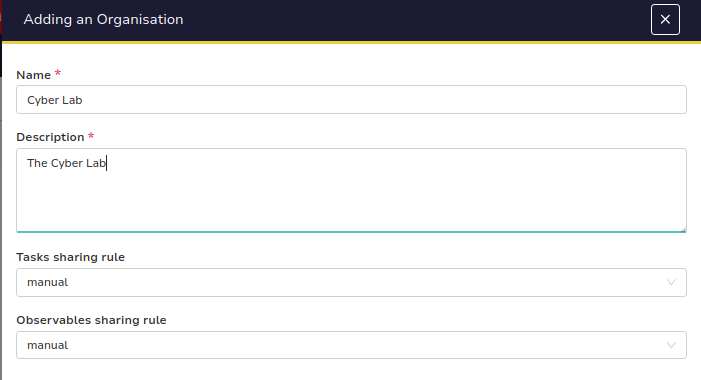
Log in and on the top left, click on Add Organization
Add a name and description and confirm (leave tasks sharing rule and observables sharing rule at default)
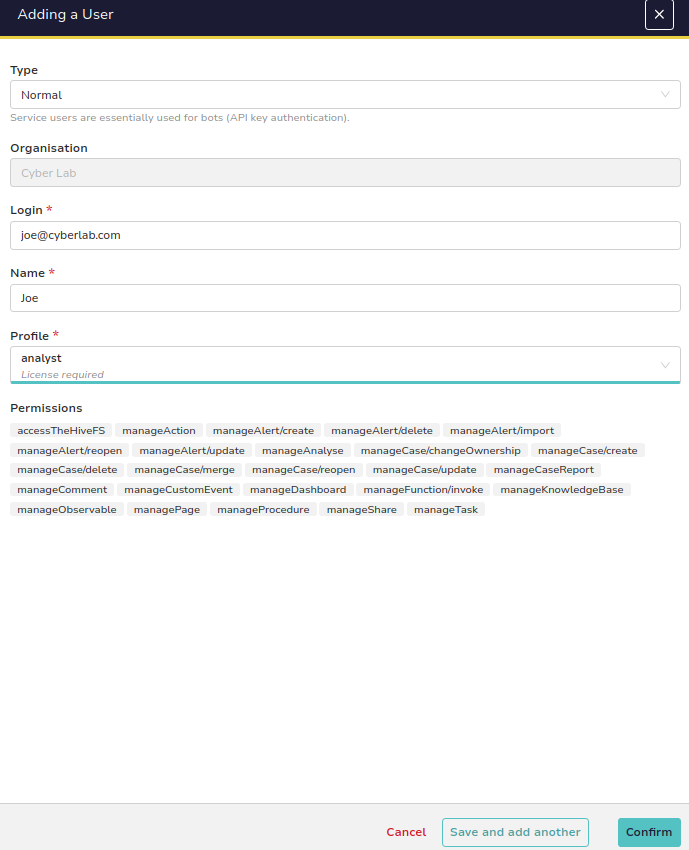
Click on the new org and add a new user (top left)
Set a login and name
Set the profile to analyst
Click Save and add another
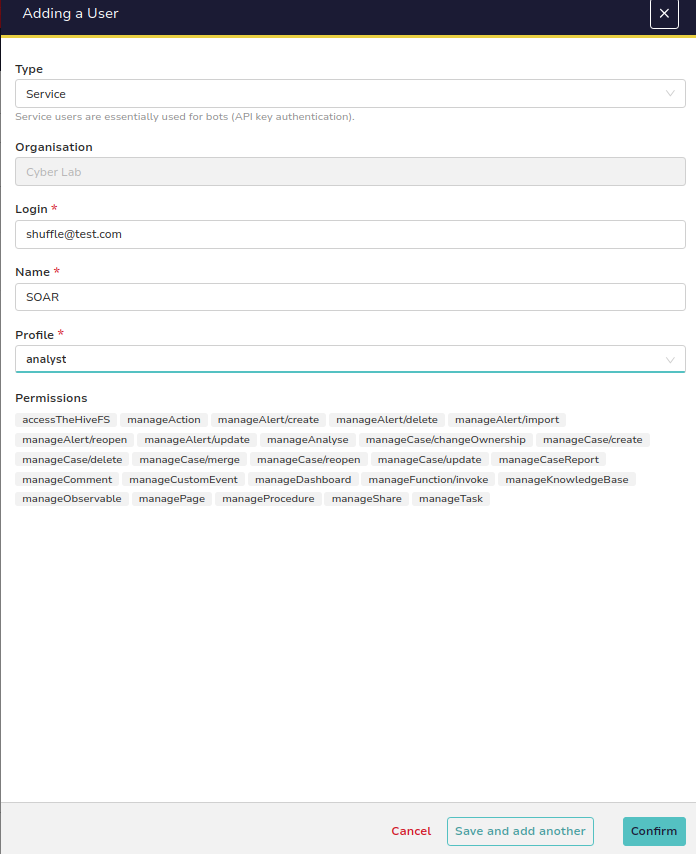
This will be a service account
I set the login to shuffle@test.com and the name to SOAR
Set the profile to analyst
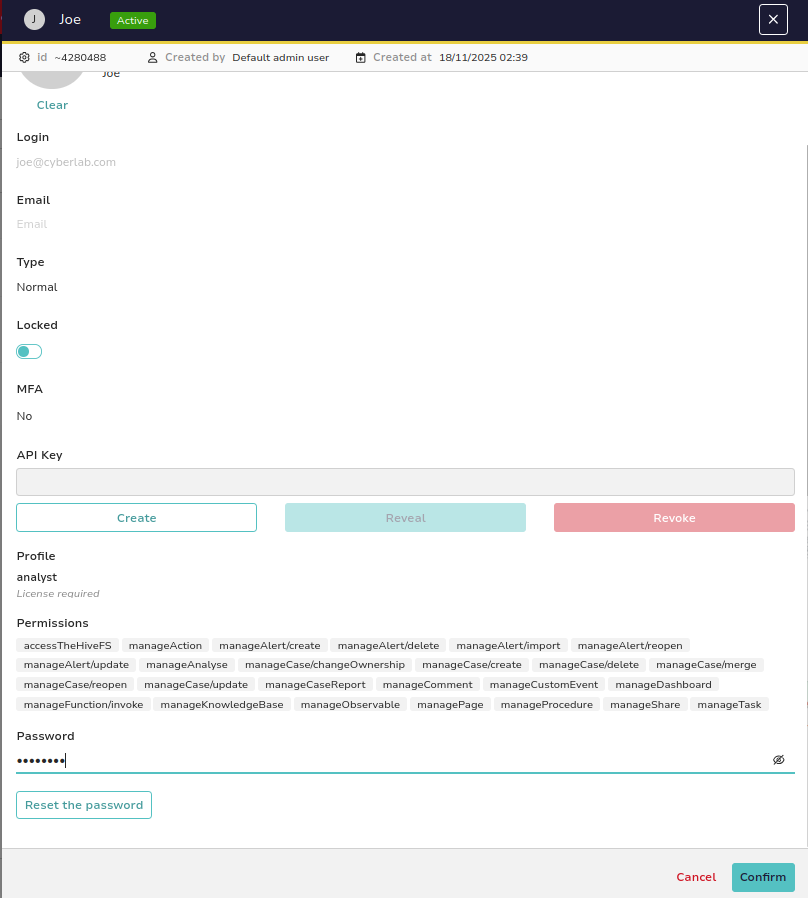
Click on the user account (eyeball icon)
My user account is joe@cyberlab.com
Give this user a password
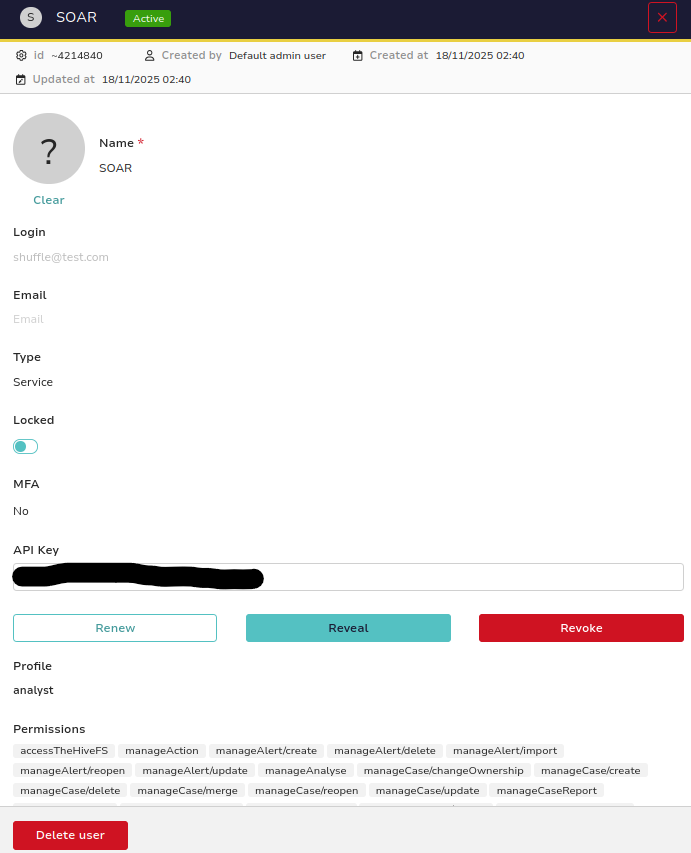
Next, click on SOAR (eyeball icon)
Create an API key for this account
Copy the key
Head back to Shuffle
Click on TheHive > Authenticate TheHive
Set a label name and paste the API key
For the URL, put in the IP of TheHive VM and set the port to 9000
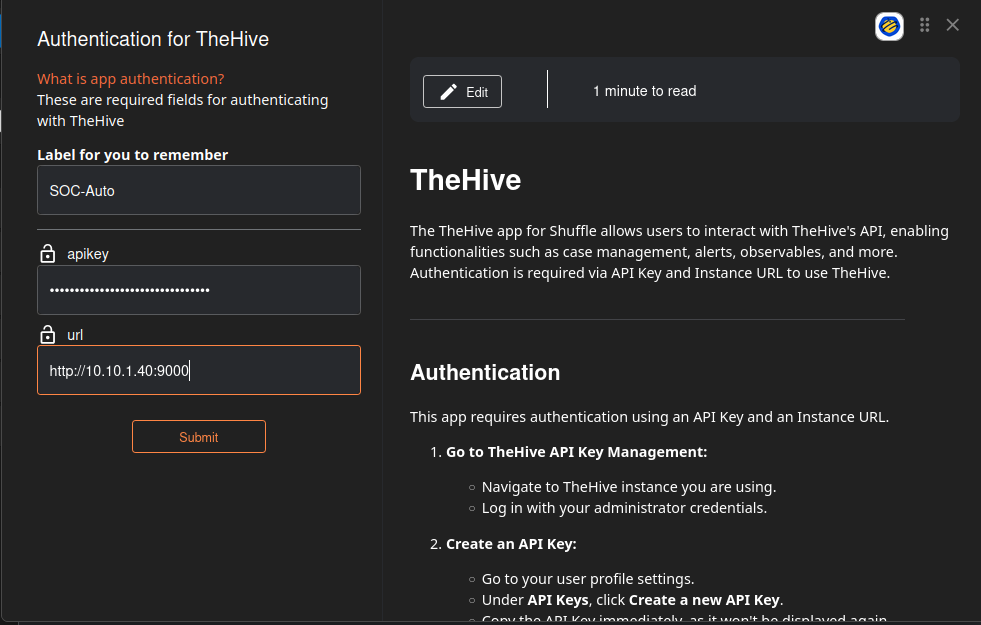
Connect the VirusTotal item to TheHive (make sure the arrow points to TheHive)
Click TheHive
For Find Actions, set it to create alert
Click on advanced
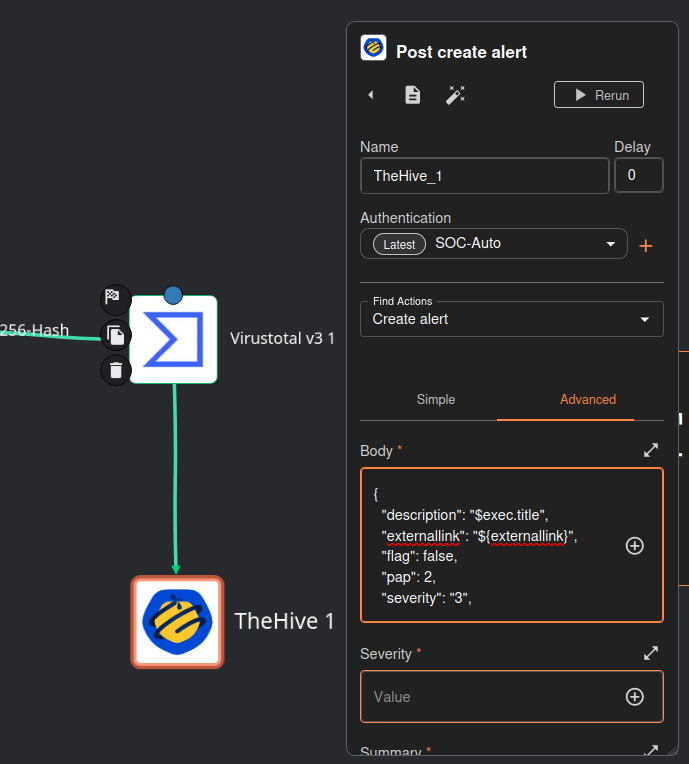
Paste this JSON for the body (your runtime arguments may be different, but these are mine)
1
2
3
4
5
6
7
8
9
10
11
12
13
14
15
{
  "description": "$exec.title",
  "externallink": "${externallink}",
  "flag": false,
  "pap": 2,
  "severity": "3",
  "source": "$exec.pretext",
  "sourceRef": "$exec.rule_id",
  "status": "New",
  "summary": "Mimikatz activity detected on host $exec.all_fields.data.win.system.computer",
  "tags": ["T1003"],
  "title": "$exec.title",
  "tlp": 2,
  "type": "Internal"
}
This will basically create a case on TheHive using information from the Wazuh log. You can customize the data to your liking and make it as descriptive as you want, but for now we just want this to be a proof of concept to make sure everything works.
Optional VirusTotal arguments to include in the case.
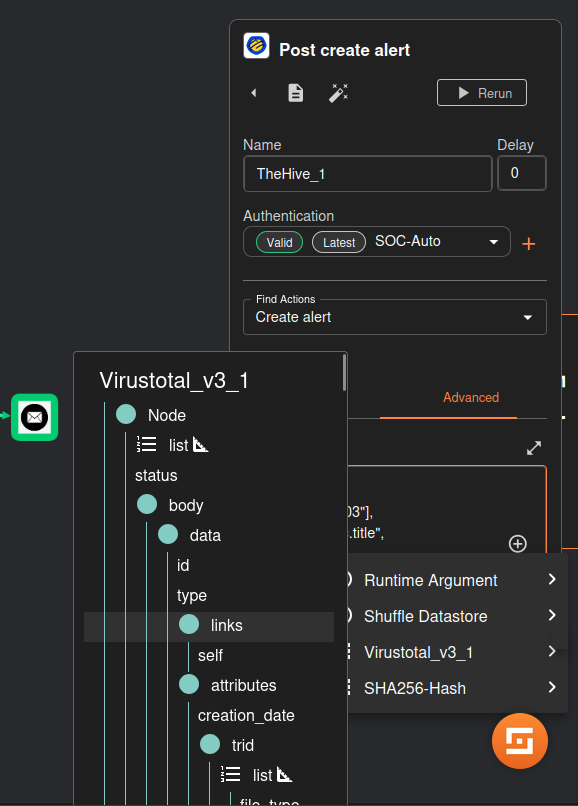
Save and rerun the workflow
We should get a an HTTP 201 Created code
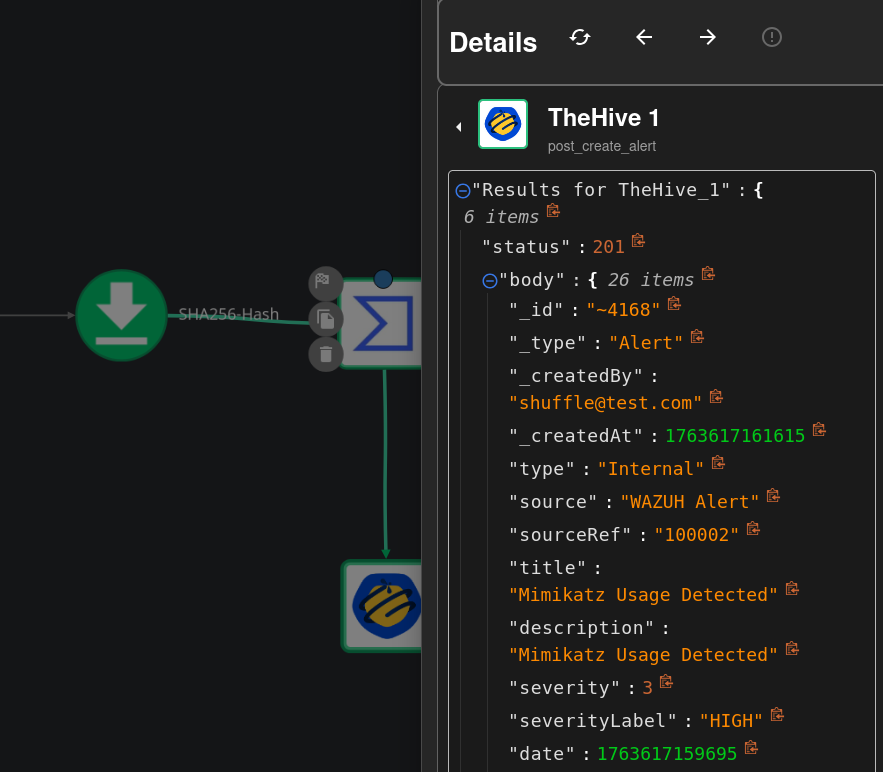
Head back to TheHive dashboard
Log in as the analyst user (joe@cyberlab.com in my case)
On the left hand side, notice the alert
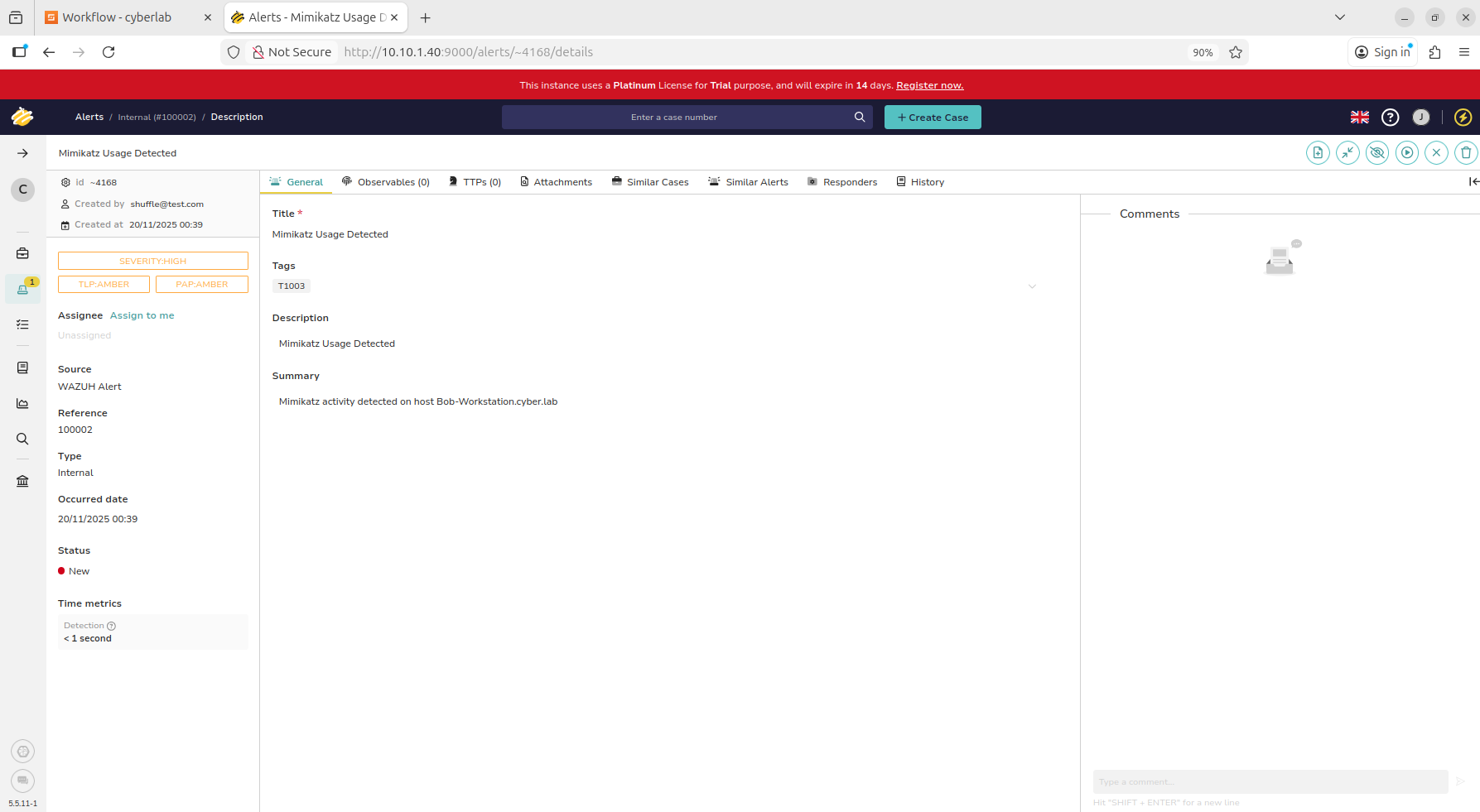
Click on the alert, and we should see the Mimikatz case created
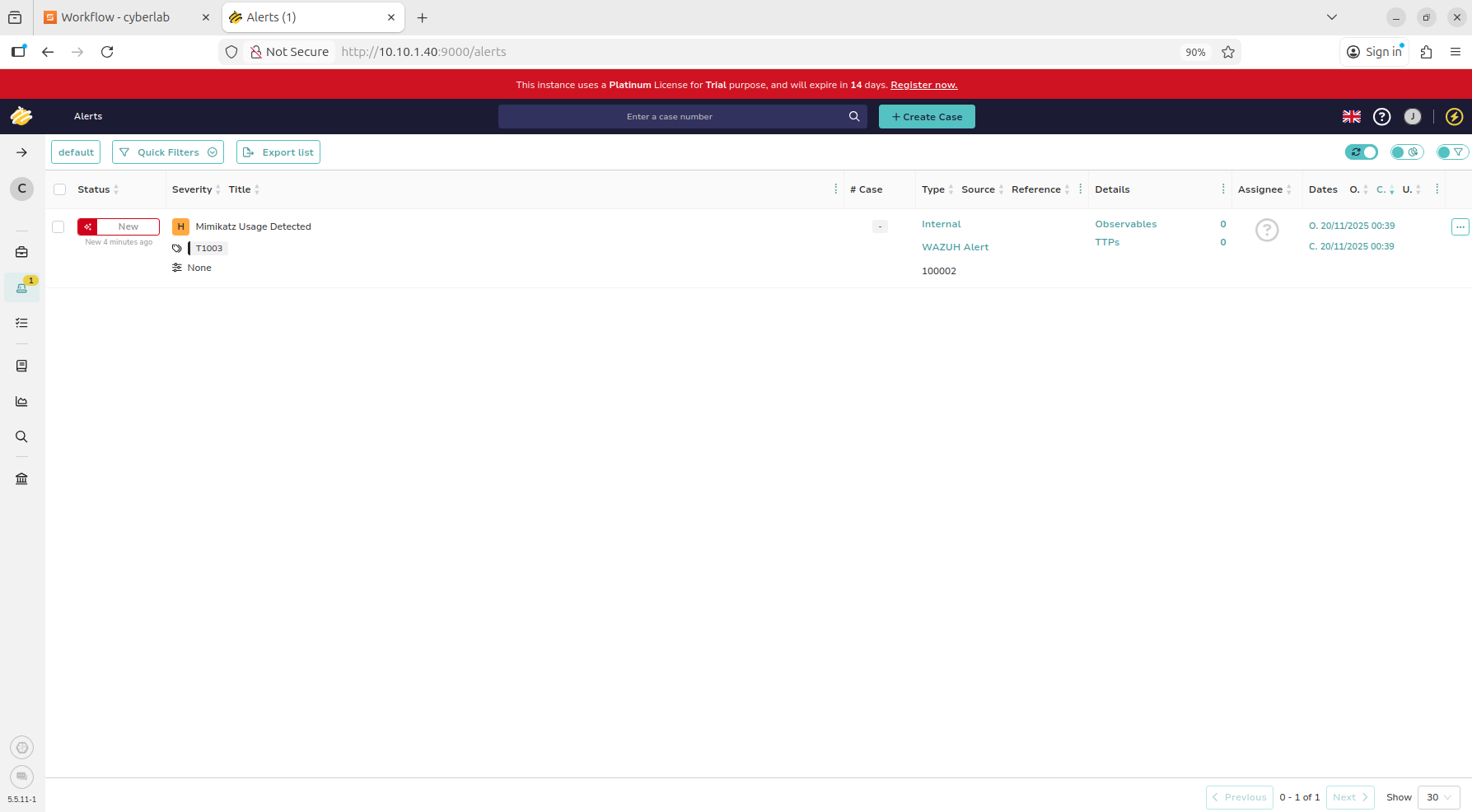
Nothing fancy, but our automated workflow is working so far
We may add extra data like the process ID, time of execution, etc.
Email Alert
Head back to Shuffle
Drag Email onto the work area
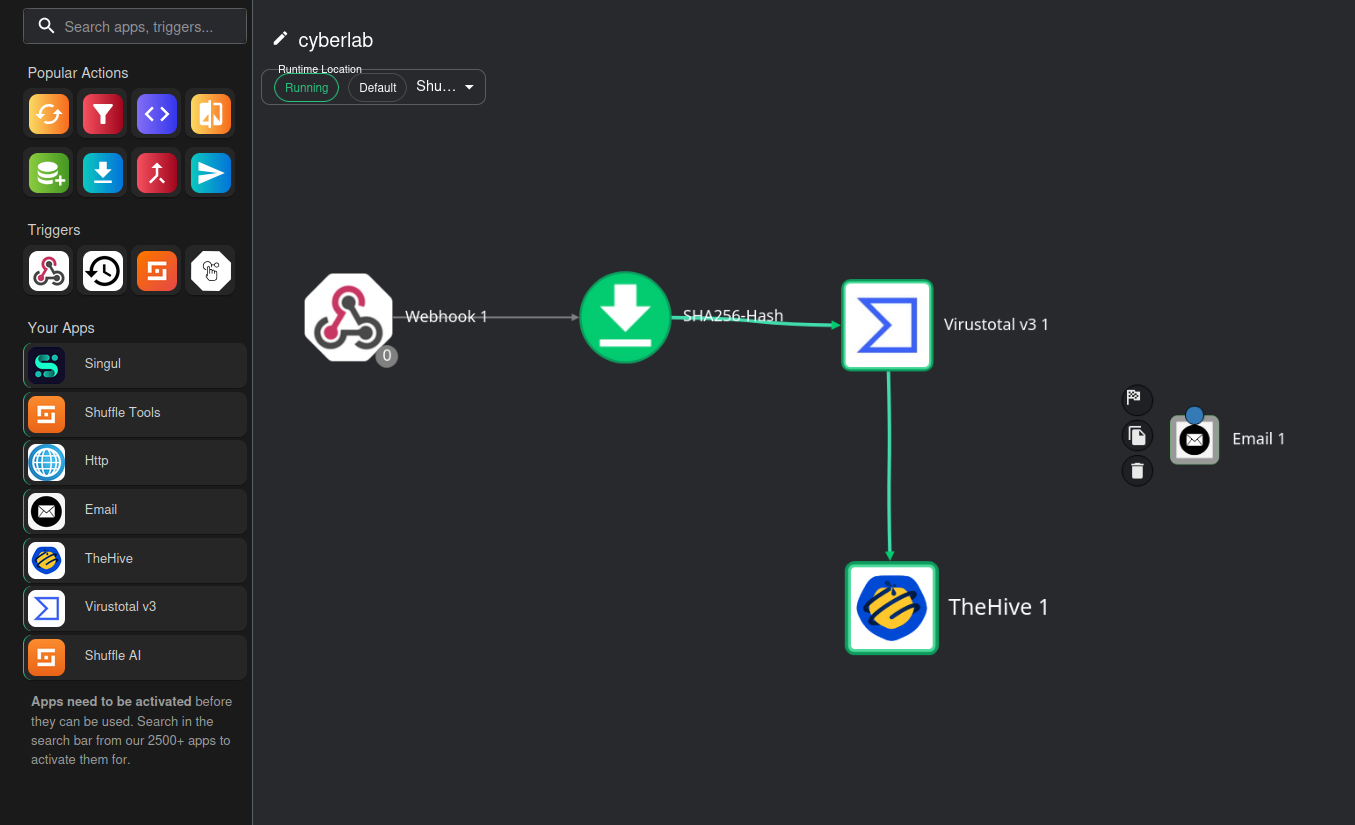
Connect VirusTotal to the Email icon
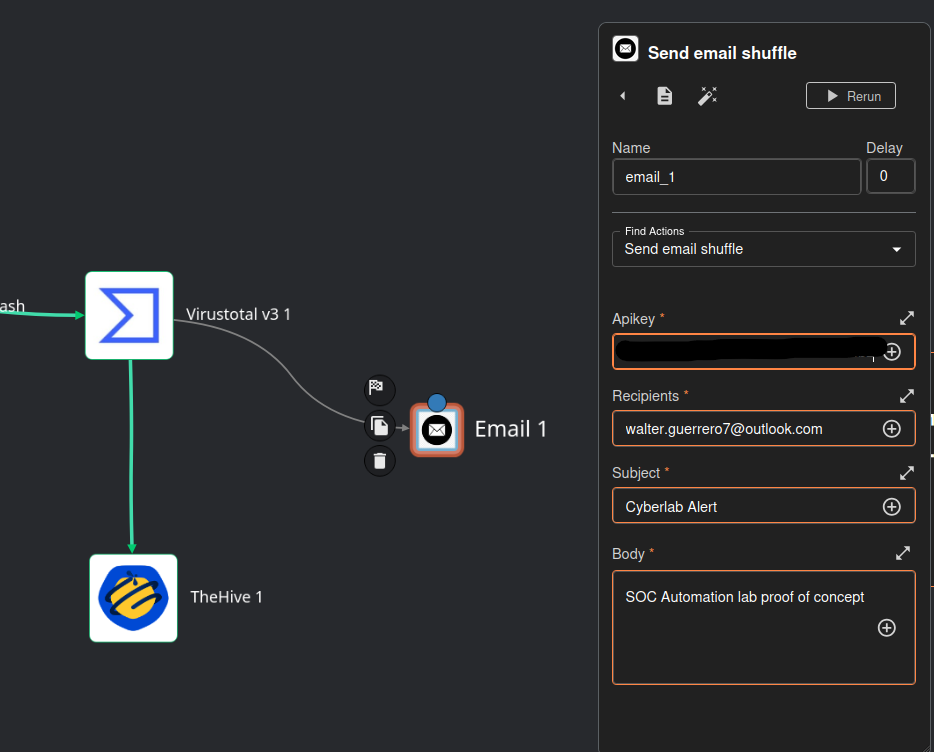
Click on Email
Leave Find Actions to Send email shuffle
Paste your Shuffle API key (free with your Shuffle account)
You will need to register for an actual Shuffle account to get your free API key - https://shuffler.io/register
Under recipients, put your own email
For the subject and body, you can set this to anything you want.
We can add runtime arguments for the body, but again, this is mainly a proof of concept so we don’t want anything too crazy yet.
Save and rerun the workflow
When it is finished executing, we should see a success message for the email
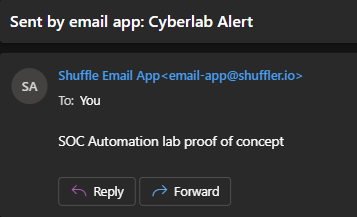
Head to your email
We should see the alert
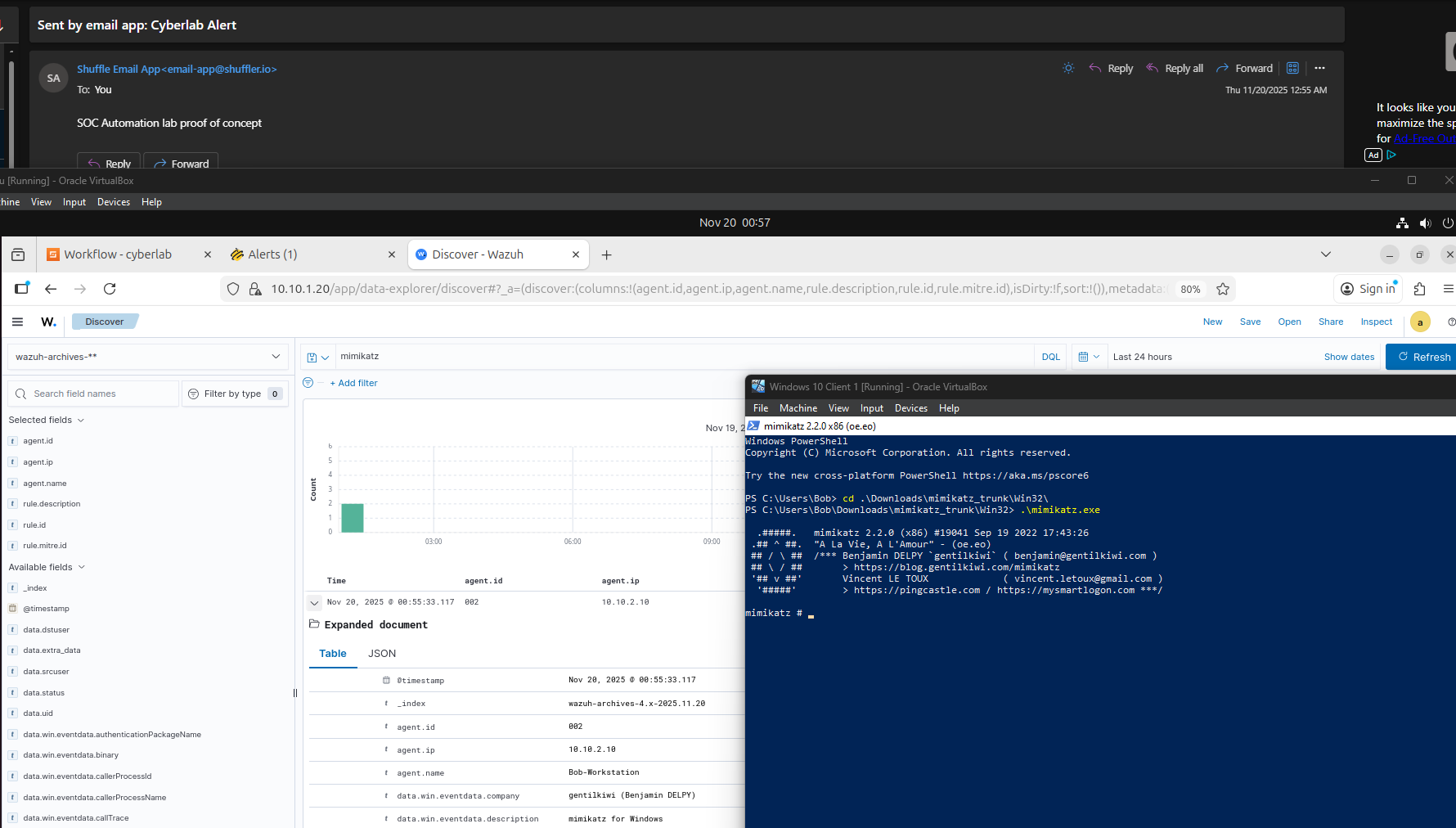
Notice the timestamps of the Wazuh log and the time when the email was sent; it is almost instantaneous.
Next, we will create a Wazuh Active Response rule to quarantine the endpoint and update our email alert.
Next: Wazuh Active Response